> For the complete documentation index, see [llms.txt](https://navixy.com/docs/llms.txt). Markdown versions of documentation pages are available by appending `.md` to page URLs; this page is available as [Markdown](https://navixy.com/docs/user/guide/account/file-manager.md).
# File Manager
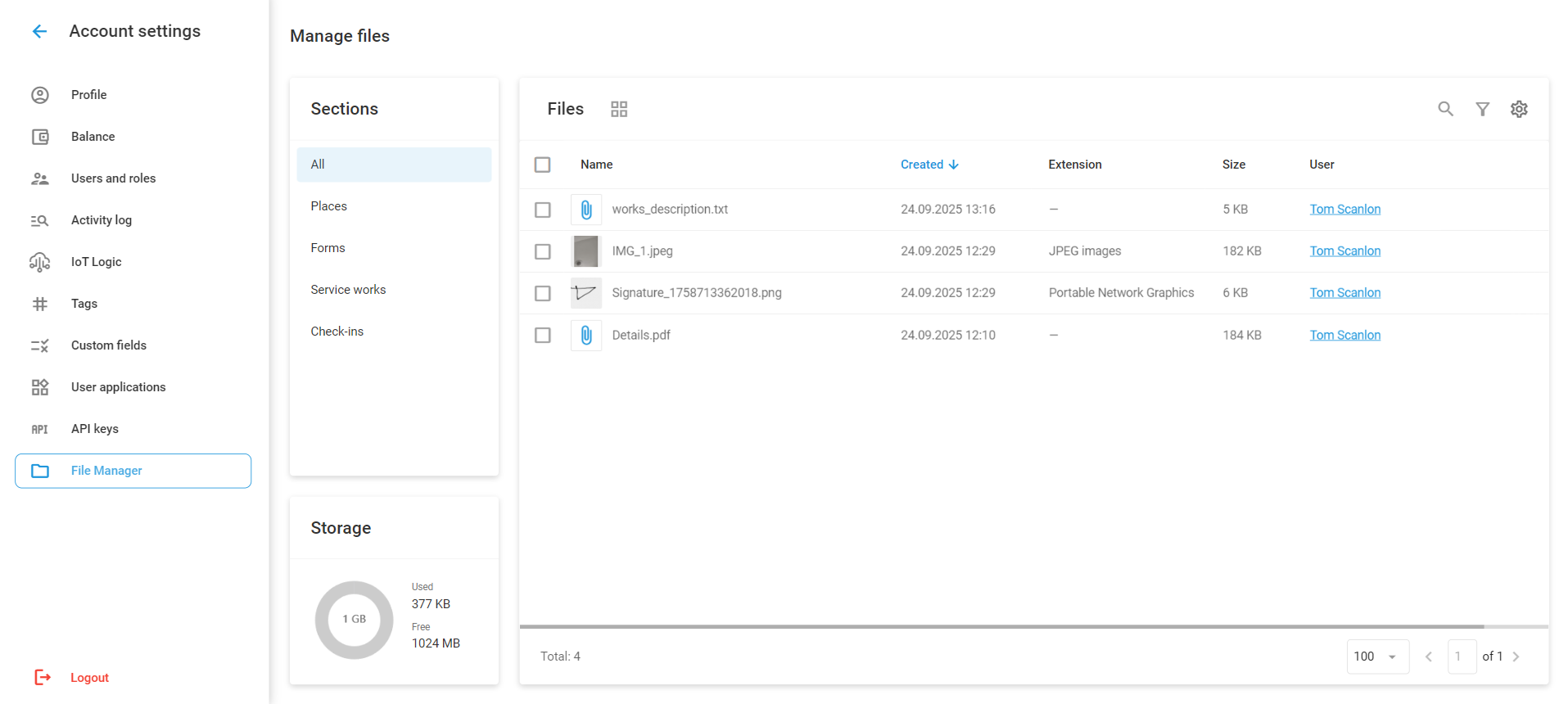
View and manage all files uploaded through Navixy and the X-GPS Tracker app. Access task attachments, check-in photos, and form submissions in one place.
**File Manager** stores, displays, and manages files uploaded by users through the Navixy platform and X-GPS Tracker mobile app. This centralized system organizes all file attachments across different features, providing a single interface for working with files.
To access File Manager, navigate to **Account settings → File Manager**.
File Manager
## Sections
Files are automatically stored when users upload attachments through these features. File Manager organizes uploaded files into four sections based on their source:
**All:** All file types, including video files from GPS devices that don't have a dedicated section.
**Places:** Files attached to [Places (POIs)](/docs/user/guide/tracking/map-tools/places-pois.md), including location photos and reference materials. To attach a file to a POI, you need to add a **File** or **Image** custom field while [creating or editing the POI](/docs/user/guide/tracking/map-tools/places-pois.md#creating-and-editing-places).
**Forms:** Attachments from [forms submitted through X-GPS Tracker](/docs/user/guide/x-gps-mobile-apps/x-gps-tracker/check-ins.md#forms-in-check-ins), such as signatures and inspection reports.
**Service works:** Files attached to [maintenance tasks](/docs/user/guide/fleet-management/maintenance.md), such as invoices, service documentation, and completion photos.
**Check-ins:** Photos uploaded during [Check-in submissions from X-GPS Tracker](/docs/user/guide/x-gps-mobile-apps/x-gps-tracker/check-ins.md). When both a photo and a Form are attached during a Check-in, files directly attached to the Check-in appear in this section, while Form-related files are categorized under Forms.
{% hint style="info" %}
Not all feature usage requires file uploads. For example, you can create a service work without attaching any files. In that case, no files are added to File Manager.
{% endhint %}
## File management and operations
File Manager includes standard search and filtering capabilities, column sorting and customization options, and a grid/list view toggle for organizing your stored files. Advanced filtering allows searching by name, date range, file format, size, and uploader.
The list view automatically displays all file details, including creation date, size, file type, and the uploading user. In the grid view, this information is available upon clicking the ⓘ button. This mode also lets you select multiple files without additional clicks.
Pagination controls at the bottom of the interface show the total file count and allow you to customize the number of files displayed per page.
Files can be downloaded individually or selected for bulk download in a ZIP archive. When downloading files that exceed 1 GB, File Manager automatically creates multiple archives to accommodate all selected content.
Files can also be deleted individually or in bulk.
{% hint style="danger" %}
Deleted files can't be recovered.
{% endhint %}
## Storage management
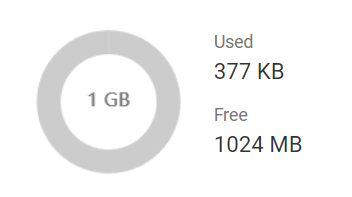
All new users automatically receive 1 GB of storage space, with additional storage available through subscription plans.
{% columns %}
{% column width="66.66666666666666%" %}
A storage usage diagram in the lower-left corner of the screen displays current space usage. Files remain stored and accessible for 5 years after the end of the subscription or until deleted (automatically or manually), providing long-term access to important documentation and supporting materials across all platform operations.
{% endcolumn %}
{% column width="33.33333333333334%" valign="middle" %}
Storage diagram
{% endcolumn %}
{% endcolumns %}
**Automatic deletion:** Enable this option to automatically delete files when the storage limit is reached. This option deletes the oldest files first to maintain storage within limits while preserving the most recent uploads. Configure this setting in [Account settings → Profile](/docs/user/guide/account/profile.md).

---
# Agent Instructions
This documentation is published with GitBook. GitBook is the documentation platform designed so that both humans and AI agents can read, navigate, and reason over technical content effectively. Learn more at gitbook.com.
## Querying This Documentation
If you need additional information that is not directly available in this page, you can query the documentation dynamically by asking a question.
Perform an HTTP GET request on the current page URL with the `ask` query parameter, and the optional `goal` query parameter:
```
GET https://navixy.com/docs/user/guide/account/file-manager.md?ask=&goal=
```
`ask` is the immediate question: it should be specific, self-contained, and written in natural language.
`goal` is optional and describes the broader end goal you are ultimately trying to accomplish on behalf of the user. GitBook uses it to tailor the answer towards what is most useful for that goal.
The response will contain a direct answer to the question and relevant excerpts and sources from the documentation.
Use this mechanism when the answer is not explicitly present in the current page, you need clarification or additional context, or you want to retrieve related documentation sections.