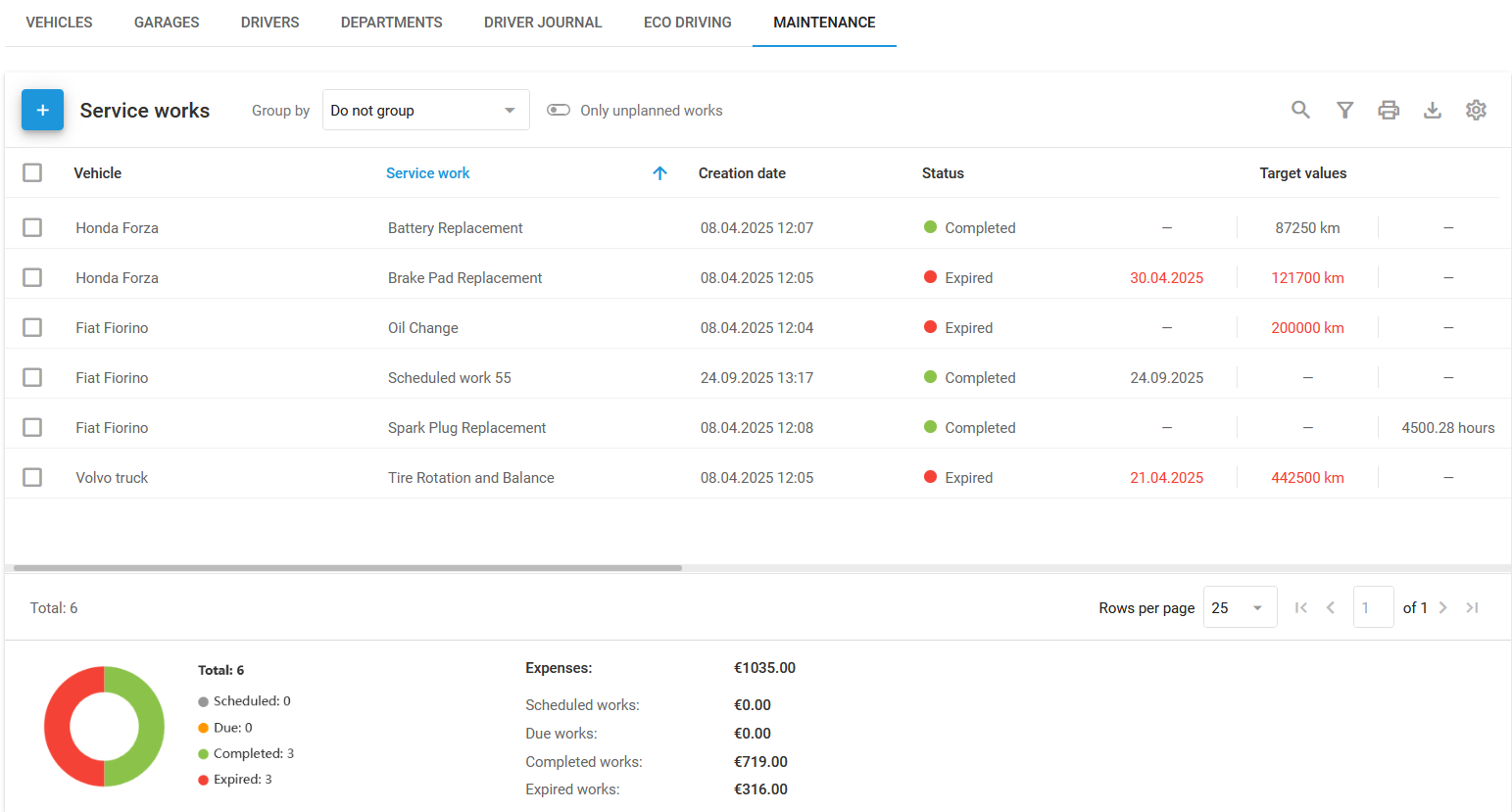
Service works list
Service works list
 in the top left corner, select the vehicle you want to service, and enter a **Name** for the work.
{% endstep %}
{% step %}
### Set the service interval
Under **Service interval**, select one or more target values:
* **By date:** Set a date for the service and get reminders before the due date.
* **By mileage:** Enter the mileage at which the service is due, and set a reminder.
* **By engine hours:** Specify engine hours for the service and get notified in advance.
{% endstep %}
{% step %}
### Add details
Optionally, add a **Description** and **Cost**. Set up notifications via push, SMS, or email, and attach files such as invoices if needed.
{% endstep %}
{% step %}
### Save the service work
Click **Create**. The Navixy platform sends notifications based on your settings.
{% endstep %}
{% endstepper %}
## How to manage service works
After creating service works, you can edit, delete, copy, or export them. You can also change a task's status to **Complete** by clicking **Execute** (not displayed for already completed tasks).
### How to edit a task
Find the task in the **Maintenance** section and update the details as needed.
### How to delete a task
If a task is no longer needed, delete it from the **Maintenance** section. Deleted tasks can't be recovered.
### How to copy a task
To assign similar tasks to other vehicles, click
in the top left corner, select the vehicle you want to service, and enter a **Name** for the work.
{% endstep %}
{% step %}
### Set the service interval
Under **Service interval**, select one or more target values:
* **By date:** Set a date for the service and get reminders before the due date.
* **By mileage:** Enter the mileage at which the service is due, and set a reminder.
* **By engine hours:** Specify engine hours for the service and get notified in advance.
{% endstep %}
{% step %}
### Add details
Optionally, add a **Description** and **Cost**. Set up notifications via push, SMS, or email, and attach files such as invoices if needed.
{% endstep %}
{% step %}
### Save the service work
Click **Create**. The Navixy platform sends notifications based on your settings.
{% endstep %}
{% endstepper %}
## How to manage service works
After creating service works, you can edit, delete, copy, or export them. You can also change a task's status to **Complete** by clicking **Execute** (not displayed for already completed tasks).
### How to edit a task
Find the task in the **Maintenance** section and update the details as needed.
### How to delete a task
If a task is no longer needed, delete it from the **Maintenance** section. Deleted tasks can't be recovered.
### How to copy a task
To assign similar tasks to other vehicles, click  on the toolbar and adjust the parameters as needed.
### How to export service works
Click
on the toolbar and adjust the parameters as needed.
### How to export service works
Click  in the top right corner of the list to download all service works as a table in either PDF or XLSX format. The table is customizable and can contain any of the columns checked in **Column settings**:
* **Vehicle**
* **Service** **work**
* **Status**
* **Target values**
* **Remaining mileage**
* **Remaining hours**
* **Remaining days**
* **Cost**
* **Completed**
* **Files**
* **Description**
## How to set up repeatable service works
**Autorepeat** creates new service works automatically at the intervals you set, so you don't add them manually. Turn it on for maintenance that recurs on a fixed schedule, such as a periodic oil change.
in the top right corner of the list to download all service works as a table in either PDF or XLSX format. The table is customizable and can contain any of the columns checked in **Column settings**:
* **Vehicle**
* **Service** **work**
* **Status**
* **Target values**
* **Remaining mileage**
* **Remaining hours**
* **Remaining days**
* **Cost**
* **Completed**
* **Files**
* **Description**
## How to set up repeatable service works
**Autorepeat** creates new service works automatically at the intervals you set, so you don't add them manually. Turn it on for maintenance that recurs on a fixed schedule, such as a periodic oil change.
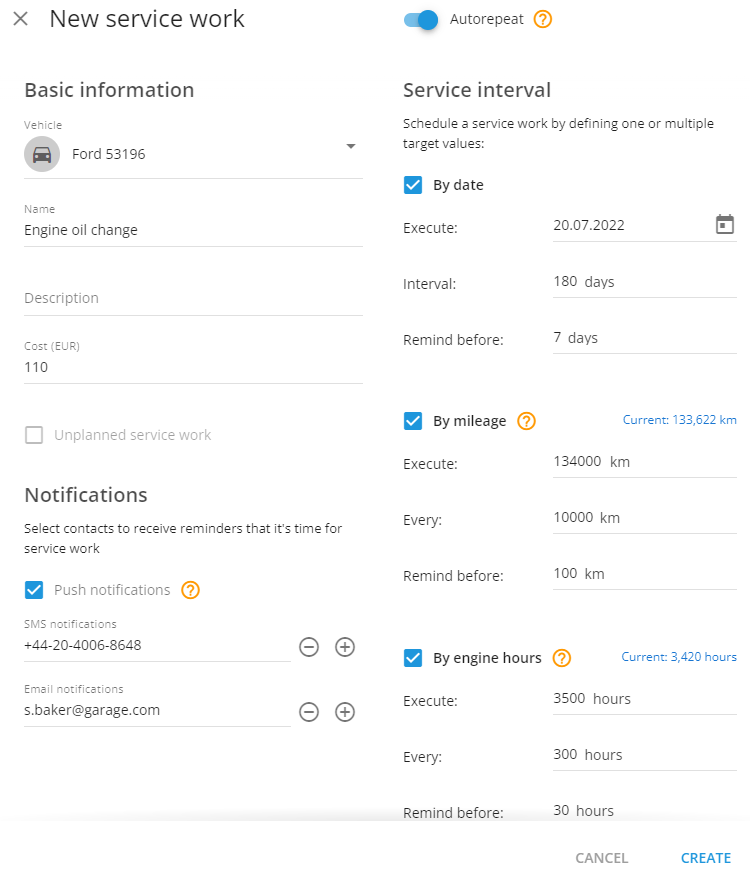
Creating a repeatable service work
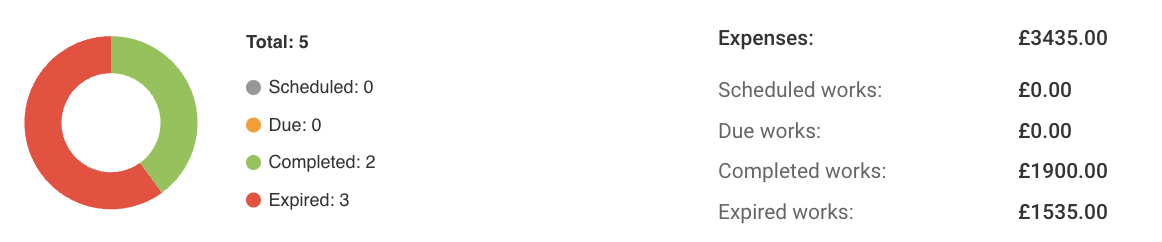
Status summary panel