> For the complete documentation index, see [llms.txt](https://navixy.com/docs/llms.txt). Markdown versions of documentation pages are available by appending `.md` to page URLs; this page is available as [Markdown](https://navixy.com/docs/user/guide/reports.md).
# Reports
Create and schedule fleet reports in Navixy. Select from standard report types, configure date ranges and object filters, and export to XLSX or PDF.
Navixy offers a powerful reporting feature that allows you to generate detailed reports on various aspects of your fleet's operations. This guide walks you through the steps of creating, scheduling, and managing reports using the Navixy platform, ensuring you can easily access and analyze the data you need.
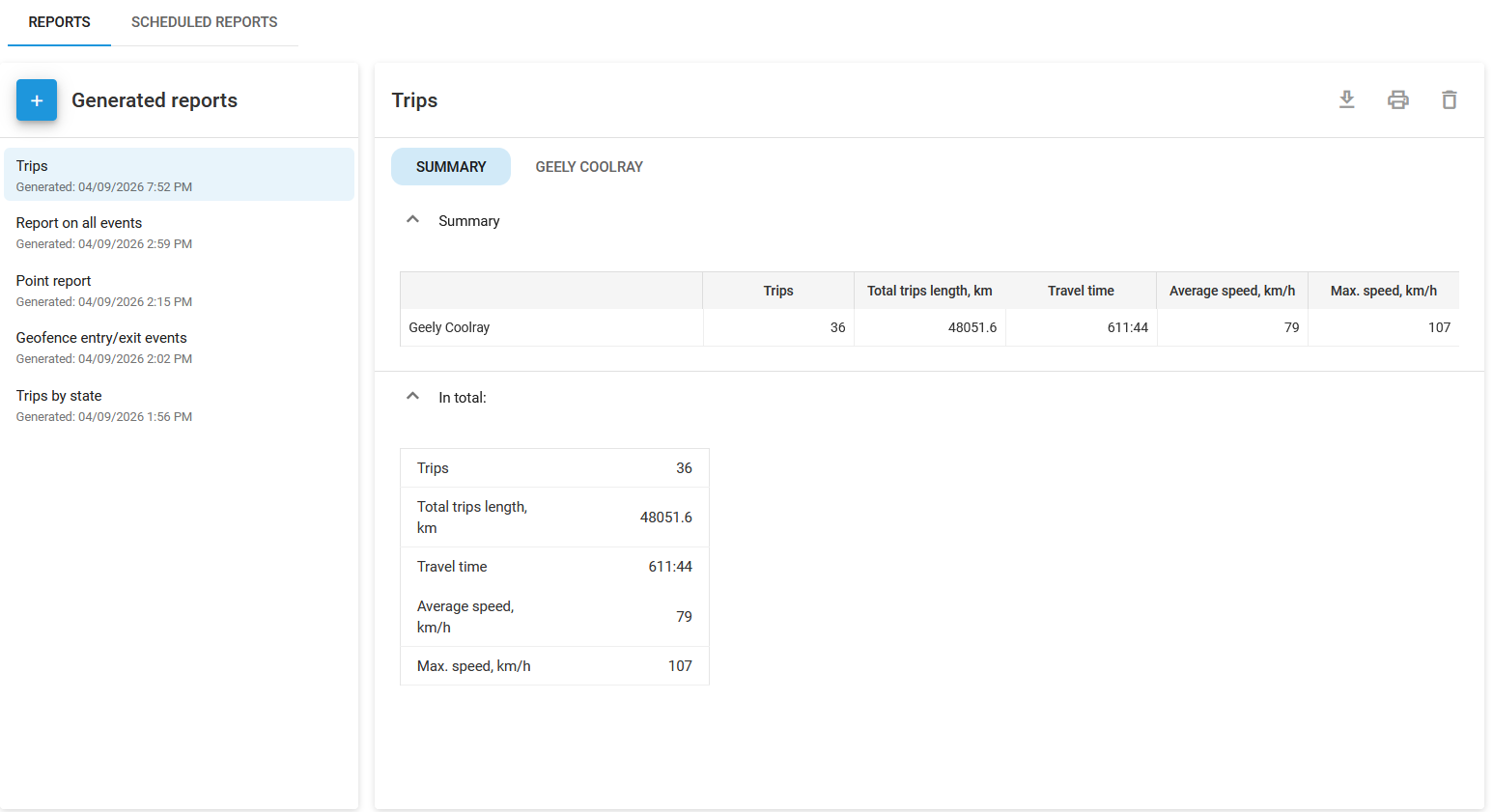
Reports module
## How to create a report
A report is a custom-generated document that provides detailed insights into specific aspects of your fleet's operations, such as vehicle activity, fuel consumption, or driver behavior, based on selected criteria and time frames.
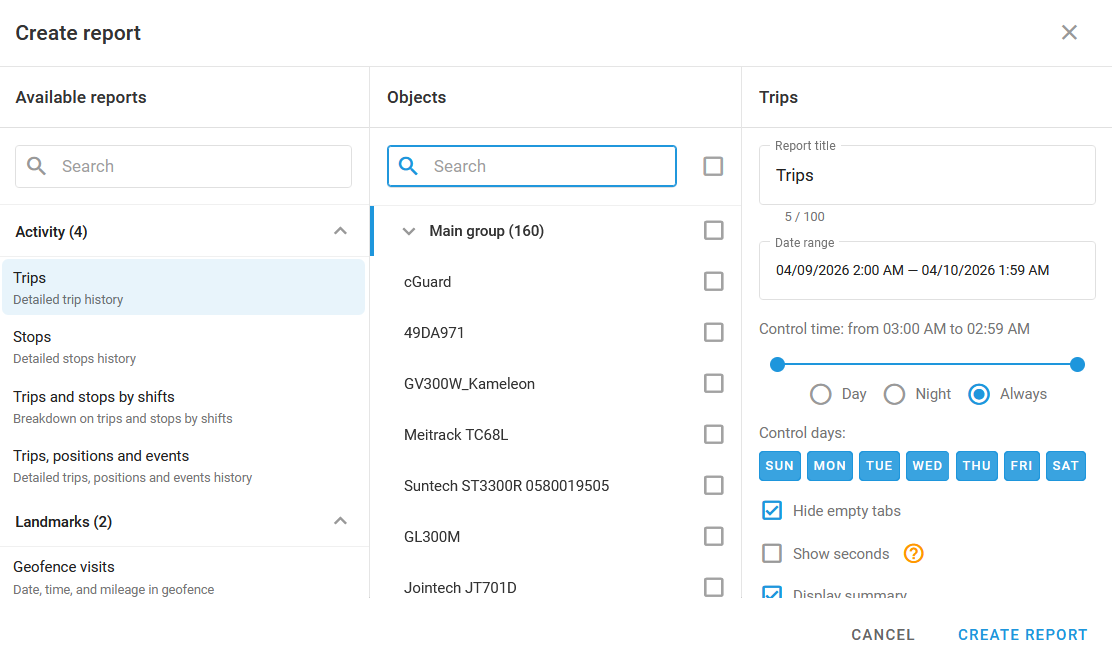
Report creation dialogue
Follow these steps to generate a single report:
{% stepper %}
{% step %}
### Choose report type
The **Available reports** panel contains various report types grouped by categories such as **Activity**, **Landmarks**, **Safety and Security**, **Transport usage, Driving quality, Device status, Connected devices,** and **Business**. Click the report you want to generate it.
{% endstep %}
{% step %}
### Select the objects
After choosing the report type, select the objects (vehicles, drivers, etc.) for which the report is generated. Use the **Objects** panel to check the appropriate boxes.
{% endstep %}
{% step %}
### Customize report settings
In the rightmost panel, enter the title for the report and select the date range. You can also choose specific control days and time and decide whether to include summaries or advanced settings, such as dividing by stops, showing stop duration and coordinates, grouping by driver, and using the smart filter. For more information about these options, see [Understanding reports](/docs/user/guide/reports/read-and-understand-reports.md#common-report-parameters).
{% endstep %}
{% step %}
### Build the report
Once all settings are configured, click **Create report**. The report is generated and added to the top of the **Generated reports** list for immediate access.
{% hint style="info" %}
Depending on the number of objects you selected and the actions performed during the period, the report may take some time to generate.
{% endhint %}
{% endstep %}
{% endstepper %}
## How to create scheduled reports
Scheduled reports are automated reports generated at predefined intervals, such as daily, weekly, or monthly, allowing you to regularly receive insights on your fleet's operations without manual intervention. Follow these steps to schedule a report:
{% stepper %}
{% step %}
### Access scheduled reports
In the **Reports** module, navigate to the **Scheduled reports** tab. This section allows you to automate the generation of reports based on a set schedule.
{% endstep %}
{% step %}
### Add a new scheduled report
Click **+** next to the **Scheduled reports** title.
{% endstep %}
{% step %}
### Configure schedule parameters
Select report type and objects and set schedule parameters such as days of week, time of delivery, and interval (e.g., every week, every month). You can also opt to send the reports directly to specified email addresses.
{% endstep %}
{% step %}
### Save the report
After configuring all settings, click **Create**. The scheduled report is now automatically generated according to the specified parameters and can be accessed or modified in the **Scheduled reports** section.
{% endstep %}
{% endstepper %}
## How to manage reports
The following options are available in the report interface after opening it:
* **Download reports:**\
To download a report, select it from the list and choose . You can save the report in XLSX or PDF.
* **Print reports:**\
If you need a hard copy of a report, you can print it directly from the browser without downloading it by clicking .
* **Delete reports:**\
To remove a report that is no longer needed, select it from the list and click . Confirm the deletion when prompted.
## See also
* [Report types](/docs/user/guide/reports/report-types.md)
* [How to read and understand reports](/docs/user/guide/reports/read-and-understand-reports.md)
* [Specific report details](/docs/user/guide/reports/specific-report-details.md)
---
# Agent Instructions
This documentation is published with GitBook. GitBook is the documentation platform designed so that both humans and AI agents can read, navigate, and reason over technical content effectively. Learn more at gitbook.com.
## Querying This Documentation
If you need additional information that is not directly available in this page, you can query the documentation by asking a question.
Perform an HTTP GET request on the following URL with the `ask` and `goal` query parameters:
```
GET https://navixy.com/docs/user/guide/reports.md?ask=&goal=
```
`ask` is the immediate question: it should be specific, self-contained, and written in natural language.
`goal` is what the user is ultimately trying to achieve, the reason they need the answer. Sharing it helps GitBook give you a better, more relevant answer. A goal is most helpful when it describes the outcome the user wants rather than restating the question. For example, with `ask=how do I create an API token`, a goal like `automate deployments from our CI pipeline` lets GitBook tailor the answer to that use case.
The response will contain a direct answer to the question and relevant excerpts and sources from the documentation.
Use this mechanism when the answer is not explicitly present in the current page, you need clarification or additional context, or you want to retrieve related documentation sections.
 . You can save the report in XLSX or PDF.
* **Print reports:**\
If you need a hard copy of a report, you can print it directly from the browser without downloading it by clicking
. You can save the report in XLSX or PDF.
* **Print reports:**\
If you need a hard copy of a report, you can print it directly from the browser without downloading it by clicking  .
* **Delete reports:**\
To remove a report that is no longer needed, select it from the list and click
.
* **Delete reports:**\
To remove a report that is no longer needed, select it from the list and click  . Confirm the deletion when prompted.
## See also
* [Report types](/docs/user/guide/reports/report-types.md)
* [How to read and understand reports](/docs/user/guide/reports/read-and-understand-reports.md)
* [Specific report details](/docs/user/guide/reports/specific-report-details.md)
---
# Agent Instructions
This documentation is published with GitBook. GitBook is the documentation platform designed so that both humans and AI agents can read, navigate, and reason over technical content effectively. Learn more at gitbook.com.
## Querying This Documentation
If you need additional information that is not directly available in this page, you can query the documentation by asking a question.
Perform an HTTP GET request on the following URL with the `ask` and `goal` query parameters:
```
GET https://navixy.com/docs/user/guide/reports.md?ask=
. Confirm the deletion when prompted.
## See also
* [Report types](/docs/user/guide/reports/report-types.md)
* [How to read and understand reports](/docs/user/guide/reports/read-and-understand-reports.md)
* [Specific report details](/docs/user/guide/reports/specific-report-details.md)
---
# Agent Instructions
This documentation is published with GitBook. GitBook is the documentation platform designed so that both humans and AI agents can read, navigate, and reason over technical content effectively. Learn more at gitbook.com.
## Querying This Documentation
If you need additional information that is not directly available in this page, you can query the documentation by asking a question.
Perform an HTTP GET request on the following URL with the `ask` and `goal` query parameters:
```
GET https://navixy.com/docs/user/guide/reports.md?ask=