Virtual sensors
Virtual sensors allow you to process telemetry data more effectively. By mapping board voltage, they can help you calculate engine hours based on set conditions and values. Additionally, they allow you to convert multiple data points from different sensors connected to a device into easier-to-understand indicators such as "hot," "cold," "open" and "closed," regardless of the device's manufacturer or model. This opens up new possibilities for monitoring, tracking and predicting the performance of complex technologies.

How to create a virtual sensor
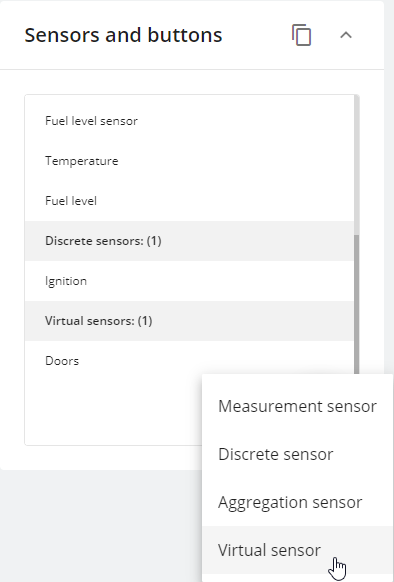
Virtual sensors can be created via the Sensors and buttons portlet located in the Devices and settings module. To create a virtual sensor:
Enter the devices and settings section
Select a GPS device
Click the + button
Select Virtual sensor
Every device may have up to 100 virtual sensors.

The next steps depend on the use case that should be solved via the virtual sensor. Below you can find examples and instructions for different calculation methods.
Calculation methods
Virtual sensors have three different calculation types:
Value in range
Source value
Bit index
All values for virtual sensors must match the form in which they are received from the device. All states are your definitions for these values.
Here, we describe how different calculation methods work. Click on the calculation method name to expand.
Value in range
This type of virtual sensor helps our customers to keep important parameters such as virtual ignition, temperature, humidity, and fuel level within a specified range.
Here's how it works:
If the sensor value is inside the specified boundaries, it is 1 for the platform. And 1 is equal to your A value.
If the sensor value is outside of these frames, the virtual sensor’s value is 0 for the platform. And 0 equals your B value.
Example of virtual ignition
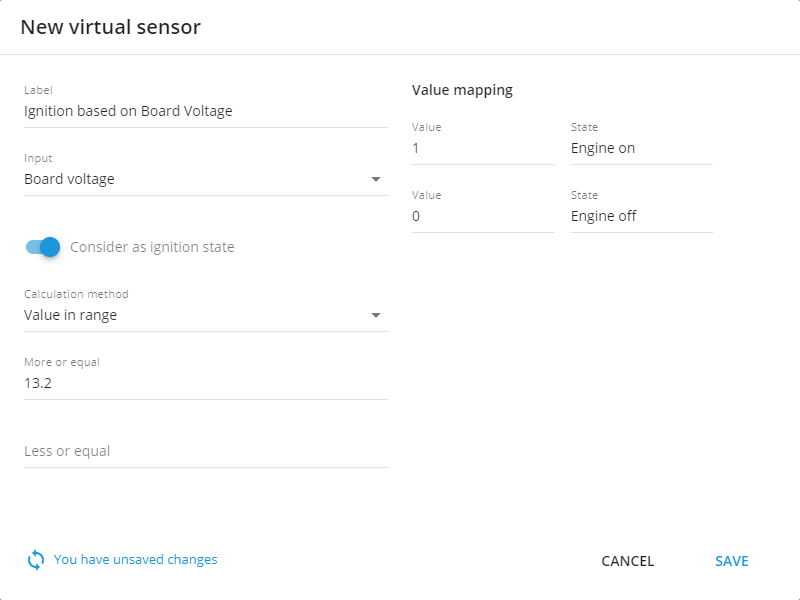
If you don't have an ignition input or your device is already running at full capacity, you can use a virtual ignition tool to detect the ignition state. The onboard voltage of the car will increase significantly when the engine is switched on, allowing the voltage threshold to be used as an indicator of whether or not the engine is running. Generally, the board voltage should exceed 13.2 V to indicate that the engine is functioning.
To create this sensor:
Start by giving it a name.
Set the input to Board voltage or any other sensor if needed.
Enable Consider as ignition state in the settings.
Choose “Value in range” as the calculation method.
Specify a minimum range value, such as 13.2V. Maximum isn’t necessary there since the board voltage can vary with ignition on.
Finally, set the 0 and 1 state values. Usually, they are on and off, respectively.

Once you set your voltage threshold range, if the incoming on-board value is within that range, the platform will switch the ignition state on. Conversely, if it's outside of that range, it will be switched off. The virtual ignition created using this method will also be taken into account in reports and notifications based on its status; for example, you can use it to generate engine hours reports or alerts for excessive idling.
Additionally, this ignition will be used for trip and parking detection with ignition consideration.
Example with an analog sensor
This example is similar to the previous one, but instead of monitoring the vehicle's ignition, it monitors temperature.
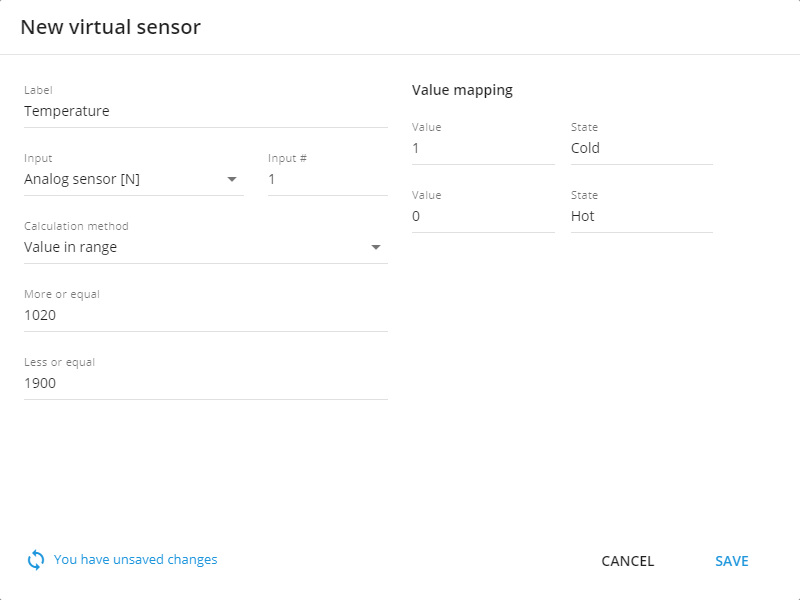
Suppose you have an analog sensor that collects temperature data. Let's say it outputs 1020 for -10°C, and 1900 = 0°C. The data coming from the analog sensors is non-calibrated and so must also be specified in this form for the virtual sensor.
The range can be configured: anything between 1020 and 1900 would be categorized as "cold" (1), and anything above 1900 would be considered "hot" (0).

Source value
With virtual sensors, you can assign your definition to any received values. This method works with predefined sets of values and strings, which makes it easy to work with static values without having to specify different ranges. In addition, it can work with any data you need. For example:
0/1,
true/false,
on/off,
open/close,
armed/disarmed,
state 1/state 2/state 3,
key 1/key 2/key 3, etc.
The mode works like this:
when value 1 comes in, that's your value A;
when value 2 comes in, that's your value B;
and when value 3 arrives, that's your C value and so on.
Let’s illustrate this type of functionality with a specific example.
Example with car CAN readings
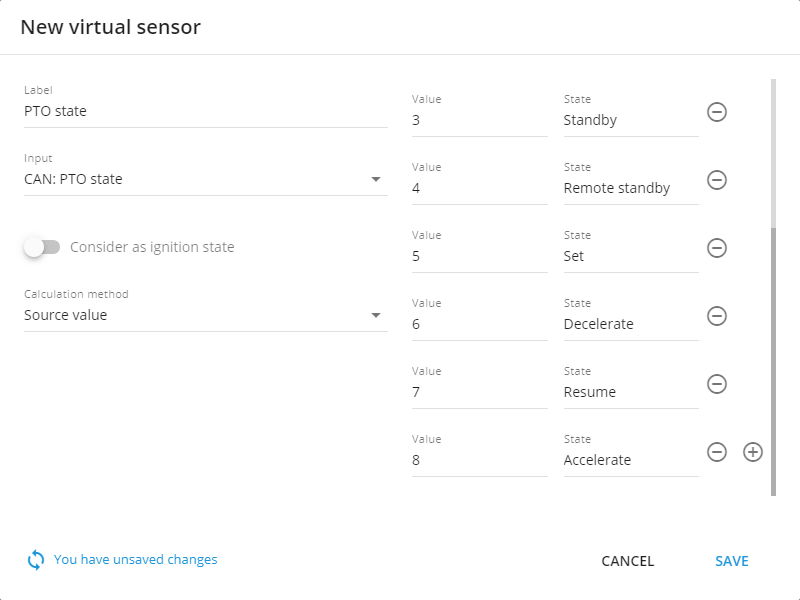
Some CAN sensors may provide different numerical values to a platform. For instance, we have a truck with CAN: PTO state sensor, which may output only the following values:
0 – Off
1 – Hold
2 – Remote hold
3 – Standby
4 – Remote Standby
5 – Set
6 – Decelerate
7 – Resume
8 – Accelerate
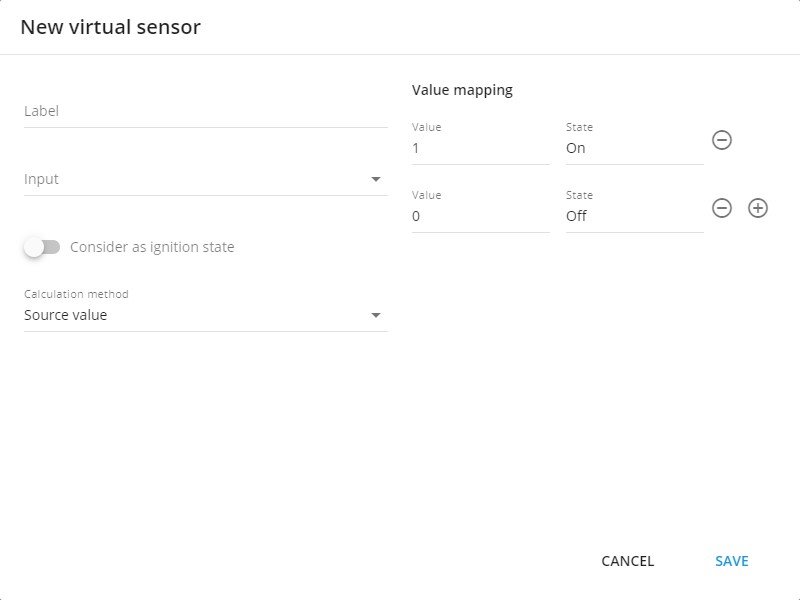
To configure this sensor:
Enter its name.
Choose the input.
Consider as ignition state should be toggled off.
Select Source value as the calculation method.
Fill out the table with your own values on the left side and its respective sensor values on the right. Add rows by clicking the + button and delete them using the trash can button.

Hardware key readings for drivers, equipment, and trailers
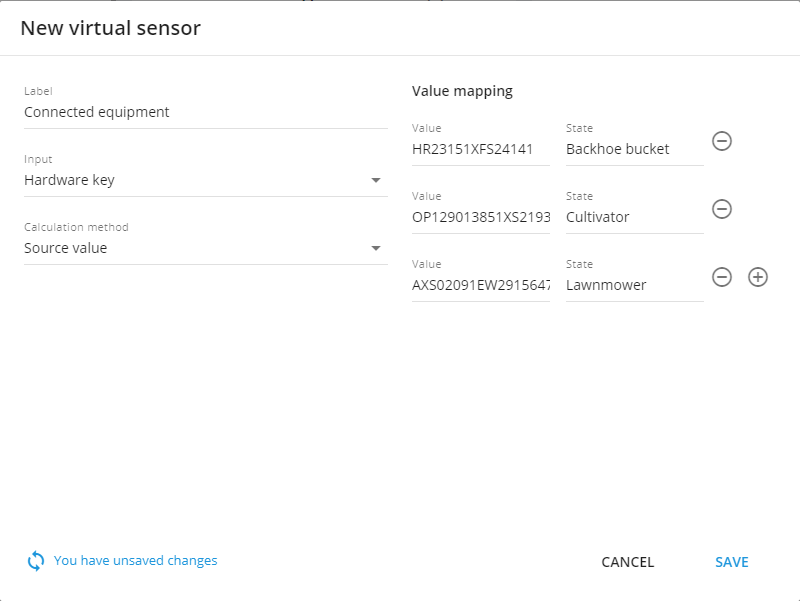
Some devices may be able to read drivers and their iButtons, RFID keys, or equipment connected via Bluetooth sensors to the device. The platform can detect the nearest equipment or driver to the device, and the Virtual Sensor is capable of displaying such names.
The simplest way of identification is through tags: each unit connected to heavy equipment has its own sensor with a tag attached, which is recognized by the platform as a hardware key. When connected to the machine, this key will be sent to the platform and its associated name can be displayed in an understandable manner, similar to how values for PTO were named.

Bit index
Some devices may provide advanced data in their packets, sometimes merging several parameters into one value. The Virtual Sensors tool allows you to work with parts of telematics values, thereby decoding the data transmitted by the GPS hardware.
For example, the transmitted value is 011. We must first read this information in little-endian according to the protocol:
1 shows the status of the driver's belt: 0 for fastened, 1 for unfastened. Bit 0.
1 displays the status of the driver's door: 0 for closed, 1 for open. Bit 1.
0 indicates the condition of the hood: 0 for closed, 1 for open. Bit 2.
Each position in the parameter displays the value of different vehicle systems. In order to configure and display them, you need to create one sensor separately for each parameter.
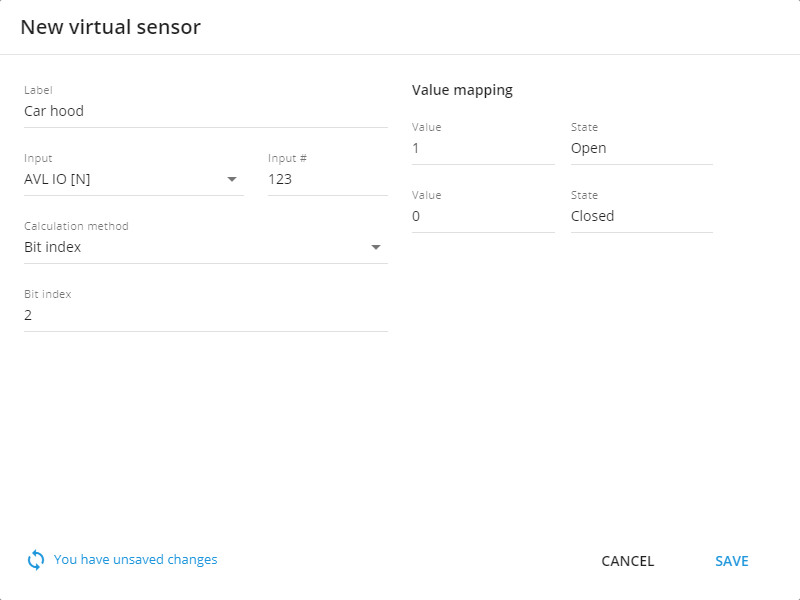
For a sensor that shows the condition of the car hood in our example, you need to
Set the sensor’s name
Choose the input according to the device’s documentation
Select Bit index as the calculation method
Choose bit 2 for this field
Below is an example of a sensor that shows the condition of the car hood.

Once a virtual sensor is configured and its associated device sensor has provided data, it can be viewed in the Sensor readings widget on the device's Information tab. Your device sensors can talk in your language now.
Last updated
Was this helpful?