> For the complete documentation index, see [llms.txt](https://navixy.com/docs/llms.txt). Markdown versions of documentation pages are available by appending `.md` to page URLs; this page is available as [Markdown](https://navixy.com/docs/user/guide/x-gps-mobile-apps/x-gps-mobile/user-applications.md).
# User applications
Access custom third-party applications embedded in Navixy through X-GPS Mobile. Applications are configured in the web platform and available in the mobile app.
**User applications** are custom add-ons and third-party tools that can be integrated directly into the ecosystem to extend its functionality. This enables you to create a personalized workspace with all your essential tools in one convenient location.
While these applications are managed and configured in the [Navixy platform](https://tracking.navixy.com/), you can now easily access and use them in **X-GPS Mobile**.
## Configuration and management
All User applications must be created and configured in the web version of the platform under **Account** → **User applications**. They are tied to the user account.
For detailed instructions on creating, editing, and managing applications, refer to the full [User applications documentation](/docs/user/guide/account/user-applications.md).
## User applications in X-GPS Mobile
{% columns %}
{% column %}
Follow these steps to access, navigate, and manage your User applications.
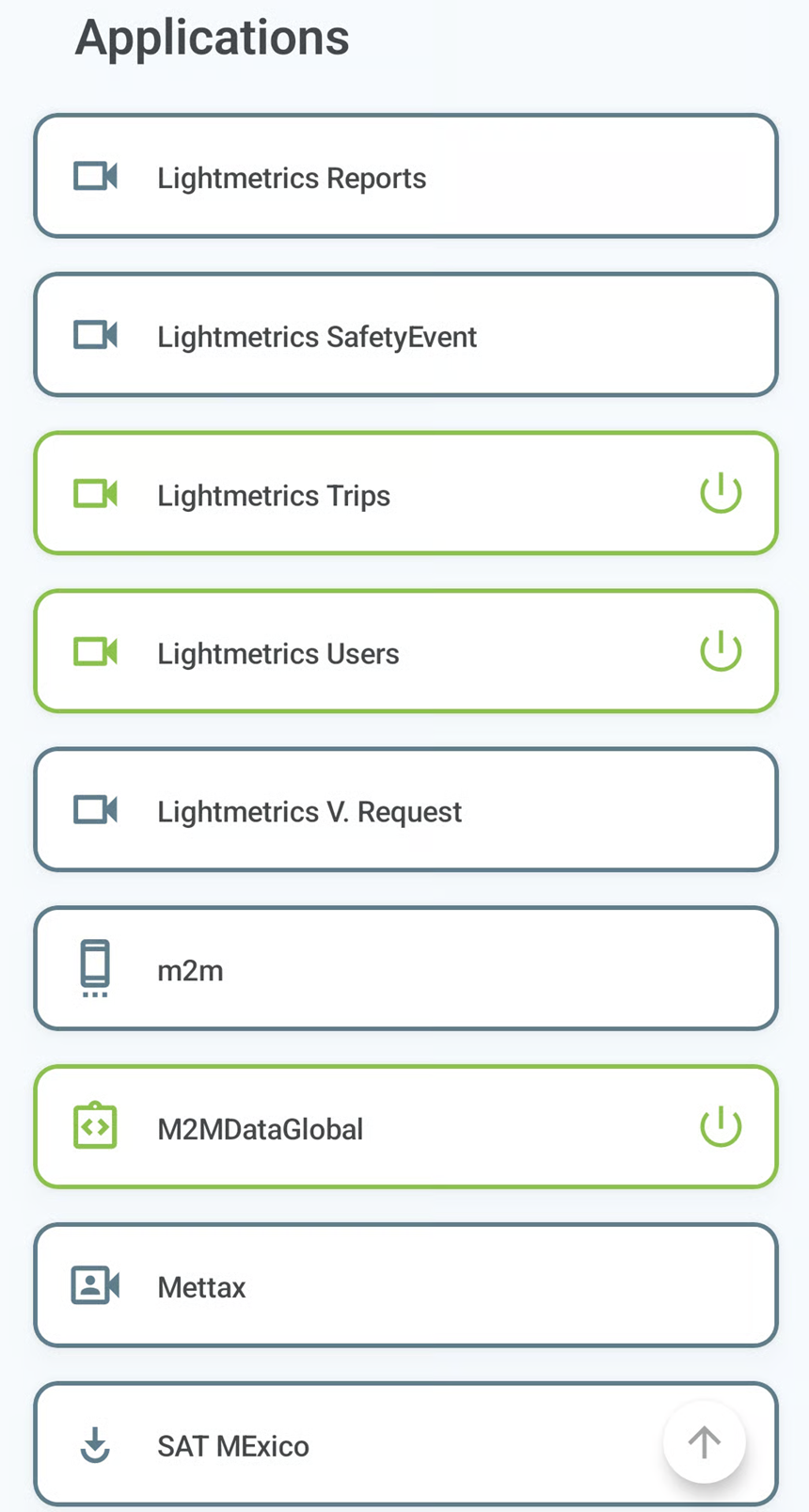
1. Navigate to the **Apps** tab to see the list of all available applications.
2. Tap on an app's name to open it. This automatically activates the application, and its title in the list will change color from blue to green to show it's active.
3. When you open an application, you will see a navigation bar at the top of the screen. It contains the following options:
* : Go to the app's previous page.
* : Go to the next page.
* : Reload the current application view.
* : Open the application in your phone's default web browser.
4. To turn off an active application, return to the **Apps** tab and tap to the right of its name.
{% hint style="info" %}
User applications automatically deactivate when you exit **X-GPS Mobile**.
{% endhint %}
{% endcolumn %}
{% column %}
User applications list
{% endcolumn %}
{% endcolumns %}
---
# Agent Instructions
This documentation is published with GitBook. GitBook is the documentation platform designed so that both humans and AI agents can read, navigate, and reason over technical content effectively. Learn more at gitbook.com.
## Querying This Documentation
If you need additional information that is not directly available in this page, you can query the documentation dynamically by asking a question.
Perform an HTTP GET request on the current page URL with the `ask` query parameter, and the optional `goal` query parameter:
```
GET https://navixy.com/docs/user/guide/x-gps-mobile-apps/x-gps-mobile/user-applications.md?ask=&goal=
```
`ask` is the immediate question: it should be specific, self-contained, and written in natural language.
`goal` is optional and describes the broader end goal you are ultimately trying to accomplish on behalf of the user. GitBook uses it to tailor the answer towards what is most useful for that goal.
The response will contain a direct answer to the question and relevant excerpts and sources from the documentation.
Use this mechanism when the answer is not explicitly present in the current page, you need clarification or additional context, or you want to retrieve related documentation sections.
 : Go to the app's previous page.
*
: Go to the app's previous page.
*  : Go to the next page.
*
: Go to the next page.
*  : Reload the current application view.
*
: Reload the current application view.
*  : Open the application in your phone's default web browser.
4. To turn off an active application, return to the **Apps** tab and tap
: Open the application in your phone's default web browser.
4. To turn off an active application, return to the **Apps** tab and tap  to the right of its name.
{% hint style="info" %}
User applications automatically deactivate when you exit **X-GPS Mobile**.
{% endhint %}
{% endcolumn %}
{% column %}
to the right of its name.
{% hint style="info" %}
User applications automatically deactivate when you exit **X-GPS Mobile**.
{% endhint %}
{% endcolumn %}
{% column %}