> For the complete documentation index, see [llms.txt](https://navixy.com/docs/llms.txt). Markdown versions of documentation pages are available by appending `.md` to page URLs; this page is available as [Markdown](https://navixy.com/docs/user/guide/x-gps-mobile-apps/x-gps-mobile/assets-list.md).
# Tracking in X-GPS Mobile
Browse all tracked assets in X-GPS Mobile, with icons showing movement status. Search by name to quickly locate any vehicle, staff member, or GPS device.
{% columns %}
{% column width="50%" %}
The **Tracking** section contains all your assets: vehicles, staff, and objects (unassigned GPS devices). To view [more information about any of your assets](/docs/user/guide/x-gps-mobile-apps/x-gps-mobile/assets-list/asset-information.md), tap its entry. To find a specific asset, tap and enter its name.
The icon to the right of each asset indicates its movement status, such as moving or parked.
{% endcolumn %}
{% column width="50%" %}
Asset list
{% endcolumn %}
{% endcolumns %}
### Events
{% columns %}
{% column %}
Tap to view the events.
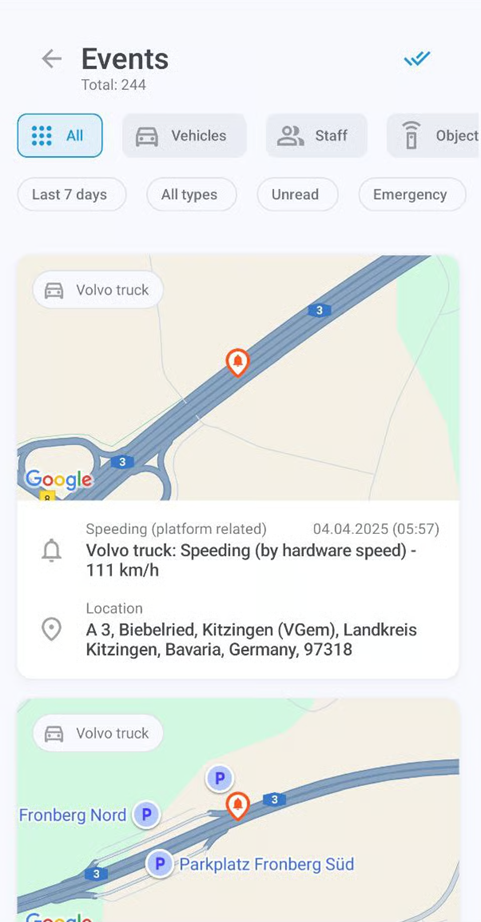
This screen shows various events occurring to your assets, such as leaving or entering a geofence, going idle, speeding, completing tasks, and more. To filter by category type, tap **All**, **Vehicles**, **Staff**, or **Objects** (GPS devices not assigned to vehicles or staff).
The second menu shows your current filters, all of which can be configured: time period, specific vehicles or staff, and event types. The **Unread** filter displays only the unread notifications, while **Emergency** narrows down your search to urgent events.
{% endcolumn %}
{% column %}
Events
{% endcolumn %}
{% endcolumns %}
### Map
{% columns %}
{% column %}
Tap to open an interactive map displaying your assets.
You can zoom in and out and center the map on your own GPS coordinates. Tap the vehicle’s icon to follow its route and view its current status and location. Tap again to open the vehicle’s details.
{% endcolumn %}
{% column %}
Fullscreen map
{% endcolumn %}
{% endcolumns %}
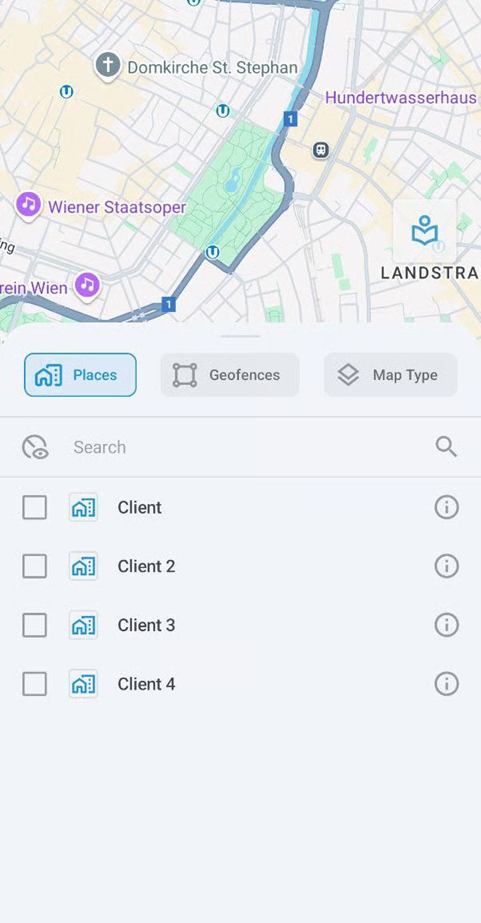
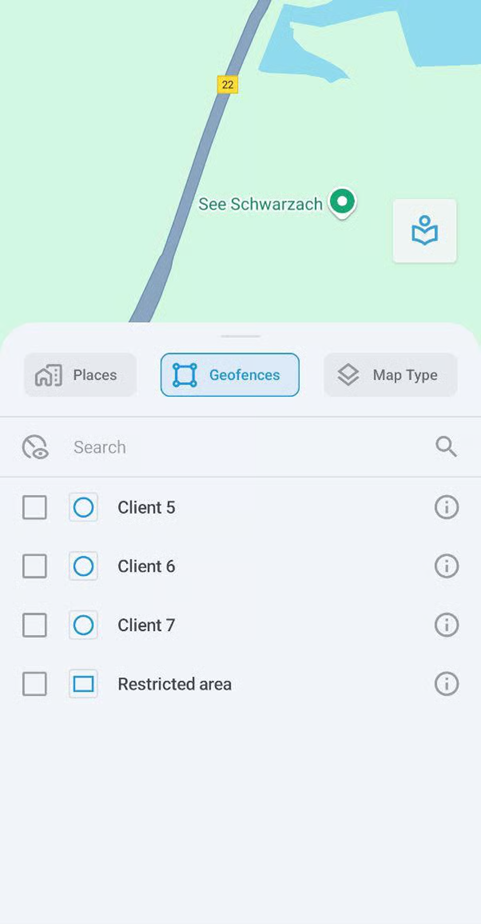
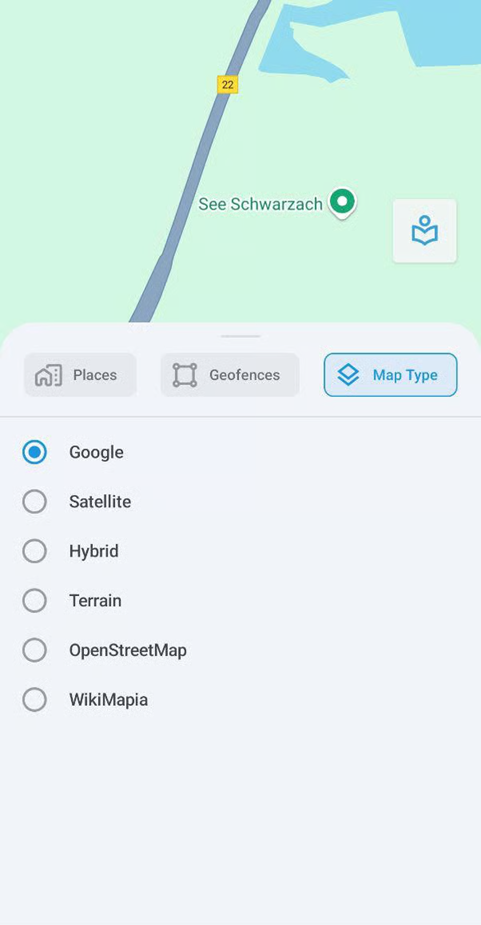
Tap to open the map options menu:
The map options menu allows you to select Places (such as client locations for delivery), geofences, and map type.
### Sorting and filtering
{% columns %}
{% column %}
The list has two filtering methods: by category and by status.
To filter by category, tap **All**, **Vehicles**, **Staff**, or **Objects**.
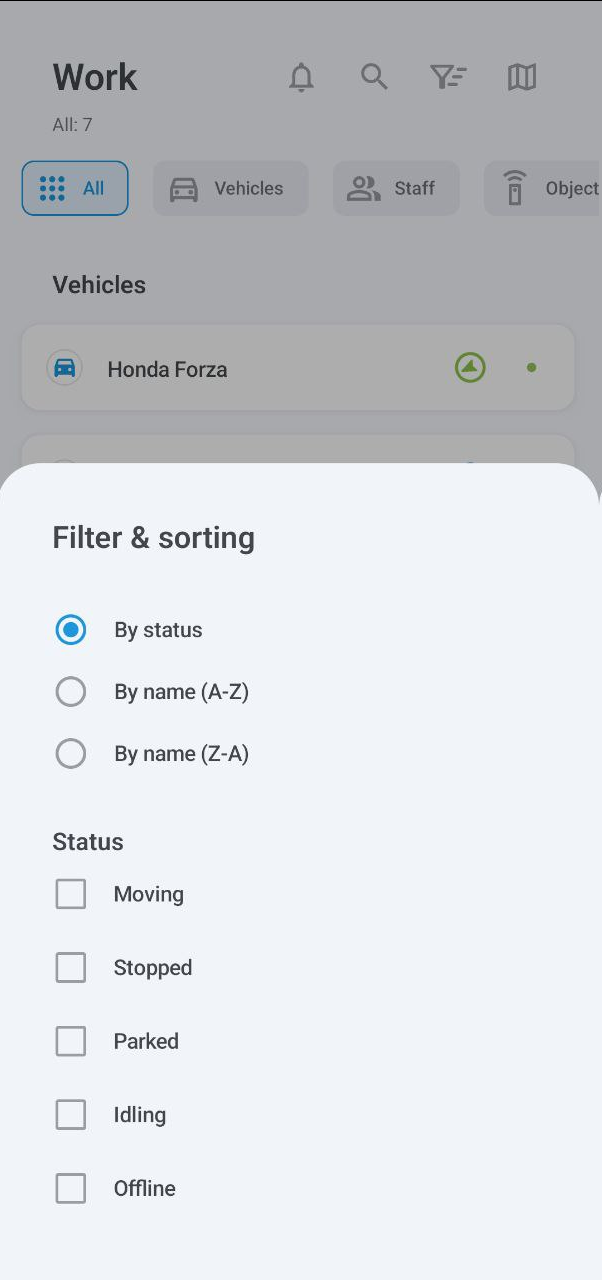
To filter by status (moving, stopped, parked, idling, and offline), tap to open the **Filter & sorting** menu. In addition to filtering, this menu also allows sorting assets by name.
{% endcolumn %}
{% column %}
Filter & sorting
{% endcolumn %}
{% endcolumns %}
---
# Agent Instructions
This documentation is published with GitBook. GitBook is the documentation platform designed so that both humans and AI agents can read, navigate, and reason over technical content effectively. Learn more at gitbook.com.
## Querying This Documentation
If you need additional information that is not directly available in this page, you can query the documentation dynamically by asking a question.
Perform an HTTP GET request on the current page URL with the `ask` query parameter, and the optional `goal` query parameter:
```
GET https://navixy.com/docs/user/guide/x-gps-mobile-apps/x-gps-mobile/assets-list.md?ask=&goal=
```
`ask` is the immediate question: it should be specific, self-contained, and written in natural language.
`goal` is optional and describes the broader end goal you are ultimately trying to accomplish on behalf of the user. GitBook uses it to tailor the answer towards what is most useful for that goal.
The response will contain a direct answer to the question and relevant excerpts and sources from the documentation.
Use this mechanism when the answer is not explicitly present in the current page, you need clarification or additional context, or you want to retrieve related documentation sections.

 and enter its name.
The icon to the right of each asset indicates its movement status, such as moving or parked.
{% endcolumn %}
{% column width="50%" %}
and enter its name.
The icon to the right of each asset indicates its movement status, such as moving or parked.
{% endcolumn %}
{% column width="50%" %}
 to view the events.
This screen shows various events occurring to your assets, such as leaving or entering a geofence, going idle, speeding, completing tasks, and more. To filter by category type, tap **All**, **Vehicles**, **Staff**, or **Objects** (GPS devices not assigned to vehicles or staff).
The second menu shows your current filters, all of which can be configured: time period, specific vehicles or staff, and event types. The **Unread** filter displays only the unread notifications, while **Emergency** narrows down your search to urgent events.
{% endcolumn %}
{% column %}
to view the events.
This screen shows various events occurring to your assets, such as leaving or entering a geofence, going idle, speeding, completing tasks, and more. To filter by category type, tap **All**, **Vehicles**, **Staff**, or **Objects** (GPS devices not assigned to vehicles or staff).
The second menu shows your current filters, all of which can be configured: time period, specific vehicles or staff, and event types. The **Unread** filter displays only the unread notifications, while **Emergency** narrows down your search to urgent events.
{% endcolumn %}
{% column %}
 to open an interactive map displaying your assets.
You can zoom in and out and center the map on your own GPS coordinates. Tap the vehicle’s icon to follow its route and view its current status and location. Tap
to open an interactive map displaying your assets.
You can zoom in and out and center the map on your own GPS coordinates. Tap the vehicle’s icon to follow its route and view its current status and location. Tap 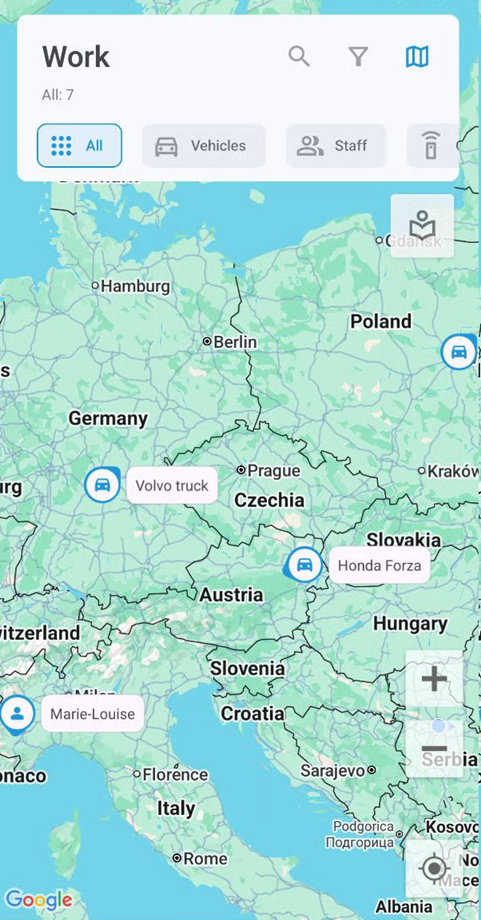
 to open the map options menu:
 to open the **Filter & sorting** menu. In addition to filtering, this menu also allows sorting assets by name.
{% endcolumn %}
{% column %}
to open the **Filter & sorting** menu. In addition to filtering, this menu also allows sorting assets by name.
{% endcolumn %}
{% column %}