
Wialon IPS
Wialon IPS is a generic, publicly available data forwarding protocol from Gurtam for retranslating personal and vehicle GPS and GLONASS trackers which transfer data to satellite monitoring servers/third-party resources.
Protocol Category: Data consolidation
Table of contents
What is Wialon IPS?
The Wialon IPS data forwarding protocol can be used to forward fleet data/vehicle trackers between two Navixy servers (e.g. if you have ServerMate and On-Premise versions).
This is ideal for partners with devices connected to Wialon who would like that data sent to Navixy. Data forwarded can include information regarding: vehicle positioning, fuel monitoring, sensors, temperature, etc.
Wialon IPS general technical information
The Wialon IPS protocol utilizes the TCP transport layer to send ASCII data to the 3rd party server, receive 3rd party data, or send to a separate Navixy server for further data processing.
Data sent to Wialon IPS:
Date and time
Lat
Long
Altitude
Speed
Satellites
Inputs
Outputs
Analog sensors
Mileage
Battery level
Driver ID
Events
Wialon IPS configuration
Setting up
To set up data forwarding for the Wialon IPS protocol:
Open the device settings from the main menu by pressing the “Gear” icon on the bottom left of the screen.
Click the Data forwarding widget.
Click Retranslators management.
This will open a pop-up where you will input the required parameters by pressing the + button.
For the Wialon IPS protocol, input the following information:
Name
Enter a name to make this retranslator easily identifiable
Protocol
Select the Wialon IPS protocol from the dropdown
Destination server address
3rd party server
Navixy A to Navixy B
On A, input the server address for B
If receiving from Wialon
EU domain: tracker.navixy.com
US domain: tracker.us.navixy.com
Destination Port
Related information from the 3rd-party server
Navixy A to Navixy B, and from Wialon IPS
47768
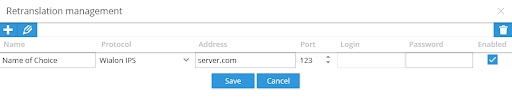
The Retranslation management screen should look like the following, no password needed. Make sure the Enabled button is checked and click the Save button to complete the process.
Next, the retranslator will need to be linked to the device on the Unigis side. To do so, select the Link
 button in the data forwarding widget. Select the retranslator to be connected, and click Link below. External ID is not needed for the Wialon IPS protocol.
Select Save once completed.
If receiving data from Wialon IPS, a related Wialon IPS-compatible device will need to be created on the Navixy platform, such as Bitrek.
Managing
To edit or stop data from being forwarded, please refer to the following steps:
Click the Trash button to stop the data forwarding.
Acknowledge the change in the pop-up.
Click Protocols to change retranslator settings such as name, login information, or enabled status
This will open the retranslator management window. Select the row to edit and either click the pencil in the top left or double-click the row in question to allow editing. Save any changes.

Troubleshooting
If data does not display on the 3rd-party Wialon IPS system or Navixy platform, please verify:
The URL was entered correctly with the associated port
Retranslator is enabled
Last updated
Was this helpful?