> For the complete documentation index, see [llms.txt](https://navixy.com/docs/llms.txt). Markdown versions of documentation pages are available by appending `.md` to page URLs; this page is available as [Markdown](https://navixy.com/docs/admin/settings/messaging-gateways/email-gateway.md).
# Email gateway
Configure Navixy-provided or custom SMTP email delivery for notifications, reports, and billing alerts, including sender settings
**Email gateway** is a messaging service that enables automated communication with your customers. Users receive automated emails in several key scenarios:
* Event notifications: Alerts triggered by specific device activities or geofence breaches.
* Scheduled reports: Excel or PDF reports delivered according to a customized schedule.
* Billing alerts: Notifications regarding low balances or the need to top up funds.
As the service operator, you can define which gateway handles these deliveries and customize the sender address.
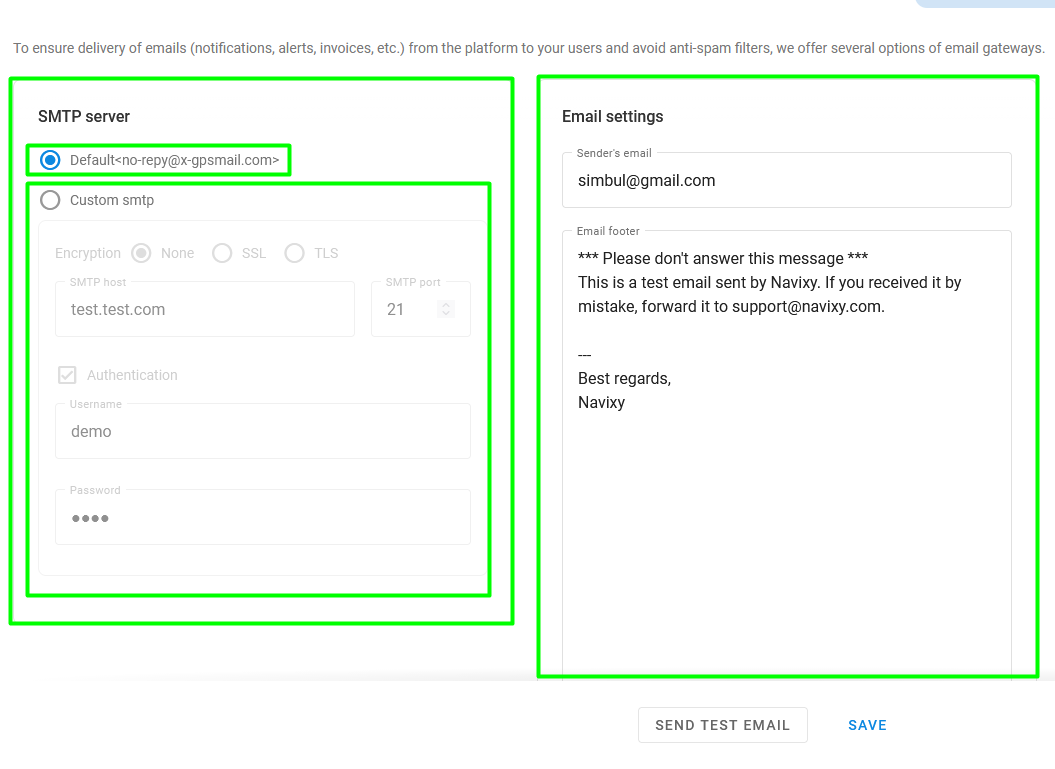
Email gateway page
The **Email gateway** page consists of two sections:
* **SMTP server configuration**: Choose between Navixy's email service or enter a custom gateway
* **Email settings**: Enter sender's email address and a signature automatically applied to all sent emails
## How to select an email gateway
Depending on your product and specific needs, you can choose between two options:
* **Navixy Email Gateway**: This is the recommended option for **ServerMate** users. It is a free, high-speed service organized via Mandrill to ensure high deliverability and inbox placement. This service is integrated with Navixy and ensures that your emails are delivered to your users' inboxes without being marked as spam.
* **Third-party SMTP gateway**: This universal method is available for **ServerMate**, **Cloud**, and **On-Premise** products. It allows you to specify a custom server for email delivery, such as your own dedicated mail server, public services like Gmail, or specialized delivery services like SendGrid, Mailgun, or Mandrill.
## Navixy email gateway
{% hint style="warning" %}
This option is available only for **Navixy ServerMate** deployments.
{% endhint %}
### How to change sender address
By default, the **From** field is set to `no-reply@x-gpsmail.com`. In this configuration, no additional setup is required. If you want to use your own address (e.g., `no-reply@yourdomain.com`), you must authorize your domain to prevent emails from being flagged as spam. To authenticate and authorize mail delivery, follow these steps:
{% stepper %}
{% step %}
#### Authenticate your domain
Contact [Navixy support](mailto:support@navixy.com) with the domain name you intend to use. It doesn’t have to be your platform’s domain name, though you must have access to it to make DNS changes. You receive a TXT record to add to your DNS settings to prove ownership.
Format: `yourdomain.com. 1 IN TXT "mandrill_verify.KEY_PROVIDED_HERE"`.
DNS settings are provided by your DNS provider. Every DNS provider has their own tools and settings. If you need assistance in changing these settings, contact your DNS provider.
{% endstep %}
{% step %}
#### Authorize your domain
Add five additional DNS records to your domain to verify authorization:
* SPF record: Add `v=spf1 include:spf.mandrillapp.com -all`. If an SPF record already exists, insert `include:spf.mandrillapp.com` before the terminating mechanism.\
For example, if your current SPF record looks like `v=spf1 a -all`, update it to
`v=spf1 a include:spf.mandrillapp.com -all` .
* DKIM Records: Create two CNAME records. Set one name to `mte1._domainkey.yourdomain.com` with the value of `dkim1.mandrillapp.com` and the second to `mte2._domainkey.yourdomain.com` with the value of `dkim2.mandrillapp.com`, replacing `yourdomain.com` with your associated domain name**.**
* DMARC record: In your DNS settings, create and save a TXT record named `_dmarc.yourdomain.com` with the value of `v=DMARC1; p=none;`, replacing `yourdomain.com` with your associated domain name**.**
After creating the records, remember to save the DNS information. The settings take 30 minutes or up to 4 hours to take effect.
{% endstep %}
{% step %}
#### Assign sender address
Once DNS records have propagated, email with your Admin Panel login and desired sender address. The support team tests the configuration and confirms when the setup is complete.
{% endstep %}
{% endstepper %}
### How to verify your DKIM configuration
Once you have completed the DNS setup, you should verify that your emails are being digitally signed correctly. This ensures your messages are recognized as authentic by recipient mail servers.
1. From the Admin Panel, send a test message to a personal email account (such as Gmail or Outlook).
2. Open the received email, click the **More** options (usually three dots), and select **Show original** or **View message details**.
3. Use the search function to find the phrase `dkim=pass`. Finding it means that the field is configured correctly. Otherwise, the message is either unsigned or the signature is incorrect.
## **Third-party gateway**
{% hint style="info" %}
If you use a custom SMTP service, you're responsible for ensuring the emails are delivered to your users' inboxes and not marked as spam.
{% endhint %}
To use your own SMTP provider, log in to the **Admin Panel** and navigate to **Settings** → **Email gateway**.
{% stepper %}
{% step %}
### Select gateway type
In the **SMTP server** section, select **Custom SMTP**.
{% endstep %}
{% step %}
### Configure server and security
Enter the host address provided by your service (e.g., `smtp.gmail.com`).
1. Specify if you are using a secure data transfer protocol (SSL or TLS).
2. Once a security protocol is selected, the SMTP port field automatically populates based on standard recommendations for public email services. You may manually override this port number if your provider requires a non-standard configuration.
3. When using SSL/TLS, you see the **Trust all** checkbox. This is used to bypass errors if your SMTP server uses a self-signed certificate or one that isn't recognized by standard certificate authorities. Only enable this if you are sure of your server's security.
{% endstep %}
{% step %}
### Configure authorization
If your provider requires a login (as most public services like Gmail do), check the authorization box and enter your username and password.
{% endstep %}
{% step %}
### Enter sender information
Enter the sender email and a custom signature that the system automatically appends to every outgoing email.
{% endstep %}
{% step %}
### Test your setup
Click **Send test email** and enter a destination address to verify the connection. If everything is configured correctly, you receive a test message at the specified address.
{% endstep %}
{% endstepper %}
---
# Agent Instructions
This documentation is published with GitBook. GitBook is the documentation platform designed so that both humans and AI agents can read, navigate, and reason over technical content effectively. Learn more at gitbook.com.
## Querying This Documentation
If you need additional information that is not directly available in this page, you can query the documentation dynamically by asking a question.
Perform an HTTP GET request on the current page URL with the `ask` query parameter, and the optional `goal` query parameter:
```
GET https://navixy.com/docs/admin/settings/messaging-gateways/email-gateway.md?ask=&goal=
```
`ask` is the immediate question: it should be specific, self-contained, and written in natural language.
`goal` is optional and describes the broader end goal you are ultimately trying to accomplish on behalf of the user. GitBook uses it to tailor the answer towards what is most useful for that goal.
The response will contain a direct answer to the question and relevant excerpts and sources from the documentation.
Use this mechanism when the answer is not explicitly present in the current page, you need clarification or additional context, or you want to retrieve related documentation sections.