> For the complete documentation index, see [llms.txt](https://navixy.com/docs/llms.txt). Markdown versions of documentation pages are available by appending `.md` to page URLs; this page is available as [Markdown](https://navixy.com/docs/admin/users.md).
# Users
Create and manage user accounts in the Admin Panel, including search, edit/delete, and CSV/XLSX export
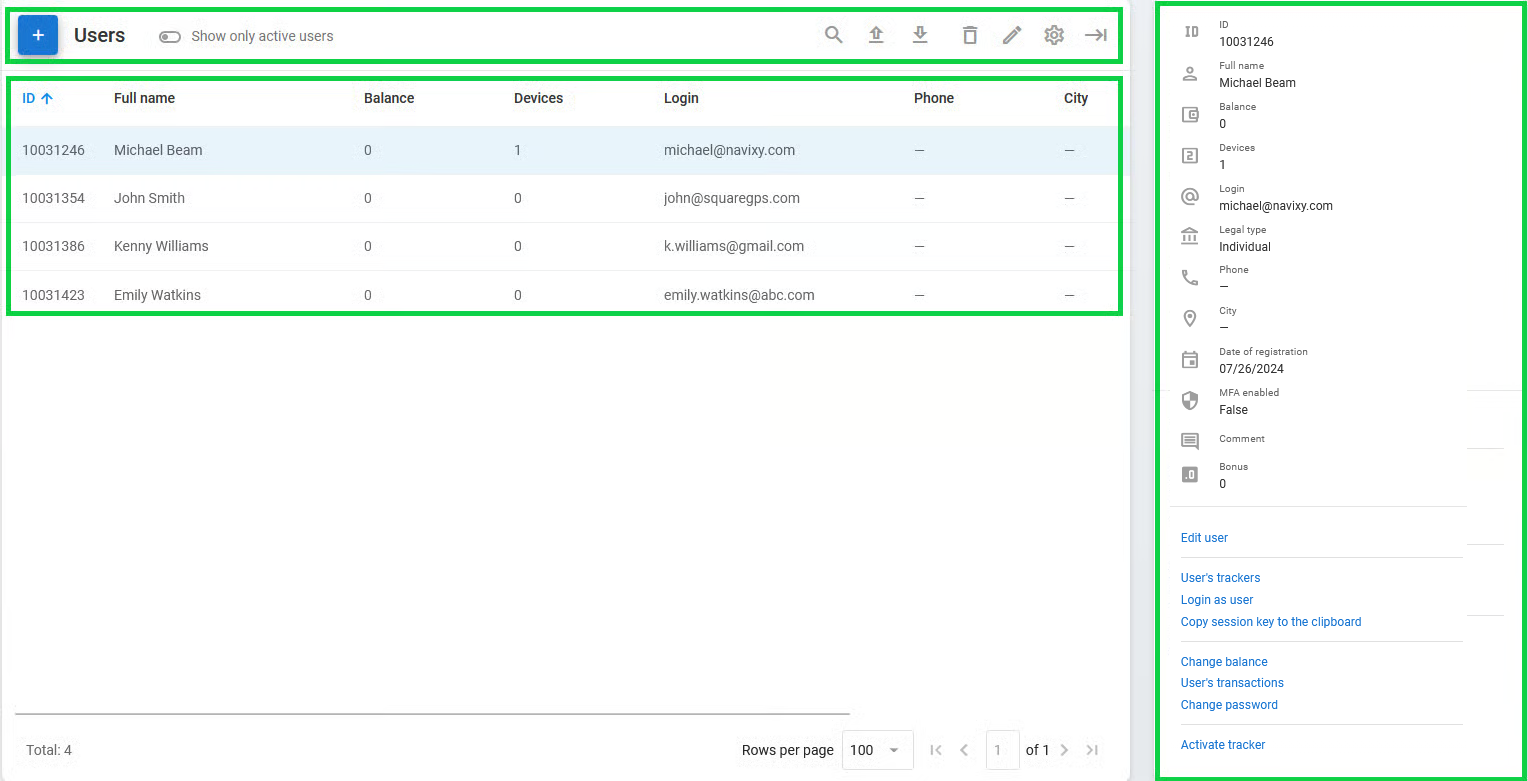
The **Users** page of the Admin Panel allows creating and managing user accounts.
Users page
It consists of three main sections:
* **User toolbar:** A toolbar used to easily create, find, delete, and edit user accounts and import/export user data
* **User list:** A list of existing users formatted as a table
* **User details:** Information about the selected user with a list of related actions
## User toolbar
The toolbar on top of the **Users** page allows you to create, find, edit, and delete users and [upload](/docs/admin/users/create-user.md#how-to-import-user-data) and [download](#how-to-export-user-data) user data. You can also customize the user list view below by removing unnecessary columns and filtering to show only active users.
To start creating a user, click . For more information about this process, see [Creating users](/docs/admin/users/create-user.md).
## User list
**User list** is a table describing your existing users, including their ID, system login, balance, and the number of devices on their account. Each user created using the button is displayed here.
## User details
**User details** is a window opened by selecting a user in the user list. It shows all information about the user, including your comments, and allows performing various actions related to the user's account. To learn more about this window, see [User details](/docs/admin/users/user-details.md).
## How to export user data
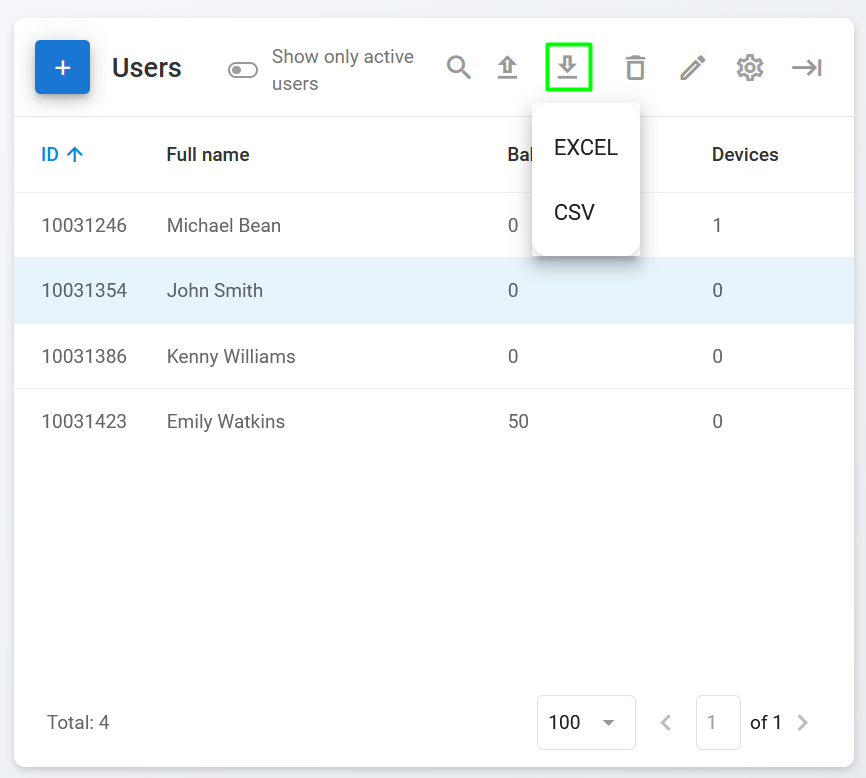
Managing and keeping track of a large number of users on the platform can be challenging. To solve this issue, Admin Panel allows you to download a list of your users in CSV or XLSX format. This feature can be used to quickly obtain a list of all your users, including their email addresses and phone numbers.
CSV and XLSX formats allow importing files into CRMs or mailing providers without any additional editing. To download the user data, click and select the file format. The download starts automatically, and you can use the exported data as you see fit.
Downloading user data
---
# Agent Instructions
This documentation is published with GitBook. GitBook is the documentation platform designed so that both humans and AI agents can read, navigate, and reason over technical content effectively. Learn more at gitbook.com.
## Querying This Documentation
If you need additional information that is not directly available in this page, you can query the documentation by asking a question.
Perform an HTTP GET request on the following URL with the `ask` and `goal` query parameters:
```
GET https://navixy.com/docs/admin/users.md?ask=&goal=
```
`ask` is the immediate question: it should be specific, self-contained, and written in natural language.
`goal` is what the user is ultimately trying to achieve, the reason they need the answer. Sharing it helps GitBook give you a better, more relevant answer. A goal is most helpful when it describes the outcome the user wants rather than restating the question. For example, with `ask=how do I create an API token`, a goal like `automate deployments from our CI pipeline` lets GitBook tailor the answer to that use case.
The response will contain a direct answer to the question and relevant excerpts and sources from the documentation.
Use this mechanism when the answer is not explicitly present in the current page, you need clarification or additional context, or you want to retrieve related documentation sections.
.png?alt=media) . For more information about this process, see [Creating users](/docs/admin/users/create-user.md).
## User list
**User list** is a table describing your existing users, including their ID, system login, balance, and the number of devices on their account. Each user created using the
. For more information about this process, see [Creating users](/docs/admin/users/create-user.md).
## User list
**User list** is a table describing your existing users, including their ID, system login, balance, and the number of devices on their account. Each user created using the  and select the file format. The download starts automatically, and you can use the exported data as you see fit.