> For the complete documentation index, see [llms.txt](https://navixy.com/docs/llms.txt). Markdown versions of documentation pages are available by appending `.md` to page URLs; this page is available as [Markdown](https://navixy.com/docs/admin/settings/maps.md).
# Map preferences
Choose which maps users can access, set the default map view, and configure GIS providers, including Google Maps
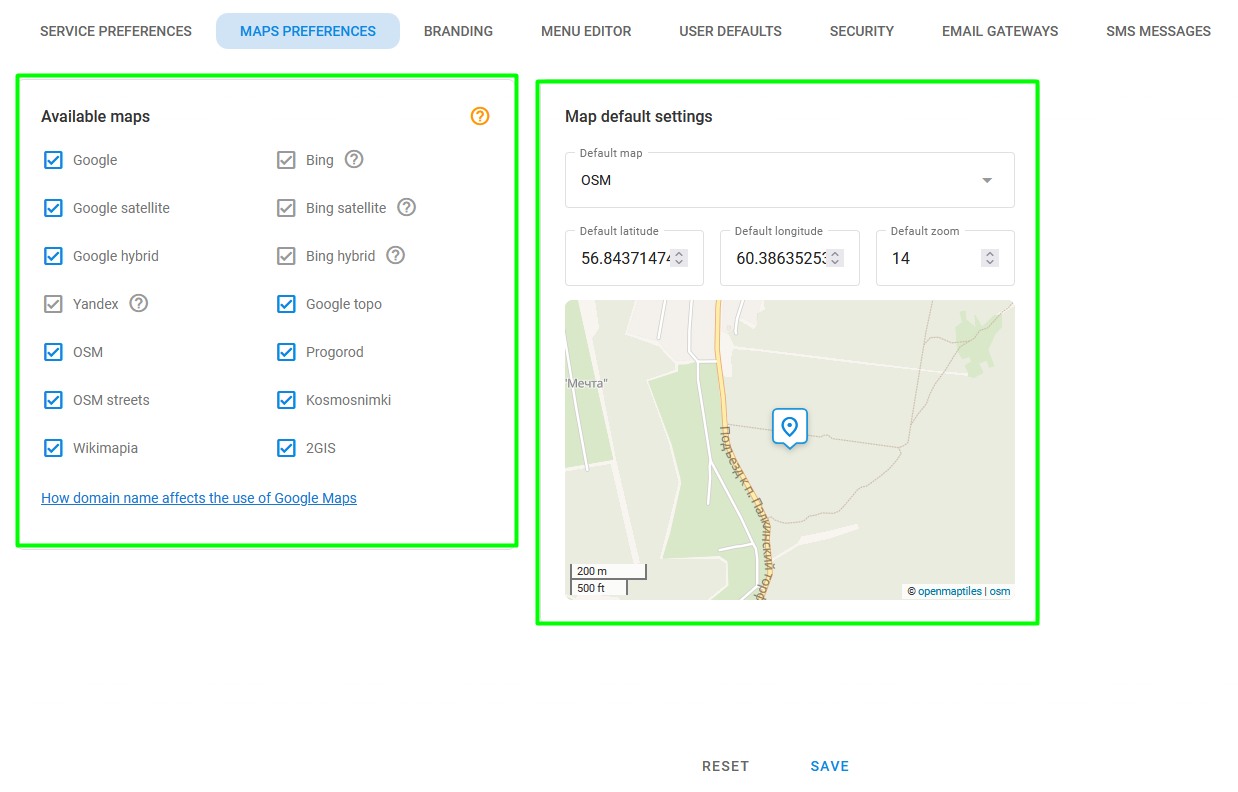
This page describes the **Maps preferences** page of Admin panel settings. It consists of two parts: [Available maps](#how-to-select-maps) and [Map default settings](#default-map-view).
Map preferences page
## Cartography in Navixy
To make GPS data easy to understand, the Navixy GPS-tracking platform uses digital maps and Geographic Information Services (GIS).
* **Maps** enable users to identify their current location, view the location of events recorded in reports (such as fuel filling or draining), and see where specific events occurred (like pressing the SOS button).
* **GIS** provides additional information such as the exact address of a current location, estimated time and length for building routes, taking into account streets and traffic, and street view in any selected area. It is an essential feature for efficient fleet management and helps businesses make informed decisions.
## Making maps available to your users
To enhance the user experience of your service, you have the option to set default list of maps, map center point, and scale that is used when logging into the platform for the first time. This allows for a more customized and streamlined experience for your users.
### How to select maps
You can define the list of available maps for your users by checking the boxes in the **Available maps** block. To add maps that are commonly used in your region, contact the Navixy Customer Success team.
### Default map view
By setting the default map view, map center location and map zoom parameter, you can improve experience for your users when they log into the platform for the first time. These settings are applied both to web interface and mobile apps.
Note that the map position stays where the user last left it. The default settings only apply on the first login or after clearing cookies.
## Using different maps and GIS with Navixy
With Navixy, you are free to choose from a variety of licensed maps and GIS services, including Geocoding, Street View, Directions, Distance Matrix, and more. Your preferences may vary depending on your region and local demand. Here are just a few of the popular available options:
* Google Maps
* OpenStreetMaps
* Bing Maps
* Mapbox
* Yandex Maps
### Adding Google Maps to your service
Google Maps services remain one of the most popular choices for premium maps and GIS worldwide. If you're interested in using Google Maps services with Navixy, you have two options available to you:
1. Activate Navixy's **Premium GIS** package (recommended)
2. Provide your Google Maps license key
#### How to activate Navixy Premium GIS
To activate and upgrade to the Navixy Premium GIS Package, contact the Navixy customer success team. This package includes not only fully licensed Google Maps services, but also advanced GIS services from Navixy including a set of additional licensed maps, algorithms for routing and distance calculation, LBS/Cell-ID databases. The team will guide you through the process and ensure a smooth upgrade experience, so you can start taking advantage of all the benefits that come with the Premium GIS Package.
#### How to use your own map license from Google
If you prefer using the license purchased from Google, you can integrate Google Maps and its API with Navixy. Just provide the Navixy team with the necessary information, and they'll take care of the rest. To learn how to create a key, see [Set up the Geocoding API](https://developers.google.com/maps/documentation/geocoding/get-api-key) page on Google's website. Once you've created the key, send it to Navixy's technical support team along with your domain name information. For security purposes, Navixy recommends creating two Google API keys and restricting them as follows:
* Google API key #1: Restrict it to the following APIs: Google Maps JavaScript API and Google Street View Image API.
* Google API key #2: Restrict it to the following APIs: Google Maps Geocoding API, Google Maps Geolocation API, and Google Maps Directions API.
Note that if you change your domain name, you need to create new keys and provide the Navixy team with the updated information. This ensures that your maps and API continue to function properly with Navixy.
### How to add other maps and GIS
Activating additional Maps and GIS services with Navixy is a straightforward process. Just follow these steps:
1. Contact the Navixy customer success team to learn about the available options for additional maps and GIS services.
2. Select the services you want to activate and let the Navixy team know which ones you've chosen.
3. The Navixy team provides you with the necessary instructions and helps you activate the services.
4. Once activated, you can start using the new maps and GIS services right away.
For more information about deploying your own tile server, see [Map tile servers](/docs/on-premise/on-premise/how-to-guide/configuration/maps-and-gis/custom-maps.md).
Note that maps and GIS services that you deploy locally or in the cloud may require separate licenses or paid subscriptions. Our team will help you navigate this process and ensure that you have everything you need to take full advantage of Navixy's offers.
---
# Agent Instructions
This documentation is published with GitBook. GitBook is the documentation platform designed so that both humans and AI agents can read, navigate, and reason over technical content effectively. Learn more at gitbook.com.
## Querying This Documentation
If you need additional information that is not directly available in this page, you can query the documentation by asking a question.
Perform an HTTP GET request on the following URL with the `ask` and `goal` query parameters:
```
GET https://navixy.com/docs/admin/settings/maps.md?ask=&goal=
```
`ask` is the immediate question: it should be specific, self-contained, and written in natural language.
`goal` is what the user is ultimately trying to achieve, the reason they need the answer. Sharing it helps GitBook give you a better, more relevant answer. A goal is most helpful when it describes the outcome the user wants rather than restating the question. For example, with `ask=how do I create an API token`, a goal like `automate deployments from our CI pipeline` lets GitBook tailor the answer to that use case.
The response will contain a direct answer to the question and relevant excerpts and sources from the documentation.
Use this mechanism when the answer is not explicitly present in the current page, you need clarification or additional context, or you want to retrieve related documentation sections.