> For the complete documentation index, see [llms.txt](https://navixy.com/docs/llms.txt). Markdown versions of documentation pages are available by appending `.md` to page URLs; this page is available as [Markdown](https://navixy.com/docs/admin/settings/branding-options.md).
# Branding
White-label the platform with custom login page settings, logos/backgrounds/favicon, and UI themes for web and mobile
With Navixy, you can customize and white-label the service to make it truly your own. This feature allows you to add a personalized touch to the Navixy service and present it as a seamless part of your business.
To access the branding options, log into the **Admin Panel** and navigate to **Settings** → **Branding**. You will find a range of customizable settings that you can use to reflect your company's branding and marketing attributes.
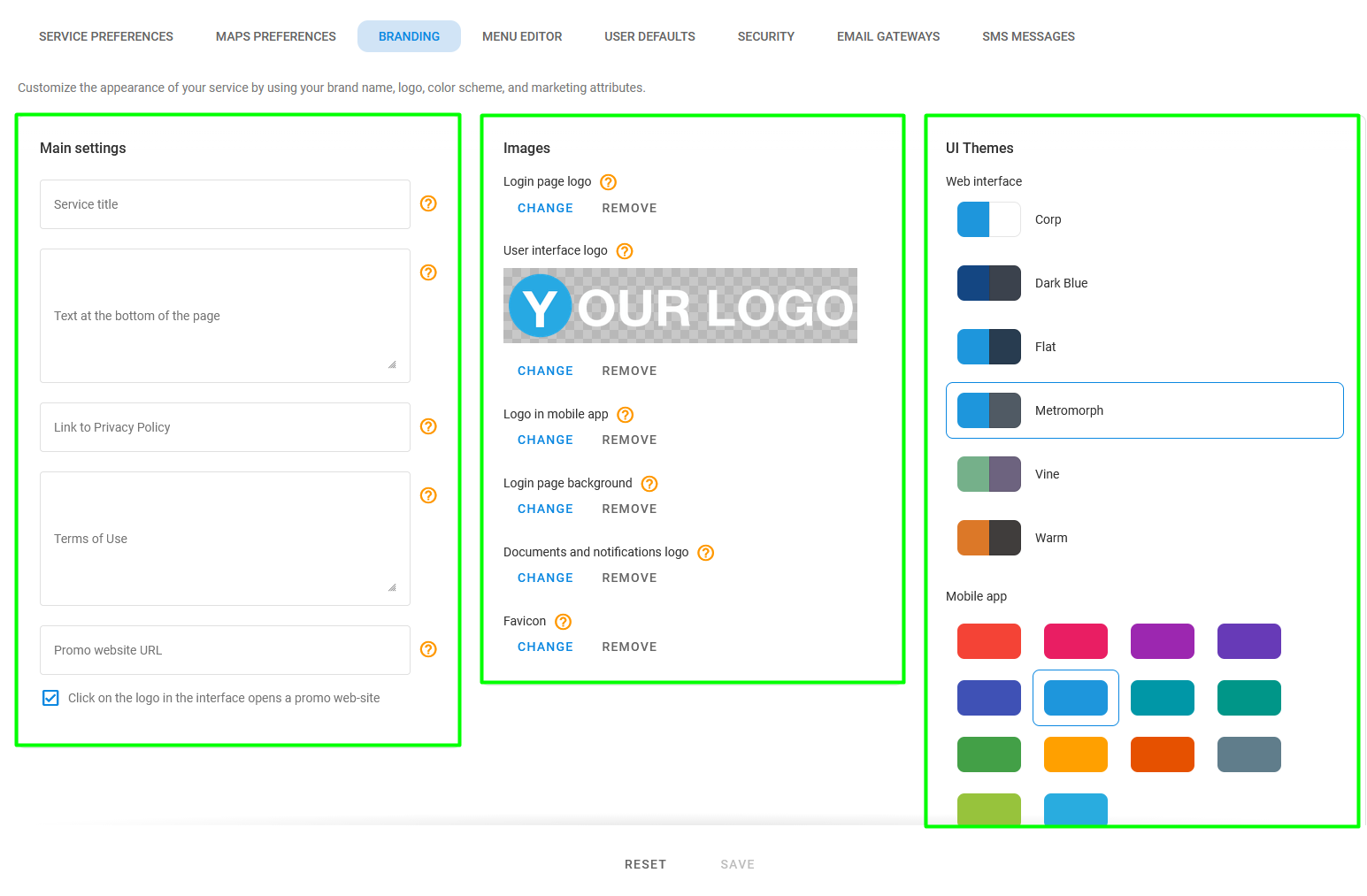
Branding page
The page consists of the following sections:
* **Main settings**: Configure the view of your platform's login page.
* **Images**: Upload custom logos for your product.
* **UI themes**: Select a color theme for the web platform and mobile app.
### Main settings
This block allows you to customize the login/signup page of your web service. You can change its name, the text shown at the bottom of the login page, add a link to your Privacy Policy, enter your Terms of Use, and the URL of your promo website.
### Images
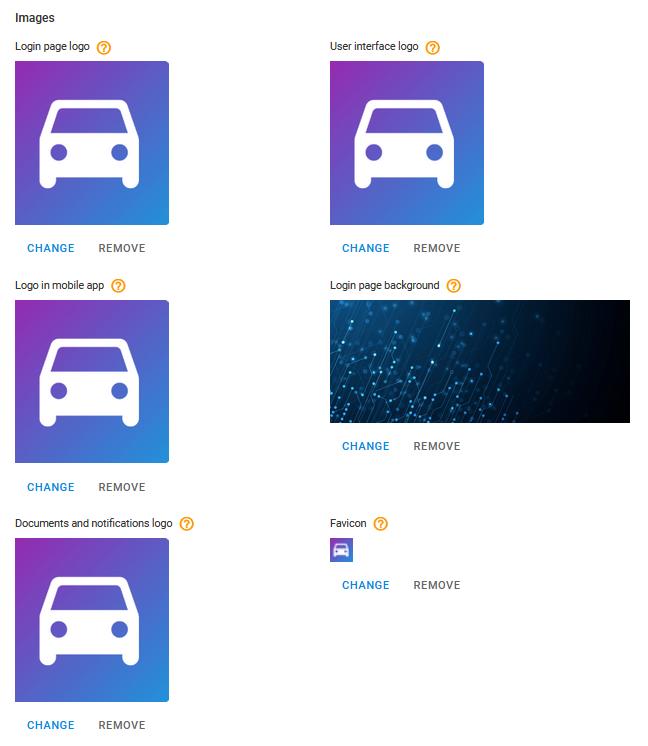
Navixy provides you with the flexibility to upload graphic files that can help make your service appearance unique and aligned with your company's branding. By customizing your service appearance with graphic files, you can create a more professional and personalized experience for your users. This also ensures that your service is consistent with your brand identity and provides a seamless experience across all platforms.
The following image categories are available for customization:
* **Logos**\
Upload company logos to be displayed on the login page, in web and mobile UI, PDF reports, and email notifications. Navixy recommends uploading horizontally oriented images with transparent backgrounds and a size of 500x300 pixels. Maximum file size is 1 Mb. JPEG, PNG, GIF, and WEBP formats are allowed.
* **Login page background**\
Upload a custom background image for the login page. This can be an image that reflects your brand or projects a certain mood. Navixy recommends choosing an image optimized for modern retina screens with a resolution of 3840x2160 pixels. File size isn't restricted. JPEG, PNG, GIF, and WEBP formats are allowed.
* **Favicon**\
Upload an icon to be displayed in the browser tab. Must be in ICO format up to 1 Mb in size.
Custom images and logos
## Color theme
You can personalize your service by choosing one of preconfigured color themes for web UI and mobile apps. Use this feature to design a unique look and feel that reflects your corporate brand and enhances your company's identity. The process is simple and straightforward, allowing you to create a customized experience.
### How to select a color scheme
You can choose a color scheme from a list of available themes in the **UI themes → Web interface** section. When you select a theme, you see screenshots of the chosen color palette. Once you've decided on a theme, click **Save** to apply the changes.
### How to apply a color theme to X-GPS mobile app
In addition to changing the color theme of the web UI, you can also change the colors of the X-GPS mobile apps. This can improve the visual appearance of the platform and ensure that it aligns with your company's brand.\
In the **UI themes** **→** **Mobile app** section, select the color theme that matches your company's visual appearance. Click **Save** to apply the changes.
After the new color theme is set, it is automatically applied when your customers log into their accounts via the X-GPS Monitor app or scan the QR code. This feature provides a consistent and personalized user experience across all platforms while ensuring that the interface is aligned with your company's brand.
---
# Agent Instructions
This documentation is published with GitBook. GitBook is the documentation platform designed so that both humans and AI agents can read, navigate, and reason over technical content effectively. Learn more at gitbook.com.
## Querying This Documentation
If you need additional information that is not directly available in this page, you can query the documentation by asking a question.
Perform an HTTP GET request on the following URL with the `ask` and `goal` query parameters:
```
GET https://navixy.com/docs/admin/settings/branding-options.md?ask=&goal=
```
`ask` is the immediate question: it should be specific, self-contained, and written in natural language.
`goal` is what the user is ultimately trying to achieve, the reason they need the answer. Sharing it helps GitBook give you a better, more relevant answer. A goal is most helpful when it describes the outcome the user wants rather than restating the question. For example, with `ask=how do I create an API token`, a goal like `automate deployments from our CI pipeline` lets GitBook tailor the answer to that use case.
The response will contain a direct answer to the question and relevant excerpts and sources from the documentation.
Use this mechanism when the answer is not explicitly present in the current page, you need clarification or additional context, or you want to retrieve related documentation sections.