> For the complete documentation index, see [llms.txt](https://navixy.com/docs/llms.txt). Markdown versions of documentation pages are available by appending `.md` to page URLs; this page is available as [Markdown](https://navixy.com/docs/admin/users/billing-operations.md).
# Billing operations
View the full transaction history for any user account and manually adjust their balance and bonus credits directly from Admin Panel
## User's transactions
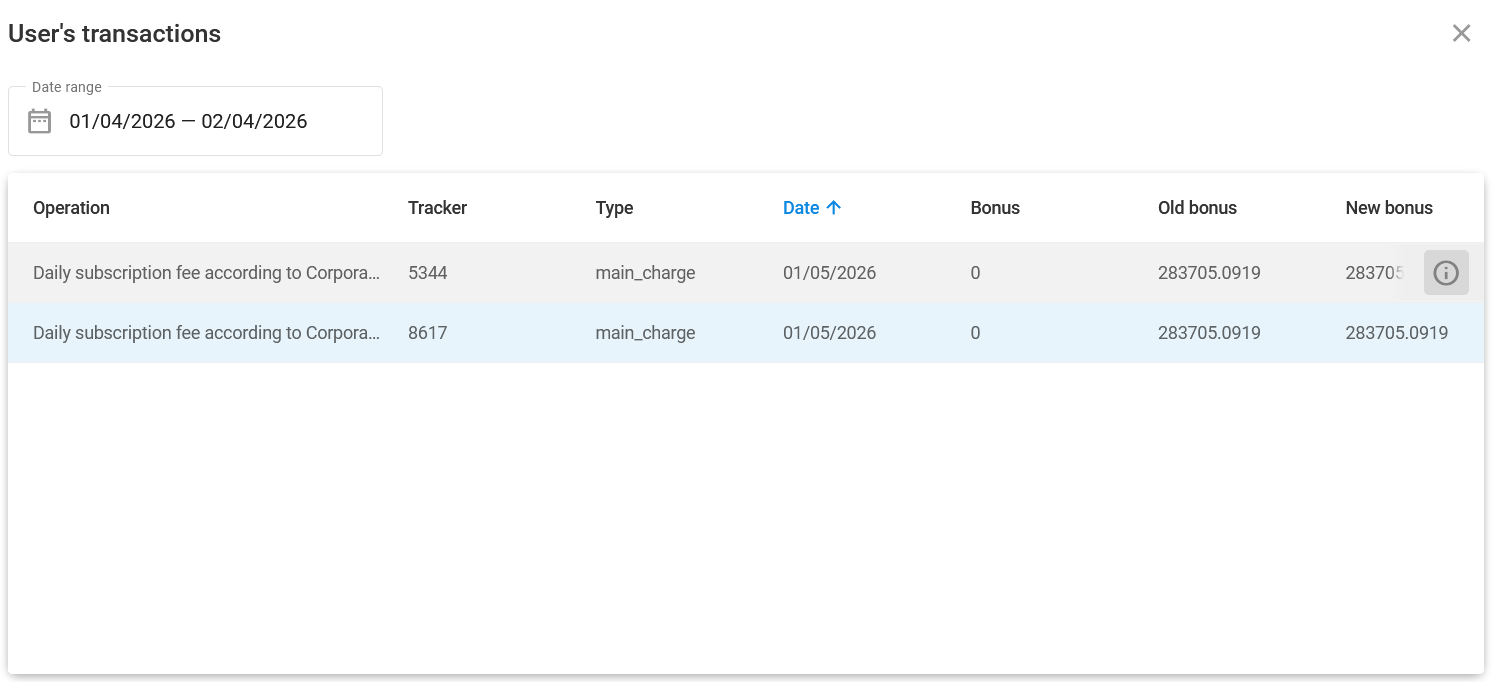
The list of transactions allows you to check operations that affect a user's balance. To view it, select a user and click **User's transactions** in the right side panel. This window shows all of the user's billing operations, along with a short description of each transaction.
User's transactions window
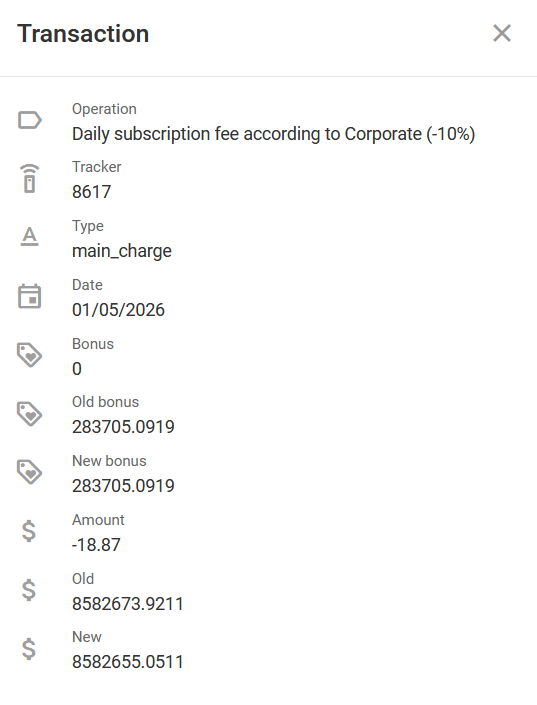
To access detailed information about a transaction, select it and click in the rightmost column. This opens the **Transaction** window:
Transaction details
## Changing user balance
To manually update the balance of a specific user, click **Change balance** located in [User details](/docs/admin/users/user-details.md).
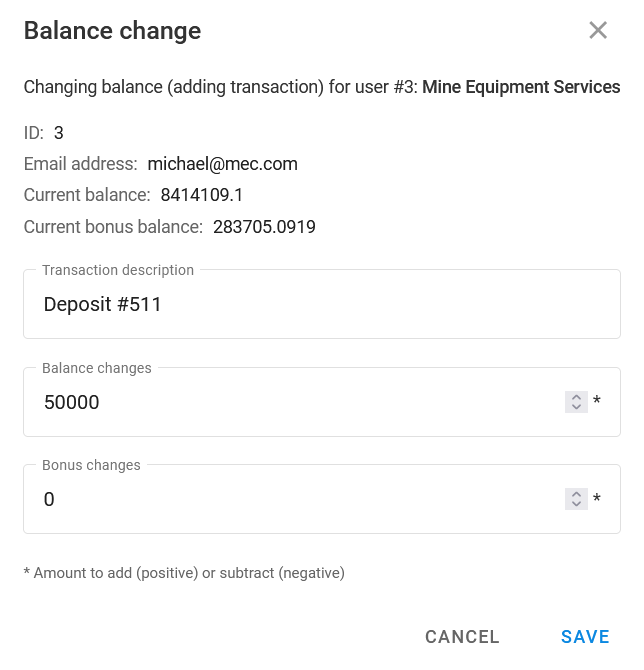
Change balance window
You'll be redirected to a new page where you can view the current balance of the selected user and enter the following transaction details:
* **Transaction description**: The description of the transaction. You may use any description or choose a naming system to follow.
* **Balance changes**: The amount you wish to add to the current balance. Set as negative ("-") to withdraw money.
* **Bonus changes**: The sum of bonuses to add to the balance of your user. Set as negative ("-") to withdraw money.
There are two types of user balances: the actual balance and the bonus balance.
* The actual balance displays the amount of money that a user actually has in their account. The system automatically deducts money from this balance for subscriptions and services, as this is set by the user's pricing plan.
* The bonus balance is an additional optional balance that allows you to gift users bonuses they can use for any services except subscription, such as SMS (e.g., sending out free SMS commands during the IoT device activation) or other services your company provides to customers.
{% hint style="warning" %}
Money is debited from the bonus balance first, followed by the actual balance.
{% endhint %}
---
# Agent Instructions
This documentation is published with GitBook. GitBook is the documentation platform designed so that both humans and AI agents can read, navigate, and reason over technical content effectively. Learn more at gitbook.com.
## Querying This Documentation
If you need additional information that is not directly available in this page, you can query the documentation dynamically by asking a question.
Perform an HTTP GET request on the current page URL with the `ask` query parameter, and the optional `goal` query parameter:
```
GET https://navixy.com/docs/admin/users/billing-operations.md?ask=&goal=
```
`ask` is the immediate question: it should be specific, self-contained, and written in natural language.
`goal` is optional and describes the broader end goal you are ultimately trying to accomplish on behalf of the user. GitBook uses it to tailor the answer towards what is most useful for that goal.
The response will contain a direct answer to the question and relevant excerpts and sources from the documentation.
Use this mechanism when the answer is not explicitly present in the current page, you need clarification or additional context, or you want to retrieve related documentation sections.
 in the rightmost column. This opens the **Transaction** window: