> For the complete documentation index, see [llms.txt](https://navixy.com/docs/llms.txt). Markdown versions of documentation pages are available by appending `.md` to page URLs; this page is available as [Markdown](https://navixy.com/docs/admin/devices/change-plan.md).
# Changing plan
Change a tracker’s pricing plan in Admin Panel and choose how billing is handled immediately or at the next billing cycle
Changing the pricing plan for a tracker in the Navixy platform is a straightforward process that can be completed in just a few steps via Admin Panel.
## Pricing plans for users
A pricing plan in Navixy is a set of rates and fees that determine the cost of using the platform's GPS tracking and monitoring services. Navixy offers various pricing plans with different features and levels of access, allowing users to choose a plan that best suits their needs and budget.
The pricing plan you choose for your Navixy account determines how much a user is charged for accessing the platform's services, such as real-time GPS tracking, device management, and reporting. Different plans may also offer different levels of access and control, such as the ability to create sub-users or customize reports.
Navixy's pricing plans are designed to be flexible and scalable, allowing customers to adjust their plan as their needs change over time. This means that a customer can start with a basic plan and upgrade to a more advanced plan as their business grows and fleet management or GPS tracking needs become more complex.
## Changing pricing plan
To change the pricing plan for your GPS tracker in the Navixy platform, follow these steps:
{% stepper %}
{% step %}
### Open the Change plan window
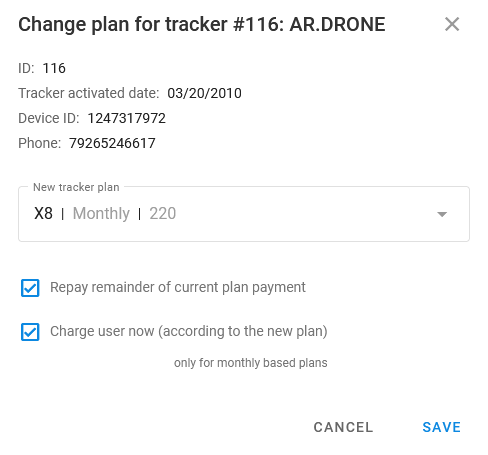
Select the tracker and click **Change plan** (located in the right side panel). This opens the **Change plan** window:
{% endstep %}
{% step %}
### Select the tracker plan
In the drop-down menu, select the new pricing plan for your tracker. Plan names have the following format: `name | billing cycle | price` .
{% endstep %}
{% step %}
### Configure payment options
You can choose how to handle switching from an old plan to a new one. There are two options:
* **Repay remainder of current plan payment**: Select this option to be refunded for the remaining period under the old pricing plan.
* **Charge user now (according to the new plan)**: Only for monthly-based plans. Select this option if you want to start charging the user under the new plan from the next day after the change. If the user has zero balance, the plan is changed, but all services are blocked.
{% endstep %}
{% step %}
### Save and exit
Save the new configuration and close the **Change plan** window.
{% endstep %}
{% endstepper %}
{% hint style="danger" %}
When changing a plan to non-monthly billing (such as daily or annual), the new plan will only take effect after the current plan's billing cycle ends. This means that the user will continue to be charged according to the current plan until the end of the current billing cycle, at which point the new plan will take effect.
{% endhint %}
For more information on plans, see the [Plans](/docs/admin/plans.md) documentation.
---
# Agent Instructions
This documentation is published with GitBook. GitBook is the documentation platform designed so that both humans and AI agents can read, navigate, and reason over technical content effectively. Learn more at gitbook.com.
## Querying This Documentation
If you need additional information that is not directly available in this page, you can query the documentation by asking a question.
Perform an HTTP GET request on the following URL with the `ask` and `goal` query parameters:
```
GET https://navixy.com/docs/admin/devices/change-plan.md?ask=&goal=
```
`ask` is the immediate question: it should be specific, self-contained, and written in natural language.
`goal` is what the user is ultimately trying to achieve, the reason they need the answer. Sharing it helps GitBook give you a better, more relevant answer. A goal is most helpful when it describes the outcome the user wants rather than restating the question. For example, with `ask=how do I create an API token`, a goal like `automate deployments from our CI pipeline` lets GitBook tailor the answer to that use case.
The response will contain a direct answer to the question and relevant excerpts and sources from the documentation.
Use this mechanism when the answer is not explicitly present in the current page, you need clarification or additional context, or you want to retrieve related documentation sections.