> For the complete documentation index, see [llms.txt](https://navixy.com/docs/llms.txt). Markdown versions of documentation pages are available by appending `.md` to page URLs; this page is available as [Markdown](https://navixy.com/docs/admin/devices/basic-operations.md).
# Tracker details and operations
View tracker status and run core actions like edit/assign, clone, export, activation, plan changes, and Air Console.
## How to view tracker details
To view detailed information about a tracker, double-click its name in the table. Its details appear on the right of the tracker list, including the tracker's connection status, last update time, battery level, and other relevant information.
You also see the following operations below:
* **Edit tracker:** Allows you to change the tracker's name and owner or make it hidden. See [Editing tracker](#editing-tracker) for more information.
* **Air Console:** Opens [Air Console](/docs/admin/devices/air-console.md) for the tracker.
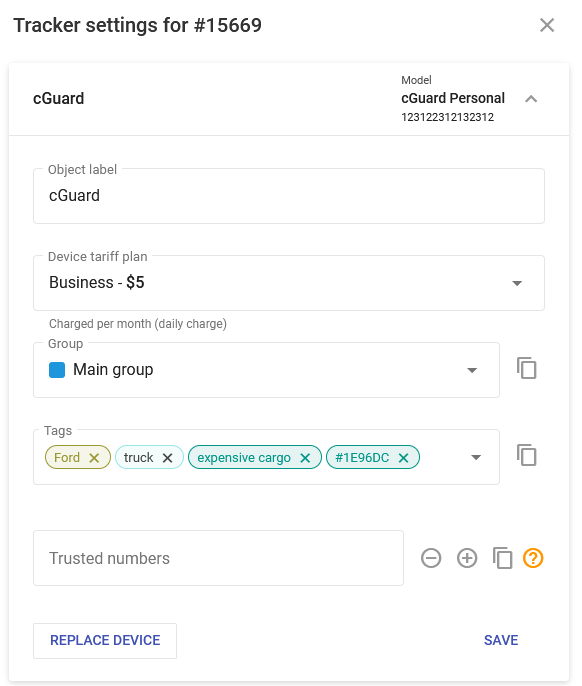
* **Tracker settings**: Opens the **Tracker settings** window for the tracker that shows its information. Only available to activated and non-suspended trackers.\
This information can also be viewed in the **Devices and settings** module of the Navixy platform. To learn more, see [Devices and settings](/docs/user/guide/devices-and-settings.md).
* **Create clone:** Creates a [tracker clone](/docs/admin/devices/tracker-clones.md). Only available to trackers that aren't clones.
* **Remove clone**: Deletes a [tracker clone](/docs/admin/devices/tracker-clones.md). Only available to trackers that are clones.
* **Change plan:** Opens the [Change plan](/docs/admin/devices/change-plan.md) window for the tracker. Only available to trackers that aren't hidden.
* **Retry activation**: Sends default activation commands to the device.
* **Cancel activation:** Permanently removes the device from the database.
## How to edit trackers
Click **Edit tracker** to modify the selected tracker's parameters. The following parameters can be changed:
* **Label**: Update the tracker's name for easier identification on the platform.
* **Tracker owner:** Reassign the device to a different user within your organization.
* **Hidden:** Check this box to deactivate the tracker and remove it from future billing cycles.
{% hint style="info" %}
While a tracker is hidden, it isn't included in the next billing period. The tracker remains active until the end of the current paid period. If the device continues to transmit data during this time, it is still considered active for the billing purposes for the current cycle.
You can't change the subscription plan for a tracker while it is set to hidden.
{% endhint %}
* **Comments:** You can add a few words about the tracker for reference purposes.
## How to export trackers
Tracker data can be exported as a CSV file. Choose which table rows to export by checking the columns in the menu and click on the toolbar to open the **Export trackers** dialogue.
You can choose which trackers to export (selected or all of them) and the output (formatted or raw data). Raw data is data sent via API without any formatting applied to language, date, or time. A raw data file contains all available columns, no matter which you chose.
Exporting trackers
---
# Agent Instructions
This documentation is published with GitBook. GitBook is the documentation platform designed so that both humans and AI agents can read, navigate, and reason over technical content effectively. Learn more at gitbook.com.
## Querying This Documentation
If you need additional information that is not directly available in this page, you can query the documentation by asking a question.
Perform an HTTP GET request on the following URL with the `ask` and `goal` query parameters:
```
GET https://navixy.com/docs/admin/devices/basic-operations.md?ask=&goal=
```
`ask` is the immediate question: it should be specific, self-contained, and written in natural language.
`goal` is what the user is ultimately trying to achieve, the reason they need the answer. Sharing it helps GitBook give you a better, more relevant answer. A goal is most helpful when it describes the outcome the user wants rather than restating the question. For example, with `ask=how do I create an API token`, a goal like `automate deployments from our CI pipeline` lets GitBook tailor the answer to that use case.
The response will contain a direct answer to the question and relevant excerpts and sources from the documentation.
Use this mechanism when the answer is not explicitly present in the current page, you need clarification or additional context, or you want to retrieve related documentation sections.
 menu and click
  on the toolbar to open the **Export trackers** dialogue.
You can choose which trackers to export (selected or all of them) and the output (formatted or raw data). Raw data is data sent via API without any formatting applied to language, date, or time. A raw data file contains all available columns, no matter which you chose.
on the toolbar to open the **Export trackers** dialogue.
You can choose which trackers to export (selected or all of them) and the output (formatted or raw data). Raw data is data sent via API without any formatting applied to language, date, or time. A raw data file contains all available columns, no matter which you chose.
