.png?alt=media)
 in the lower-left corner of the app and select **New dashboard**.
* Add **Title**.
* Click **Create dashboard**, a **Get Started** message appears.
* Select **Start with a blank dashboard** to open an empty canvas in edit mode.
{% endstep %}
{% step %}
**Add a panel**
in the lower-left corner of the app and select **New dashboard**.
* Add **Title**.
* Click **Create dashboard**, a **Get Started** message appears.
* Select **Start with a blank dashboard** to open an empty canvas in edit mode.
{% endstep %}
{% step %}
**Add a panel**
.png?alt=media)
 on the editing toolbar.
2. Choose **Panel Type** and click **Add panel**. The new panel appears on the canvas.
{% endstep %}
{% step %}
**Configure the visual**
on the editing toolbar.
2. Choose **Panel Type** and click **Add panel**. The new panel appears on the canvas.
{% endstep %}
{% step %}
**Configure the visual**
.png?alt=media)
 .
2. Dashboard Studio opens a panel editor with three tabs:
1. **Panel Properties** controls the title and type
2. **SQL Query** defines what data to display
3. **Visualization Settings** adjust how that data appears
3. Name your panel in **Panel Properties**.
4. Write a **SQL query** that fetches data from IoT Query tables, and test it to verify the results.
5. Adjust the **Visualization Settings**.
6. When satisfied, save the panel to add it to your canvas.
{% endstep %}
{% endstepper %}
### How to write effective SQL queries
Now that you understand the basic workflow, let's explore SQL queries in detail. Write PostgreSQL queries that reference IoT Query tables in the SQL Query tab. All Raw data, Transformation, and Insight layer tables are available. Test queries before applying them to verify results match your visualization requirements.
.
2. Dashboard Studio opens a panel editor with three tabs:
1. **Panel Properties** controls the title and type
2. **SQL Query** defines what data to display
3. **Visualization Settings** adjust how that data appears
3. Name your panel in **Panel Properties**.
4. Write a **SQL query** that fetches data from IoT Query tables, and test it to verify the results.
5. Adjust the **Visualization Settings**.
6. When satisfied, save the panel to add it to your canvas.
{% endstep %}
{% endstepper %}
### How to write effective SQL queries
Now that you understand the basic workflow, let's explore SQL queries in detail. Write PostgreSQL queries that reference IoT Query tables in the SQL Query tab. All Raw data, Transformation, and Insight layer tables are available. Test queries before applying them to verify results match your visualization requirements.
.png?alt=media)
.png?alt=media)
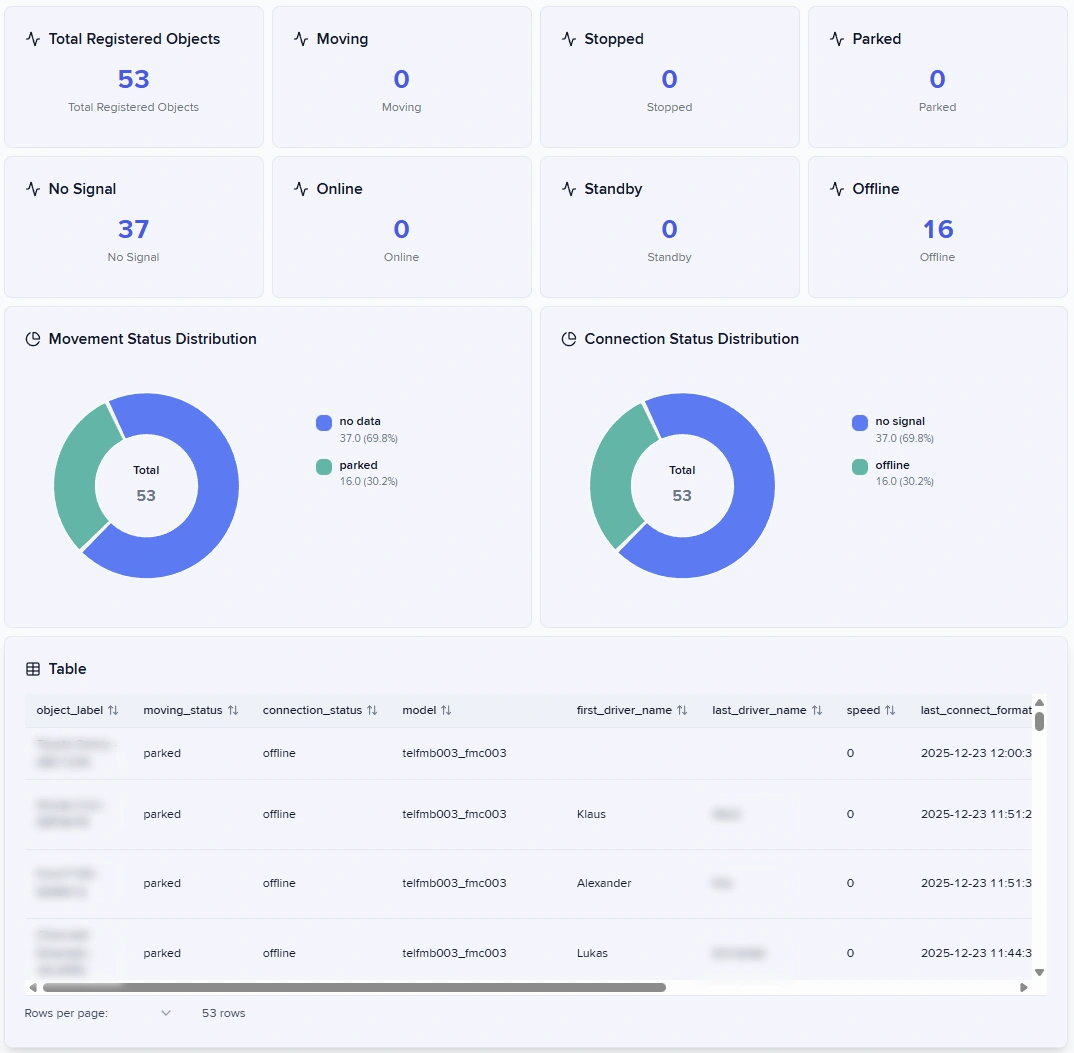
Table Visualization Settings example
.png?alt=media)
 to enter edit mode.
2. Click
to enter edit mode.
2. Click .png?alt=media) to open the Full Schema window.
3. Select **Export**.
Dashboard Studio downloads a JSON file containing the dashboard's structure, including panels, queries, and visualization settings. You can import an existing schema as well.
to open the Full Schema window.
3. Select **Export**.
Dashboard Studio downloads a JSON file containing the dashboard's structure, including panels, queries, and visualization settings. You can import an existing schema as well.
.png?alt=media)