> For the complete documentation index, see [llms.txt](https://navixy.com/docs/llms.txt). Markdown versions of documentation pages are available by appending `.md` to page URLs; this page is available as [Markdown](https://navixy.com/docs/user/ru/guide/x-gps-mobile-apps/x-gps-tracker/invitation-to-x-gps-tracker.md).
# Приглашение в X-GPS Tracker
Вы можете превратить смартфон или планшет в GPS-трекер, установив наше **X-GPS Tracker** приложение. Наше приложение доступно для загрузки в Google Play и iOS App Store и совершенно бесплатно.
Процесс активации одинаков для устройств iOS и Android.
## Активация X-GPS Tracker
{% columns %}
{% column %}
1. Войдите в учетную запись пользователя.
{% endcolumn %}
{% column %}
{% endcolumn %}
{% endcolumns %}
{% columns %}
{% column %}
2\. Нажмите кнопку **Иконка Активация устройства** на панели приложения.
{% endcolumn %}
{% column %}
{% endcolumn %}
{% endcolumns %}
{% columns %}
{% column %}
3\. Введите **X-GPS Tracker** в **Выберите модель** поле и выберите его. Нажмите **Далее.**
{% endcolumn %}
{% column %}
{% endcolumn %}
{% endcolumns %}
{% columns %}
{% column %}
3\. Введите имя объекта, который вы создаете. Нажмите **Далее**.
{% endcolumn %}
{% column %}
{% endcolumn %}
{% endcolumns %}
{% columns %}
{% column %}
4\. Введите адрес электронной почты или номер телефона, чтобы получить приглашение со ссылкой для скачивания.
{% endcolumn %}
{% column %}
{% endcolumn %}
{% endcolumns %}
{% columns %}
{% column %}
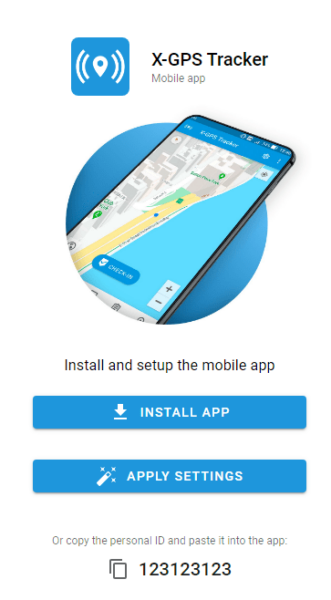
5\. Вы получите инструкции по автоматической и ручной настройке. Нажмите **Активируйте.**
{% endcolumn %}
{% column %}
{% endcolumn %}
{% endcolumns %}
{% columns %}
{% column %}
6\. После установки **X-GPS Tracker,** приложение будет настроено, а мобильный телефон или планшет будет превращён в **устройство мониторинга** отображается на платформе. В качестве альтернативы введите ID, который вы получили по электронной почте.
{% endcolumn %}
{% column %}
{% endcolumn %}
{% endcolumns %}
---
# Agent Instructions
This documentation is published with GitBook. GitBook is the documentation platform designed so that both humans and AI agents can read, navigate, and reason over technical content effectively. Learn more at gitbook.com.
## Querying This Documentation
If you need additional information that is not directly available in this page, you can query the documentation dynamically by asking a question.
Perform an HTTP GET request on the current page URL with the `ask` query parameter, and the optional `goal` query parameter:
```
GET https://navixy.com/docs/user/ru/guide/x-gps-mobile-apps/x-gps-tracker/invitation-to-x-gps-tracker.md?ask=&goal=
```
`ask` is the immediate question: it should be specific, self-contained, and written in natural language.
`goal` is optional and describes the broader end goal you are ultimately trying to accomplish on behalf of the user. GitBook uses it to tailor the answer towards what is most useful for that goal.
The response will contain a direct answer to the question and relevant excerpts and sources from the documentation.
Use this mechanism when the answer is not explicitly present in the current page, you need clarification or additional context, or you want to retrieve related documentation sections.