> For the complete documentation index, see [llms.txt](https://navixy.com/docs/llms.txt). Markdown versions of documentation pages are available by appending `.md` to page URLs; this page is available as [Markdown](https://navixy.com/docs/user/ru/guide/x-gps-mobile-apps/x-gps-monitor/quick-start.md).
# Быстрый старт
{% columns %}
{% column %}
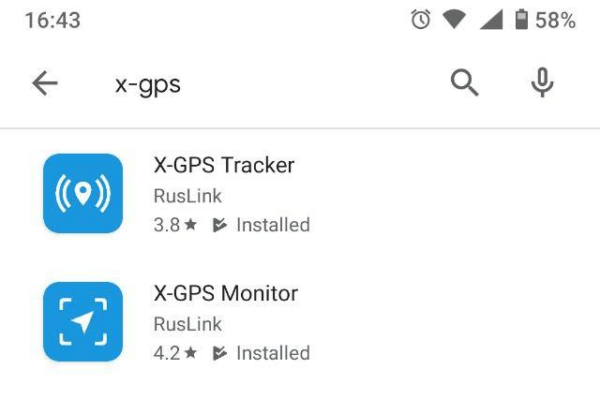
Вы можете бесплатно загрузить приложение из Google Play или App Store.
Перейдите в магазин и введите X-GPS в поле поиска.
Выберите **X-GPS Monitor** и нажмите «Установить».
{% endcolumn %}
{% column %}
{% endcolumn %}
{% endcolumns %}
### Вход
{% columns %}
{% column %}
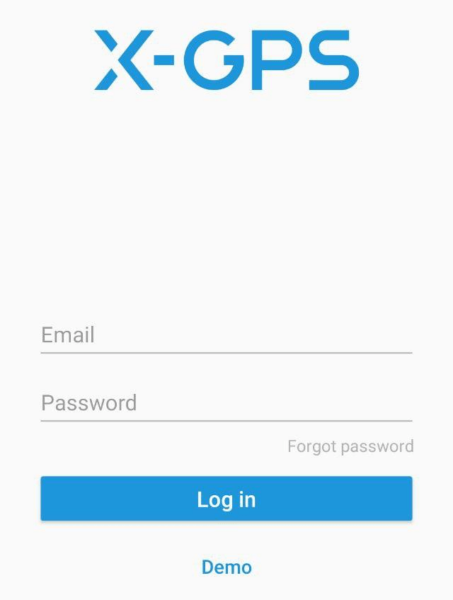
При первом запуске приложение предложит отсканировать QR-код. Чтобы получить QR-код, нажмите  кнопку под [формой входа в платформу Navixy](https://tracking.navixy.com/).
После сканирования QR-кода введите имя пользователя и пароль и нажмите **Вход** кнопку.
Если вы забыли пароль, нажмите соответствующую кнопку, введите адрес электронной почты и капчу. После этого вы получите письмо со ссылкой для сброса пароля.
После успешного входа вы увидите экран карты.
{% endcolumn %}
{% column %}
{% endcolumn %}
{% endcolumns %}
### Основные инструменты
{% columns %}
{% column %}
На главном экране доступны следующие элементы:
1. **Боковая панель.** Нажатие кнопки открывает меню, где вы можете получить доступ к информации о пользователе, балансе, списку устройств и другим элементам управления.
2. **Показать трекеры.** Нажмите, чтобы выбрать, какие трекеры отображать — все, один или группу. Также можно включить **Следить за объектом**, и карта автоматически сосредоточится на одном устройстве.
3. **Тип карты.** Позволяет выбрать из списка доступных карт, а также включить отображение пробок.
4. **Список уведомлений.** Отображает все непрочитанные уведомления.
5. **Показать местоположение.** Центрировать карту по вашему текущему местоположению.
6. **Масштаб.** Вы можете изменить масштаб карты с помощью кнопок «+» и «-».
{% endcolumn %}
{% column %}

{% endcolumn %}
{% endcolumns %}
---
# Agent Instructions
This documentation is published with GitBook. GitBook is the documentation platform designed so that both humans and AI agents can read, navigate, and reason over technical content effectively. Learn more at gitbook.com.
## Querying This Documentation
If you need additional information that is not directly available in this page, you can query the documentation dynamically by asking a question.
Perform an HTTP GET request on the current page URL with the `ask` query parameter, and the optional `goal` query parameter:
```
GET https://navixy.com/docs/user/ru/guide/x-gps-mobile-apps/x-gps-monitor/quick-start.md?ask=&goal=
```
`ask` is the immediate question: it should be specific, self-contained, and written in natural language.
`goal` is optional and describes the broader end goal you are ultimately trying to accomplish on behalf of the user. GitBook uses it to tailor the answer towards what is most useful for that goal.
The response will contain a direct answer to the question and relevant excerpts and sources from the documentation.
Use this mechanism when the answer is not explicitly present in the current page, you need clarification or additional context, or you want to retrieve related documentation sections.
кнопку под [формой входа в платформу Navixy](https://tracking.navixy.com/).
После сканирования QR-кода введите имя пользователя и пароль и нажмите **Вход** кнопку.
Если вы забыли пароль, нажмите соответствующую кнопку, введите адрес электронной почты и капчу. После этого вы получите письмо со ссылкой для сброса пароля.
После успешного входа вы увидите экран карты.
{% endcolumn %}
{% column %}

{% endcolumn %}
{% endcolumns %}
### Основные инструменты
{% columns %}
{% column %}
На главном экране доступны следующие элементы:
1. **Боковая панель.** Нажатие кнопки открывает меню, где вы можете получить доступ к информации о пользователе, балансе, списку устройств и другим элементам управления.
2. **Показать трекеры.** Нажмите, чтобы выбрать, какие трекеры отображать — все, один или группу. Также можно включить **Следить за объектом**, и карта автоматически сосредоточится на одном устройстве.
3. **Тип карты.** Позволяет выбрать из списка доступных карт, а также включить отображение пробок.
4. **Список уведомлений.** Отображает все непрочитанные уведомления.
5. **Показать местоположение.** Центрировать карту по вашему текущему местоположению.
6. **Масштаб.** Вы можете изменить масштаб карты с помощью кнопок «+» и «-».
{% endcolumn %}
{% column %}

{% endcolumn %}
{% endcolumns %}
---
# Agent Instructions
This documentation is published with GitBook. GitBook is the documentation platform designed so that both humans and AI agents can read, navigate, and reason over technical content effectively. Learn more at gitbook.com.
## Querying This Documentation
If you need additional information that is not directly available in this page, you can query the documentation dynamically by asking a question.
Perform an HTTP GET request on the current page URL with the `ask` query parameter, and the optional `goal` query parameter:
```
GET https://navixy.com/docs/user/ru/guide/x-gps-mobile-apps/x-gps-monitor/quick-start.md?ask=&goal=
```
`ask` is the immediate question: it should be specific, self-contained, and written in natural language.
`goal` is optional and describes the broader end goal you are ultimately trying to accomplish on behalf of the user. GitBook uses it to tailor the answer towards what is most useful for that goal.
The response will contain a direct answer to the question and relevant excerpts and sources from the documentation.
Use this mechanism when the answer is not explicitly present in the current page, you need clarification or additional context, or you want to retrieve related documentation sections.