> For the complete documentation index, see [llms.txt](https://navixy.com/docs/llms.txt). Markdown versions of documentation pages are available by appending `.md` to page URLs; this page is available as [Markdown](https://navixy.com/docs/user/pt-br/guide/x-gps-mobile-apps/x-gps-mobile/quick-start.md).
# Início rápido do X-GPS Mobile
Baixe o X-GPS Mobile no Google Play ou na App Store e faça login com suas credenciais do Navixy para começar a monitorar sua frota em um dispositivo móvel.
Siga estas etapas para aprender a usar o X-GPS Mobile:
### Etapa 1. Baixar o app
{% columns %}
{% column %}
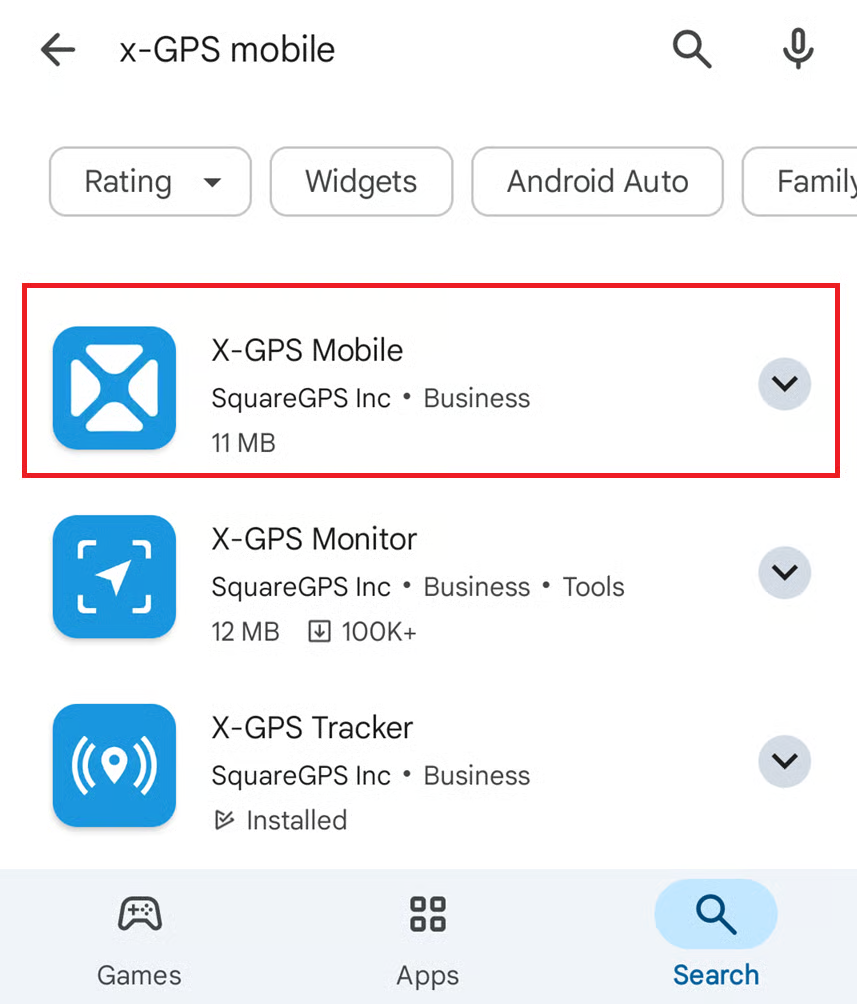
1. Abra o Google Play ou a App Store e digite X-GPS Mobile no campo de pesquisa.
2. Selecione-o e toque em **Instalar**.
{% endcolumn %}
{% column %}
Tela de pesquisa
{% endcolumn %}
{% endcolumns %}
### Etapa 2. Fazer login
{% columns %}
{% column %}
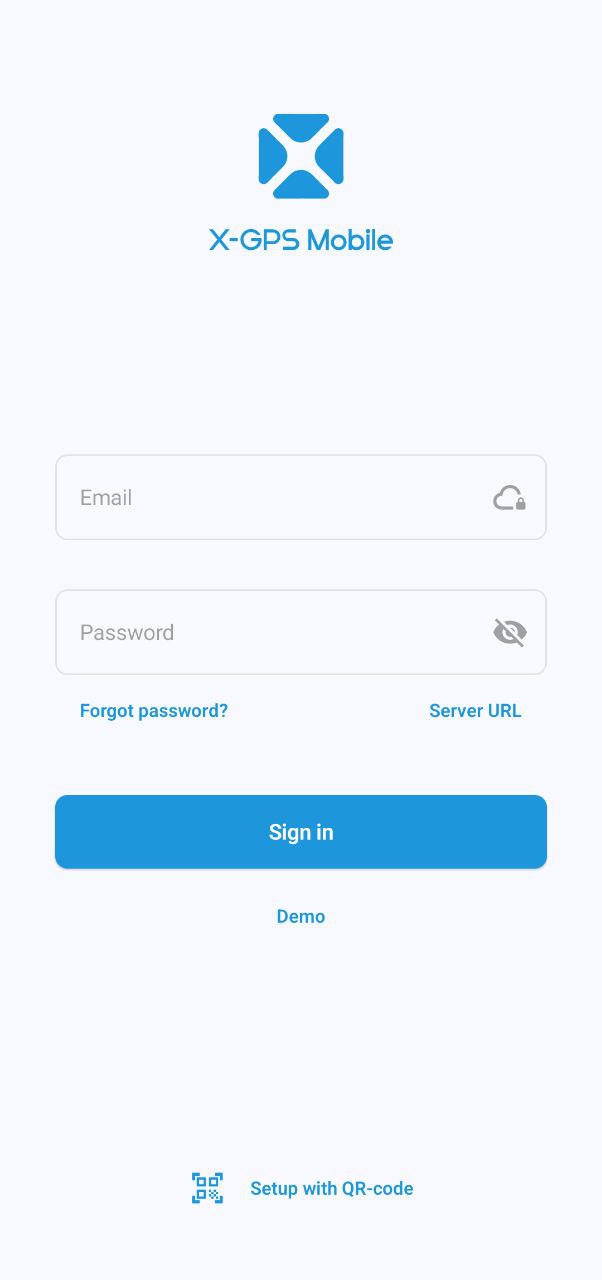
1. Abra o app.
2. Digite seu nome de usuário e senha e toque em **Entrar**.
3. Se necessário, insira a URL do seu servidor (por padrão, é usado o servidor da Navixy). Como alternativa, use um código QR para dispensar a inserção da URL e configurar automaticamente suas configurações.\
Para ver o código QR, clique no botão abaixo do [formulário de login](https://tracking.navixy.com/).
{% endcolumn %}
{% column %}
Tela de login
{% endcolumn %}
{% endcolumns %}
{% hint style="warning" %}
Se você esqueceu sua senha, toque no botão correspondente e informe seu endereço de e-mail. Você receberá um e-mail com um link para redefinir sua senha.
{% endhint %}
### Etapa 3. Definir permissões
{% columns %}
{% column %}
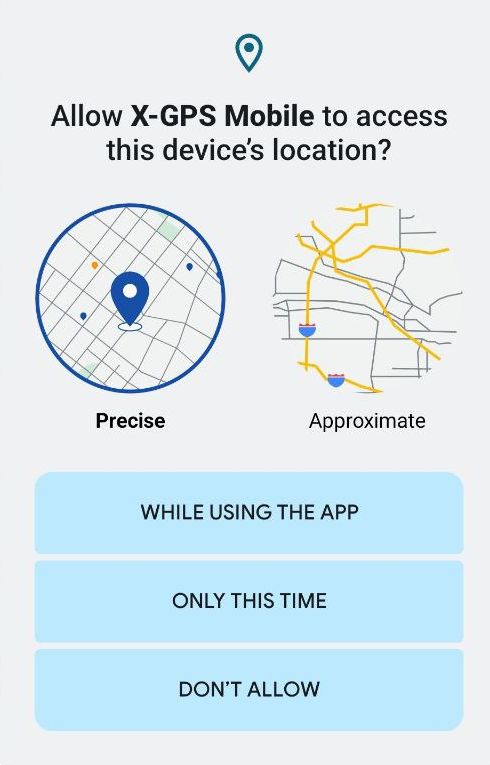
Permita que o app envie notificações para você e acesse a localização do dispositivo enquanto você estiver usando o app. Observe que você receberá notificações push para todos os ativos da sua frota.
{% endcolumn %}
{% column %}
Solicitação de permissão
{% endcolumn %}
{% endcolumns %}
### Etapa 4. Abrir a tela de Monitor
{% columns fullWidth="true" %}
{% column width="50%" %}
A tela de Monitor exibe seus ativos: veículos, motoristas e objetos (unidades que representam dispositivos GPS) com ícones que indicam se estão em movimento ou estacionados.
Você pode filtrá-los por categoria ou status (em movimento, estacionado etc.) e classificá-los por nome ou status.
Para classificar ou filtrar a lista de ativos e acessar as ferramentas de monitoramento, toque nos ícones no canto superior direito:
 Permite inserir uma consulta de pesquisa
 Abre a [registro de eventos](https://squaregps.atlassian.net/wiki/spaces/~7120201a6252f8d34242e3bdb7409b5d34d953/pages/3182821465/new+Assets+list#events-list) de todas as unidades
 Abre a [filtragem e classificação](https://squaregps.atlassian.net/wiki/spaces/USERDOCSOLD/pages/3235676161/Assets+list#sorting-and-filtering) menu
 Abre a [tela do mapa](https://squaregps.atlassian.net/wiki/spaces/USERDOCSOLD/pages/3235676161/Assets+list#map-fullscreen)
Use o painel inferior para alternar entre a tela principal e o seu perfil.
{% endcolumn %}
{% column width="50%" %}
Tela de Monitor
{% endcolumn %}
{% endcolumns %}
### Etapa 5. Começar a usar
{% columns %}
{% column width="50%" %}
Toque em um ativo para ver sua localização, status, trajeto e histórico de trajetos e eventos, sensores, lembretes, detalhes do dispositivo GPS e outras informações.
{% endcolumn %}
{% column width="50%" %}
Informações do ativo
{% endcolumn %}
{% endcolumns %}
---
# Agent Instructions
This documentation is published with GitBook. GitBook is the documentation platform designed so that both humans and AI agents can read, navigate, and reason over technical content effectively. Learn more at gitbook.com.
## Querying This Documentation
If you need additional information that is not directly available in this page, you can query the documentation dynamically by asking a question.
Perform an HTTP GET request on the current page URL with the `ask` query parameter, and the optional `goal` query parameter:
```
GET https://navixy.com/docs/user/pt-br/guide/x-gps-mobile-apps/x-gps-mobile/quick-start.md?ask=&goal=
```
`ask` is the immediate question: it should be specific, self-contained, and written in natural language.
`goal` is optional and describes the broader end goal you are ultimately trying to accomplish on behalf of the user. GitBook uses it to tailor the answer towards what is most useful for that goal.
The response will contain a direct answer to the question and relevant excerpts and sources from the documentation.
Use this mechanism when the answer is not explicitly present in the current page, you need clarification or additional context, or you want to retrieve related documentation sections.
 botão abaixo do [formulário de login](https://tracking.navixy.com/).
{% endcolumn %}
{% column %}
botão abaixo do [formulário de login](https://tracking.navixy.com/).
{% endcolumn %}
{% column %}