> For the complete documentation index, see [llms.txt](https://navixy.com/docs/llms.txt). Markdown versions of documentation pages are available by appending `.md` to page URLs; this page is available as [Markdown](https://navixy.com/docs/user/guide/solution-connectors/lightmetrics-integration-for-video-telematics.md).
# LightMetrics
Integrate Lightmetrics AI video telematics with Navixy to add edge-AI video analysis and driver safety monitoring to your fleet management workflow.
Lightmetrics is a leading provider of AI-powered video telematics solutions, specializing in edge AI technology and no-code platform deployment. Their flagship RideView platform is designed specifically for telematics service providers (TSPs) and OEMs, enabling deployment of advanced video telematics in just 3 weeks. With hardware-agnostic capabilities, RideView works across multiple dash camera types, including exclusive access to Suntech ST9730 and support for the popular Jimi JC450, while delivering efficient edge AI for real-time driver coaching and fleet safety management.
By integrating Lightmetrics with Navixy, you get intelligent video analytics with edge AI processing combined with fleet management in a single interface. Let's examine how to implement this combination and embed the Lightmetrics dashboard into your Navixy interface.
{% stepper %}
{% step %}
**Establishing integration**
To establish the integration, you'll need to set up your Lightmetrics Master account and configure proper account matching between your Lightmetrics and Navixy systems.
**Request Master account creation (one-time setup)**
1. **Contact Navixy**: Send a request to your Customer Success Manager or use [this form](https://www.navixy.com/contact/) to request Lightmetrics Master account creation.
2. **Wait for confirmation**: Our specialists will coordinate with Lightmetrics to create an account for you. You will receive credentials to log into your Lightmetrics account.
{% hint style="success" %}
After completing these steps, your Lightmetrics Master account is ready for integration with Navixy. You can now proceed to device activation and UI embedding for each customer account you've configured.
{% endhint %}
{% endstep %}
{% step %}
**Adding devices to Navixy**
Since Lightmetrics is device-agnostic, you can add any compatible devices to the platform following the standard device activation procedure. The only requirement is that the device should already exist in your Lightmetrics account.
{% hint style="info" %}
Ensure that your device is properly configured in your Lightmetrics account before proceeding with the activation in Navixy.
{% endhint %}
1. Go to **Device activation**.
2. Select your Lightmetrics device from the list.
3. Enter a correct **Device ID** (device IMEI).
4. Complete the device configuration.
For detailed instructions on how to activate a device in Navixy, see [Activate GPS device](/docs/user/guide/quick-start/activate-gps-device.md).
{% hint style="success" %}
Your device and Navixy account are ready for the integration!
{% endhint %}
{% endstep %}
{% step %}
**Embedding Lightmetrics in Navixy UI**
**Create API key**
Before embedding, you need to create an API key for this integration in your Navixy account.
1. In Navixy, go to **Account settings** → **API keys**.
2. Click  to add a new key.
3. In the **Label** field, enter:\
`Lightmetrics FleetID = [ID]`\
\
Replace **\[ID]** with the actual Fleet ID from Lightmetrics fleet. For example:\

4. Click **Save** and keep this key available for the next step.
For more details on creating an API key in Navixy, see [API keys](/docs/user/guide/account/api-keys.md).
**Create new User aplication**
At this step, we perform the actual integration by embedding the Lightmetrics dashboard into your Navixy interface.\
Navixy offers [User applications](/docs/user/guide/account/user-applications.md) functionality that allows embedding 3rd-party apps directly in the platform's interface. We will use it to embed Lightmetrics.
{% hint style="info" %}
**Navigation**
**User applications** section is accessible to account **Owners** in the **Account Settings** section. To find it:
* Click the profile icon in the top-left corner of the screen to open your account settings
* In the settings sidebar, select **User applications**
{% endhint %}
1. Create new application\
Start by clicking the
to add a new key.
3. In the **Label** field, enter:\
`Lightmetrics FleetID = [ID]`\
\
Replace **\[ID]** with the actual Fleet ID from Lightmetrics fleet. For example:\

4. Click **Save** and keep this key available for the next step.
For more details on creating an API key in Navixy, see [API keys](/docs/user/guide/account/api-keys.md).
**Create new User aplication**
At this step, we perform the actual integration by embedding the Lightmetrics dashboard into your Navixy interface.\
Navixy offers [User applications](/docs/user/guide/account/user-applications.md) functionality that allows embedding 3rd-party apps directly in the platform's interface. We will use it to embed Lightmetrics.
{% hint style="info" %}
**Navigation**
**User applications** section is accessible to account **Owners** in the **Account Settings** section. To find it:
* Click the profile icon in the top-left corner of the screen to open your account settings
* In the settings sidebar, select **User applications**
{% endhint %}
1. Create new application\
Start by clicking the  button in the **User applications** list.
1. Configure the new application
2. Embedding is supported for separate menu elements of Lightmetrics dashboard ([full table of views and redirect paths](#lightmetrics-views)). Put the link to the selected view of your Lightmetrics dashboard in the **App URL** field, and customize redirect path to define which Lightmetrics page opens after login by adding a `redirect_path` parameter.
1. EU server - `video-telematics.eu.navixy.com/sso?access_token={session_key}&redirect_path=``home`
2. US server - `video-telematics.us.navixy.com/sso?access_token={session_key}&redirect_path=``home`
3. Enter a **Label** for the application (e.g., Lightmetrics dashboard).
4. Select **Embedded** in the **Show as** field to display Lightmetrics functionality within Navixy.
5. Select your pre-configured API key from the dropdown menu in the **API key** field.\
Make sure you created a correct key as described in Create API key!
2. **Save the configuration** Click **Save** to complete the configuration.
{% hint style="success" %}
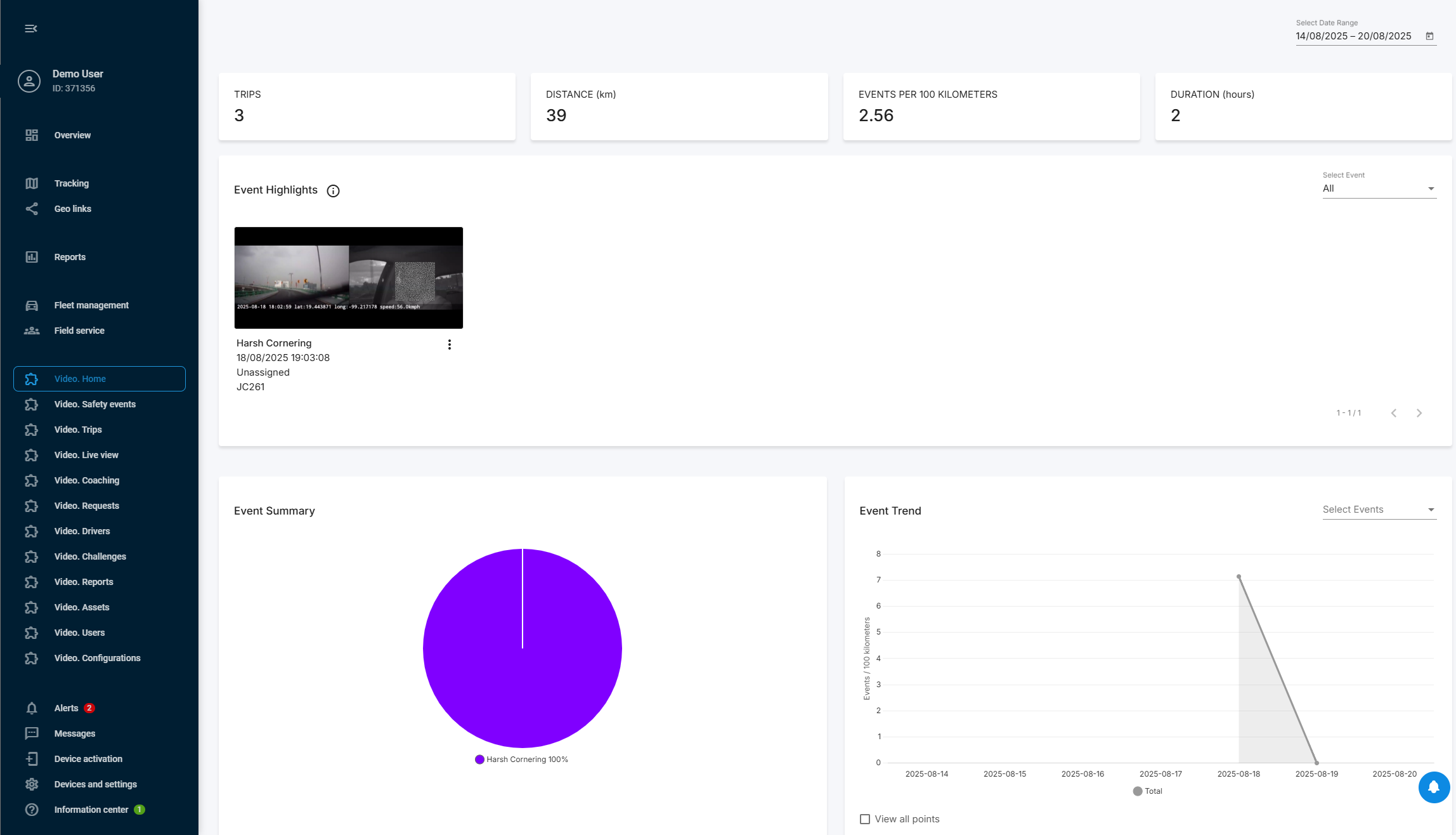
Your new Lightmetrics application appears automatically in Navixy's left sidebar. Open it to access your comprehensive video telematics dashboard with AI-powered event detection, real-time driver coaching, multi-channel video feeds, and advanced safety analytics - all integrated with your existing Navixy fleet management tools.
button in the **User applications** list.
1. Configure the new application
2. Embedding is supported for separate menu elements of Lightmetrics dashboard ([full table of views and redirect paths](#lightmetrics-views)). Put the link to the selected view of your Lightmetrics dashboard in the **App URL** field, and customize redirect path to define which Lightmetrics page opens after login by adding a `redirect_path` parameter.
1. EU server - `video-telematics.eu.navixy.com/sso?access_token={session_key}&redirect_path=``home`
2. US server - `video-telematics.us.navixy.com/sso?access_token={session_key}&redirect_path=``home`
3. Enter a **Label** for the application (e.g., Lightmetrics dashboard).
4. Select **Embedded** in the **Show as** field to display Lightmetrics functionality within Navixy.
5. Select your pre-configured API key from the dropdown menu in the **API key** field.\
Make sure you created a correct key as described in Create API key!
2. **Save the configuration** Click **Save** to complete the configuration.
{% hint style="success" %}
Your new Lightmetrics application appears automatically in Navixy's left sidebar. Open it to access your comprehensive video telematics dashboard with AI-powered event detection, real-time driver coaching, multi-channel video feeds, and advanced safety analytics - all integrated with your existing Navixy fleet management tools.
 {% endhint %}
{% endstep %}
{% endstepper %}
### Lightmetrics views table
A table with all Lightmetrics views and their redirect paths.
{% endhint %}
{% endstep %}
{% endstepper %}
### Lightmetrics views table
A table with all Lightmetrics views and their redirect paths.
| View | Redirect path |
|---|
| Home | home |
| Trips | trips |
| Live view | live-view |
| Safety events | safety-events |
| Video requests | video-requests |
| Drivers | drivers |
| Coaching | coaching |
| Challenges | challenges |
| Reports | reports |
| Assets | assets |
| Configurations | configurations |
---
# Agent Instructions
This documentation is published with GitBook. GitBook is the documentation platform designed so that both humans and AI agents can read, navigate, and reason over technical content effectively. Learn more at gitbook.com.
## Querying This Documentation
If you need additional information that is not directly available in this page, you can query the documentation by asking a question.
Perform an HTTP GET request on the following URL with the `ask` and `goal` query parameters:
```
GET https://navixy.com/docs/user/guide/solution-connectors/lightmetrics-integration-for-video-telematics.md?ask=&goal=
```
`ask` is the immediate question: it should be specific, self-contained, and written in natural language.
`goal` is what the user is ultimately trying to achieve, the reason they need the answer. Sharing it helps GitBook give you a better, more relevant answer. A goal is most helpful when it describes the outcome the user wants rather than restating the question. For example, with `ask=how do I create an API token`, a goal like `automate deployments from our CI pipeline` lets GitBook tailor the answer to that use case.
The response will contain a direct answer to the question and relevant excerpts and sources from the documentation.
Use this mechanism when the answer is not explicitly present in the current page, you need clarification or additional context, or you want to retrieve related documentation sections.