# Trips report

The **Trips report** in Navixy provides a comprehensive analysis of your vehicle's travel history, offering insights into distance traveled, travel time, stop durations, speeds, and fuel consumption.

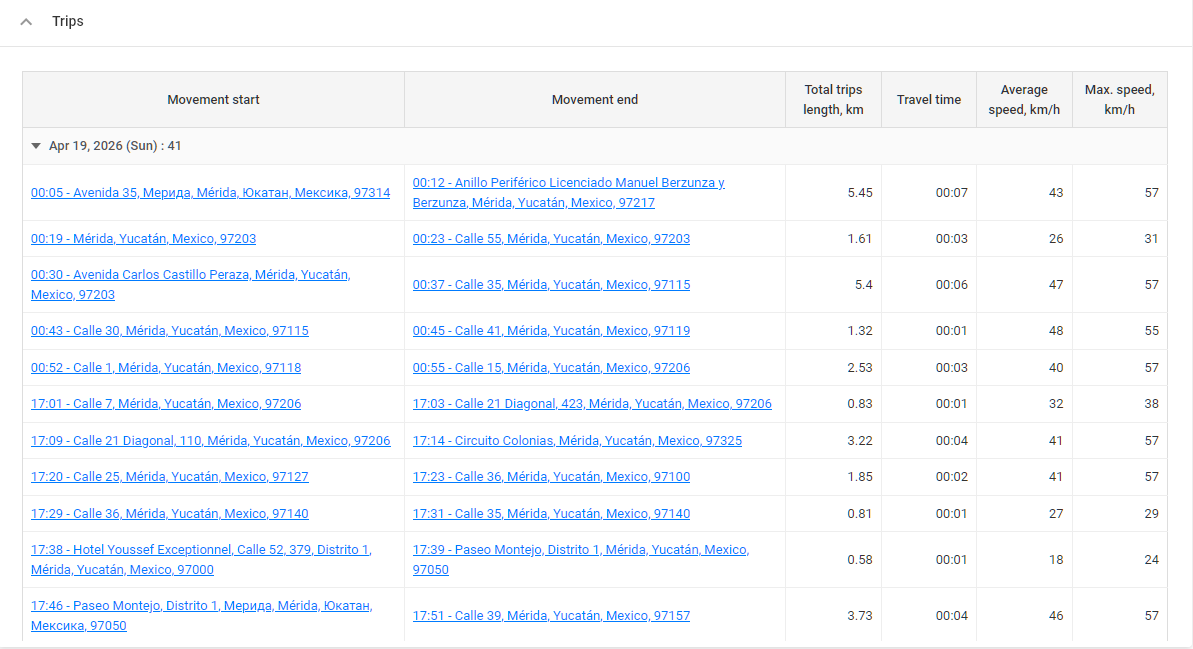
It details each journey taken by your vehicles, including start and end times, distances, speeds, and fuel consumption. The report also offers a summary of all trips during the selected period, allowing for an easy overview of vehicle performance.

<figure><img src="https://2096203889-files.gitbook.io/~/files/v0/b/gitbook-x-prod.appspot.com/o/spaces%2F446mKak1zDrGv70ahuYZ%2Fuploads%2FuDGEDAMIsoRBuAIpTPSb%2Fimage.png?alt=media&#x26;token=ce577583-565a-42a3-9aea-1d5c0fd574ad" alt="Trips report example"><figcaption><p>Trips report</p></figcaption></figure>

## Trips report use cases

The **Trips report** is invaluable for fleet managers who need to monitor vehicle usage, calculate operational costs, and assess driving efficiency It.provides valuable insights that can be used in several ways:

* **Operational analysis:** By reviewing vehicle usage patterns, you can evaluate trip frequencies, distances, and durations. This data is essential for calculating depreciation and predicting future vehicle usage.
* **Cost management:** The report could help identify unexpected or unauthorized trips that could lead to increased expenses. It also provides detailed information on fuel consumption, allowing you to assess costs based on different routes and loads.
* **Driver performance:** The report highlights the time drivers spend on specific routes, their average and maximum speeds, and how long vehicles remain idle after trips.
* **Efficiency assessment:** You can assess fuel usage for different types of trips, such as heavily loaded trips versus light or no-load trips, to optimize fuel expenditure.

## Trips report parameters

The **Trips report** offers several configurable parameters:

* **Hide empty tabs:** Omits tabs for devices that have no trips in any configured shift during the selected period.
* **Show seconds:** Shows durations with second precision (`hh:mm:ss`) instead of `hh:mm`.
* **Display summary:** Toggles the visibility of a summary page that provides an overview of all devices.
* **Display only summary:** Generates a summary sheet for all selected devices without detailed trip information. Requires at least two devices to be selected.
* **Divide by stops:** Separates trips based on parking intervals. If not selected, the report will consider the first recorded point of the day as the trip start and the last recorded point as the trip end.
* **Show stop duration:** Displays the duration of parking time following each trip.
* **Show coordinates:** Includes GPS coordinates for the start and end points of each trip, in addition to addresses.
* **Use smart filter:** Excludes short or invalid trips from the report. A regular trip is excluded if it has fewer than 3 data points, covers less than 100 meters, or stays within a 200-meter diameter. Additionally, individual track points with suspicious mileage patterns (e.g. implausibly high or low speeds) are removed.
* **Group by driver:** Organizes trips by [drivers](https://navixy.com/docs/user/guide/fleet-management/drivers). If a driver was not assigned during the report period, trips will be attributed to an unidentified driver.

## How to read Trips report

### Trips reports columns

The report organizes information into the following columns:

<table><thead><tr><th width="215.8182373046875">Column Name</th><th>Description</th></tr></thead><tbody><tr><td><strong>Movement start</strong></td><td>Details when and where the trip began, including the time and address. If coordinates are hidden, only the time and address are shown.</td></tr><tr><td><strong>Movement end</strong></td><td>Shows when and where the trip concluded. If the trip ends within a geofence or POI, its name is included.</td></tr><tr><td><strong>Total trips length</strong></td><td>Indicates the entire distance of the trip as measured by GPS.</td></tr><tr><td><strong>Travel time</strong></td><td>Shows the total time taken for the trip.</td></tr><tr><td><strong>Average speed</strong></td><td>The average speed during the trip.</td></tr><tr><td><strong>Max speed</strong></td><td>The peak speed reached during the trip, as recorded by the device.</td></tr><tr><td><strong>Fuel consumed (by norm)</strong></td><td>Estimated fuel consumption for the trip based on standard rates. Requires providing vehicle fuel consumption data per 100 km in the <a href="../../fleet-management/vehicles">vehicle's profile</a>.</td></tr><tr><td><strong>Trip fuel cost (by norm)</strong></td><td>Displays the fuel cost based on the standard consumption rate provided in the <a href="../../fleet-management/vehicles">vehicle's profile</a>.</td></tr><tr><td><strong>Fuel consumed (by sensors)</strong></td><td>Shows actual fuel consumption if a fuel sensor is installed and transmitting data to the platform. Measures fuel in liters or gallons.</td></tr><tr><td><strong>Stops duration</strong></td><td>Lists the duration of parking between this trip and the next. Requires enabling <strong>Show stop duration</strong> when creating the report.</td></tr></tbody></table>

**Example:**

A row in the report might indicate:

* **Movement start:** February 7, 2024, at 00:00:06, 6750 Putnam Drive, Highland-on-the-Lake, Town of Evans, Erie County, New York, USA, 14047.
* **Movement end:** February 7, 2024, at 00:57:46, 49 Steinfeldt Road, Town of Lancaster, New York, USA, 14086.
* **Total trips length:** 42.89 kilometers.
* **Travel time:** 57 minutes and 40 seconds.
* **Max speed:** 59 km/h.
* **Average speed:** 45 km/h.
* **Fuel consumed:** 3.4 liters (based on standard rates), with a cost of $12.86.

### Trips report summary

The report also provides a summary of all trips during the selected period. For example:

* **Trips:** 34
* **Total trips length:** 1514.9 kilometers
* **Travel time:** 33 hours, 56 minutes, and 45 seconds
* **Average speed:** 45 km/h
* **Max speed:** 59 km/h
* **Fuel consumed** and **Fuel cost:** 121.2 liters, costing $454.50
* **Odometer reading at the end of period:** 762052.8 km


---

# Agent Instructions: Querying This Documentation

If you need additional information that is not directly available in this page, you can query the documentation dynamically by asking a question.

Perform an HTTP GET request on the current page URL with the `ask` query parameter:

```
GET https://navixy.com/docs/user/guide/reports/specific-report-details/trip-report.md?ask=<question>
```

The question should be specific, self-contained, and written in natural language.
The response will contain a direct answer to the question and relevant excerpts and sources from the documentation.

Use this mechanism when the answer is not explicitly present in the current page, you need clarification or additional context, or you want to retrieve related documentation sections.
