> For the complete documentation index, see [llms.txt](https://navixy.com/docs/llms.txt). Markdown versions of documentation pages are available by appending `.md` to page URLs; this page is available as [Markdown](https://navixy.com/docs/user/guide/devices-and-settings/location-and-movement/tracking-mode.md).
# Tracking mode
Control how often a GPS device reports position by interval, distance, and cornering, plus power-save, freeze, and sleep options.
Controls how often and on what basis the device reports its position, balancing live-tracking detail against data and battery usage. Every device has a reporting configuration, but the exact fields are chosen by the device model, so this page describes the underlying concepts rather than a fixed form.
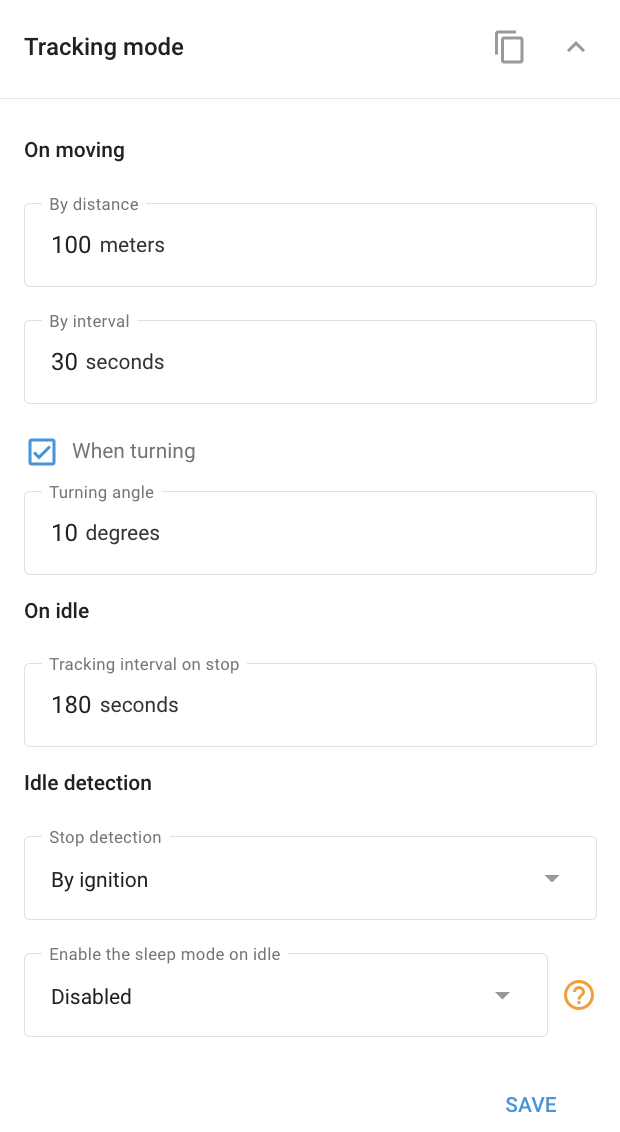
Tracking mode settings block example
{% hint style="info" %}
The controls below are the canonical building blocks. Your device shows the subset it supports, sometimes with different labels. The device reports when **at least one** of the enabled conditions is met.
{% endhint %}
## Core reporting controls
* **Reporting interval**: Report at least every N seconds. The core "how often" control (typically from \~30 seconds up to a day or more, varies by model).
* **Distance**: Report after moving N meters (typically \~100–65,535 m, varies by model).
* **Cornering or turning angle**: Report when heading changes by N degrees (typically 10–180°), so corners aren't cut.
{% hint style="info" %}
The numeric ranges above are typical values. The exact minimums, maximums, and defaults are set by your device model.
{% endhint %}
## Power-save and battery options
On battery or power-managed devices you may also see:
* **Power-save mode**: Choose the power-save strategy, for example distance-based reporting (a position is sent only after the vehicle moves a set distance) versus fixed-interval reporting.
* **Power-save interval**: A slower reporting rate used when parked or in power-save.
* **On-stop interval**: A separate interval used while the vehicle is stopped.
* **Sleep and active windows**: Deep-sleep scheduling on battery devices, where the device powers down during set quiet hours to save battery and wakes on a schedule (sleep and active times, deep-sleep enable, stay online when plugged into external power).
* **Emergency interval**: Faster reporting during an alarm.
* **Optional daily timer**: Wake and report at a set time of day, available on some models when the interval is 24 hours or more.
* **GPS/GSM working mode**: Radio power modes on some models, trading reporting responsiveness for battery life.
## Anti-drift (freeze) options
* **Freeze options**: Hold the reported position while the vehicle is stationary (by speed, motion, or ignition) to avoid GPS drift. These are the recommended fix for parked-vehicle "jitter", where a stationary vehicle appears to wander on the map.
## Availability
Always, every device has a reporting configuration. The exact fields are determined by the device model.
## Limitations
* Because fields are model-driven, configure the concepts (interval, distance, angle, power-save, freeze, or sleep) rather than expecting a fixed form.
* Under-reporting here, a long interval with no angle or distance, or aggressive power-save, is the usual cause of "missing mileage" and cut-corner complaints.
* The freeze options are the fix for parked-vehicle drift. Enable them if a stationary vehicle appears to move.
* This block controls how the device reports. It doesn't change when the device is marked offline (see [Connection state](/docs/user/guide/devices-and-settings/connectivity/connection-state.md)).
## See also
* [Connection state](/docs/user/guide/devices-and-settings/connectivity/connection-state.md): the offline-timeout threshold.
* [Sleep mode](/docs/user/guide/devices-and-settings/device-specific-controls/power-management/sleep-mode.md): sleep and charging controls that overlap with power-save.
* [Parking detection](/docs/user/guide/devices-and-settings/location-and-movement/parking-detection.md): how parking and trips are determined.
---
# Agent Instructions
This documentation is published with GitBook. GitBook is the documentation platform designed so that both humans and AI agents can read, navigate, and reason over technical content effectively. Learn more at gitbook.com.
## Querying This Documentation
If you need additional information that is not directly available in this page, you can query the documentation by asking a question.
Perform an HTTP GET request on the following URL with the `ask` and `goal` query parameters:
```
GET https://navixy.com/docs/user/guide/devices-and-settings/location-and-movement/tracking-mode.md?ask=&goal=
```
`ask` is the immediate question: it should be specific, self-contained, and written in natural language.
`goal` is what the user is ultimately trying to achieve, the reason they need the answer. Sharing it helps GitBook give you a better, more relevant answer. A goal is most helpful when it describes the outcome the user wants rather than restating the question. For example, with `ask=how do I create an API token`, a goal like `automate deployments from our CI pipeline` lets GitBook tailor the answer to that use case.
The response will contain a direct answer to the question and relevant excerpts and sources from the documentation.
Use this mechanism when the answer is not explicitly present in the current page, you need clarification or additional context, or you want to retrieve related documentation sections.