> For the complete documentation index, see [llms.txt](https://navixy.com/docs/llms.txt). Markdown versions of documentation pages are available by appending `.md` to page URLs; this page is available as [Markdown](https://navixy.com/docs/user/guide/devices-and-settings/connectivity/data-forwarding/maquinaria-amarilla.md).
# Maquinaria Amarilla
Comply with Colombian Decree 723 by forwarding heavy machinery GPS data from Navixy to the National Police through the Maquinaria Amarilla SOAP protocol.
Maquinaria Amarilla is the protocol the Colombian National Police uses to monitor heavy machinery and prevent its illicit use. Companies operating heavy machinery in Colombia must report to it under Decree 723 of 2014. This protocol forwards the required position and event data from Navixy to the police servers.
In Navixy, select **Yellow Machinery** in the **Protocol** dropdown.
Setup has three stages, and they must be done in order: generate a token, register your machines with the police, then configure forwarding in Navixy. The first two stages happen outside Navixy.
## What Navixy sends
Navixy sends one SOAP request per message to the `InsertarUbicacion` method. The request contains these fields:
| Field | Contents |
| ----------------------- | --------------------------------------------------------------------------------- |
| `PUSUARIO` | The login registered with the Colombian Police |
| `PTOKEN` | The token, taken from the **Password** field of the retranslator |
| `PIDUNIDAD` | The machine identifier, from External ID |
| `PFECHAGPS` | When the device recorded the position, as `dd/MM/yyyy HH:mm:ss` in Colombian time |
| `PLATITUD`, `PLONGITUD` | Position in degrees |
| `PVELOCIDAD` | Speed |
| `PDIRECCION` | Heading as a compass direction |
| `PEVENTO` | The police event code for this message |
| `PIGNICION` | `1` when the ignition is on, `0` when it's off |
| `PODOMETRO` | Distance traveled |
| `PSTATUS` | `1` for a live position, `9` for one the device stored and sent later |
Navixy sends every message, including messages without a position.
Navixy converts its own event codes to the codes the police expect. Driver identification, SOS, ignition on and off, overspeed, unauthorized movement, low backup battery, idling start and end, loss of GPS, harsh acceleration and braking, antenna disconnection, wake-up, door alarm, and GSM damp alarm each map to their police code. Any other message is reported as a routine tracking position.
## Before you start
You need the following from the Colombian Police:
* The login and password of your company as registered with the police.
* The provider code that forms part of the machine identifier.
You also need **Postman**, installed or in its web version, to generate the token and register your machines.
## Generate a token
The token authorizes every later operation, including data forwarding. Generate it before you register machines.
Download the [Postman collection](https://drive.google.com/file/d/1XFe_vi22rHqqIDgLlAiTlcepLBBVPemZ/view) first.
{% stepper %}
{% step %}
### Import the collection
Open Postman, click **Import**, and upload the file you downloaded.
Importing the collection into Postman
{% endstep %}
{% step %}
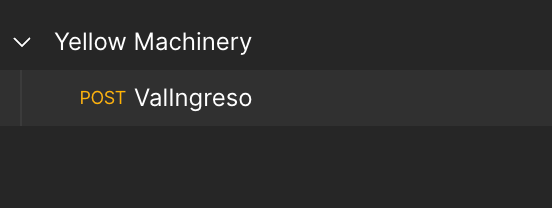
### Open the token request
Select the token generation call, then go to the **ValIngreso** section.
The token generation call
{% endstep %}
{% step %}
### Switch the body to raw
Go to the **Body** tab and select **Raw**.
{% endstep %}
{% step %}
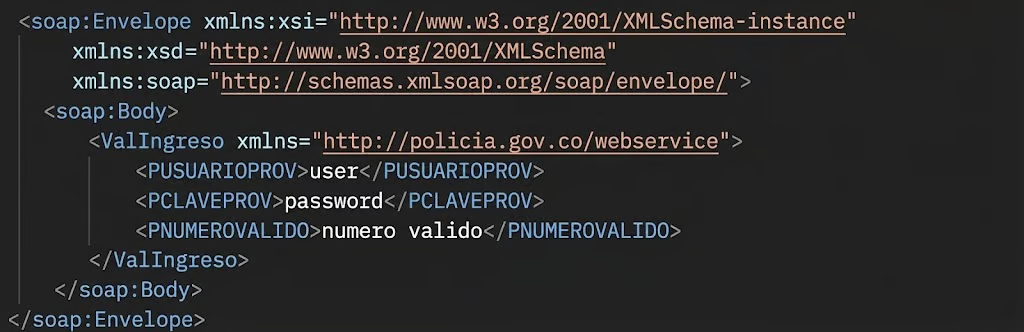
### Enter your credentials
Replace these three values in the request body:
* **User**: the login of your company as registered with the police
* **Password**: the password of your company as registered with the police
* **Valid number**: a number in the format `4.1234567890`
The three values to replace in the request body
{% endstep %}
{% step %}
### Send the request
Send the request. Keep the token from the response, because you enter it in Navixy later.
{% endstep %}
{% endstepper %}
## Register machines and devices
Register your machines with the police before forwarding data. A position for an unregistered machine is rejected.
Each step uses a separate Postman collection. In each one, enter the login and the token you generated, along with the machine details exactly as recorded in your registration spreadsheet.
{% stepper %}
{% step %}
### Add the GPS devices
Import [the device collection](https://drive.google.com/file/d/1C45u-A2n3E1wbteuLl_D-dqrxMbHJYGw/view?usp=share_link) into Postman and send the request.
{% endstep %}
{% step %}
### Add the machines
Import [the machine collection](https://drive.google.com/file/d/1Y77If2KFPvnSIl-JZ6safx8Rm5nnI101/view) into Postman and send the request.
{% endstep %}
{% step %}
### Link the machines to the devices
Import [the linking collection](https://drive.google.com/file/d/1cfj26NXqdTvLIbSHWoeA-QSGDwz29EWk/view?usp=sharing) into Postman and send the request.
{% endstep %}
{% endstepper %}
Each request returns one of these codes:
| Code | Meaning |
| ----- | ------------------------------------------------------------------------------ |
| `001` | The process started |
| `002` | The record was inserted successfully |
| `ER1` | Duplicate record. The five digits that follow are the database error code. |
| `ER2` | Another record error. The five digits that follow are the database error code. |
| `ER3` | The user is wrong, or the token is no longer active |
A machine is registered correctly when the response is `002`.
## Set up forwarding
{% stepper %}
{% step %}
### Open the Data forwarding block
Go to **Devices and settings**, select a device, then find the **Data forwarding** block.
{% endstep %}
{% step %}
### Open the protocol list
Click **Protocols**, then click **+** to add a configuration.
{% endstep %}
{% step %}
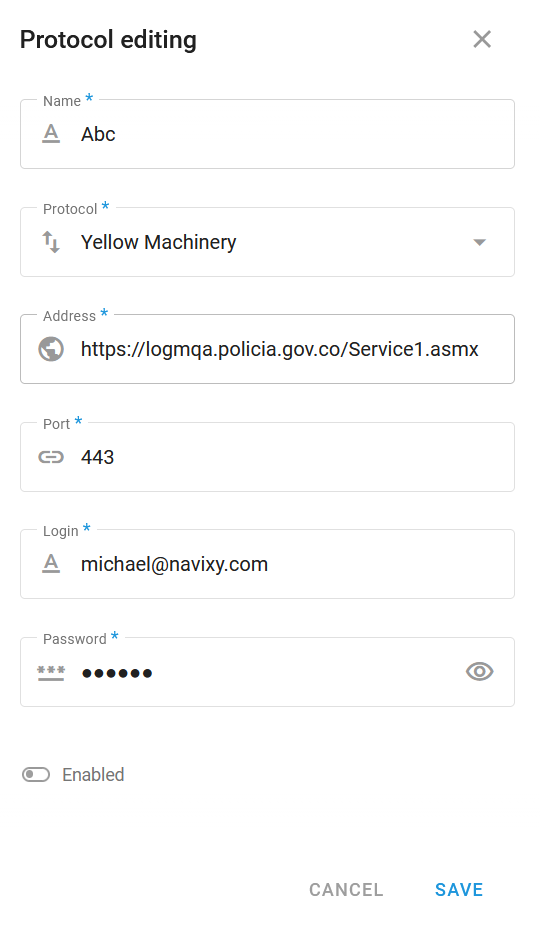
### Enter the Yellow Machinery settings
Fill in the fields as follows:
* **Name**: a label that identifies this retranslator
* **Protocol**: **Yellow Machinery**
* **Address**: `https://logmqa.policia.gov.co/Service1.asmx`
* **Port**: `443`
* **Login**: the login provided by the Colombian Police
* **Password**: the token you generated, not your police password
The completed Yellow Machinery configuration
{% endstep %}
{% step %}
### Enable and save
Switch on **Enabled**, then click **Save**. A retranslator that isn't enabled sends nothing.
{% endstep %}
{% step %}
### Link the retranslator to a device
In the device's **Data forwarding** block, switch on the toggle for the retranslator you created, then click **Save**.
{% endstep %}
{% step %}
### Set the External ID
Click the link icon at the right of the retranslator row, then enter the machine identifier that includes your provider code. It may be up to 20 characters, using uppercase letters and digits only.
Repeat this step and the previous one for every machine that reports to the police.
{% endstep %}
{% endstepper %}
{% hint style="warning" %}
The token expires. When it does, forwarding stops and the police servers answer with error `ER3`. Generate a new token and enter it in the **Password** field of the retranslator to resume.
{% endhint %}
## Manage forwarding
To change or stop forwarding to Maquinaria Amarilla:
* Click the link icon at the right of the retranslator row to change the External ID of a device.
* Switch off the toggle to stop forwarding for one device, and keep the configuration for the others.
* Click **Protocols**, select the row, and edit it to change the name, address, or token. The change applies to every device linked to this retranslator.
* Delete the configuration from the **Protocols** list to stop forwarding for all devices. Confirm in the dialog.
## Troubleshooting
When data doesn't appear in the Maquinaria Amarilla system, check the following in order:
1. The retranslator is enabled, and its toggle is switched on for the device.
2. The **Password** field holds a current token, not your police password.
3. The token hasn't expired. An expired token produces error `ER3`.
4. The machine and its device were registered with the police, and the registration returned `002`.
5. The address and port are correct.
6. External ID matches the machine identifier registered with the police, including the provider code.
---
# Agent Instructions
This documentation is published with GitBook. GitBook is the documentation platform designed so that both humans and AI agents can read, navigate, and reason over technical content effectively. Learn more at gitbook.com.
## Querying This Documentation
If you need additional information that is not directly available in this page, you can query the documentation dynamically by asking a question.
Perform an HTTP GET request on the current page URL with the `ask` query parameter, and the optional `goal` query parameter:
```
GET https://navixy.com/docs/user/guide/devices-and-settings/connectivity/data-forwarding/maquinaria-amarilla.md?ask=&goal=
```
`ask` is the immediate question: it should be specific, self-contained, and written in natural language.
`goal` is optional and describes the broader end goal you are ultimately trying to accomplish on behalf of the user. GitBook uses it to tailor the answer towards what is most useful for that goal.
The response will contain a direct answer to the question and relevant excerpts and sources from the documentation.
Use this mechanism when the answer is not explicitly present in the current page, you need clarification or additional context, or you want to retrieve related documentation sections.