For the complete documentation index, see llms.txt. This page is also available as Markdown.

Data forwarding

Forward a live copy of GPS and telematics data from Navixy to a third-party server, using one of 29 supported protocols for compliance, enterprise integration, or data consolidation.

The Data forwarding block sends a live copy of a device's GPS and telematics data to a server outside Navixy. This page explains how forwarding behaves, what you need to configure it, and which protocols Navixy supports. It is for fleet operators who must deliver data to a regulator, a customer, or another software system.

Data forwarding is also called data retransmission, and a single forwarding configuration is called a retranslator.

Forwarding requires a subscription plan that includes it. The number of retranslators you can create is also limited by your plan.

How data forwarding works

Navixy forwards each message as it arrives from the device. A retranslator isn't a scheduled export: every incoming message is converted to the target protocol's format and sent immediately, so the rate at which data reaches the destination follows the reporting interval of the GPS device.

Three protocols behave differently, and their pages state so:

  • Unigis sends at most one message per minute per device. Urgent events are sent immediately regardless.

  • Wisetrack collects messages and sends them in batches once a minute.

  • Navixy Web Service doesn't send anything. Navixy hosts an endpoint that the receiving system queries for data.

Each protocol also filters which messages it sends. Most protocols skip a message without a valid position, and some forward alarm events even without a position. The page for each protocol lists what it sends and what it skips.

Device identification

The receiving system usually identifies a vehicle by its own identifier rather than by the Navixy device id. The External ID field stores that value, and Navixy sends it in place of the device id.

Each protocol accepts External ID in a fixed format, and Navixy rejects a value that doesn't match. Some protocols use a plain license plate, others use several fields joined by a pipe character. The page for each protocol gives the format it accepts. When you leave External ID empty, Navixy sends the device id instead.

When to use data forwarding

Data forwarding serves three needs:

  • Government regulation compliance. Some countries require vehicles to report location and speed to a state server in a mandated protocol format.

  • Enterprise integration. Large retail and logistics customers often require suppliers to deliver GPS and telematics data into the customer's own system as a contractual condition.

  • Data consolidation. Software built from components by several vendors needs data normalized into one format, or copied between two Navixy servers.

Supported protocols

Navixy supports the following 29 protocols, listed under the name the receiving party uses. Where the Protocol dropdown in Navixy spells that name differently, the row says which option to select.

The Transport column tells you what the receiving server must accept. The Credentials column tells you which fields Navixy requires before it saves the retranslator.

Protocol
Purpose
Transport
Credentials
External ID

Altotrack Chep Mexico (select AltotrackChepMexico)

Enterprise integration

SOAP over HTTP

None

Up to 40 uppercase letters and digits

ArmCargo

Enterprise integration

TCP

None

License plate, AB123CD or ABC123

AVL Control

Data consolidation

HTTP

Login and password

Not used

BCDOS

Enterprise integration

SOAP over HTTP

None

Up to 8 digits

Blac Solutions

Enterprise integration

HTTP

Login and password

Not used

CargoOnline

Enterprise integration

HTTP

None

Not used

EGTS

Government compliance

TCP

None

Up to 15 digits

Granit3

Data consolidation

TCP

None

Up to 5 digits

Granit3 Scout

Data consolidation

TCP

None

Up to 5 digits

Enterprise integration

HTTP

Login and password

customerId|licensePlate|transportLineId

Lacak.io

Data consolidation

HTTP

None

Up to 15 digits

Localizar-t

Enterprise integration

HTTP

Login and password

Not used

Maquinaria Amarilla (select Yellow Machinery)

Government compliance

SOAP over HTTP

Login and password

Up to 20 uppercase letters and digits

Data consolidation

Inbound SOAP query

Login and password

Not used

Olympstroy (select Olimpstroy)

Government compliance

HTTP

None

Not used

OSINERGMIN (select Osinergmin)

Government compliance

HTTP

Password

Not used

ReC Solutions (select REC SOLUTIONS)

Enterprise integration

SOAP over HTTP

Login and password

Up to 40 uppercase letters and digits

Enterprise integration

HTTP

Login and password

licensePlate|shipmentId|customerId|customerName

Recurso Confiable (Walmart)

Enterprise integration

HTTP

Login and password

licensePlate|shipmentId|customerId|customerName

SA-RM

Data consolidation

HTTP

Login

Not used

SafetyNet

Enterprise integration

TCP

None

Not used

SimpliRoute (select Simple Route)

Enterprise integration

HTTP

None

Not used

Data consolidation

SOAP over HTTP

None

Not used

TraceReports

Enterprise integration

TCP

None

Digits

Transnavigation

Data consolidation

TCP

Password

Digits

Unigis (select UNIGIS)

Enterprise integration

HTTP

Login and password

License plate

Data consolidation

TCP

None

Not used

Wirtrack

Enterprise integration

TCP

None

Not used

Wisetrack

Data consolidation

HTTP

None

License plate, 5 to 8 characters

A protocol with no dedicated page above is configured the same way as the others: create the retranslator, enter the address, port, and credentials that the receiving party gives you, then link it to your devices. Contact the receiving party for the address and credentials, and Navixy support if the protocol needs values you don't have.

Managing retranslators

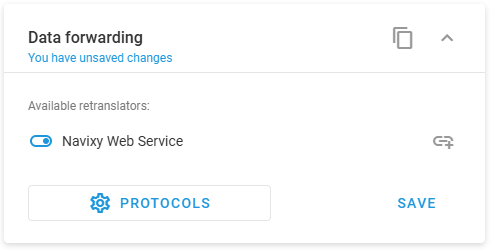
Open Devices and settings, select a device, then find the Data forwarding block. It lists the retranslators available in the account, with a toggle for each one.

The Data forwarding block listing one available retranslator with its toggle switched on, above the Protocols and Save buttons
The Data forwarding block for a single device

From here you can:

  • Switch on a retranslator to forward this device's data through it, then click Save.

  • Set the External ID that Navixy sends for this device, using the link icon at the right of the retranslator row.

  • Switch a retranslator off to stop forwarding this device's data.

  • Click Protocols to create, edit, or delete retranslator configurations.

Clicking Protocols opens the Retranslation protocols dialog, which lists every configuration in the account. Click + to add one, or select a row to edit it.
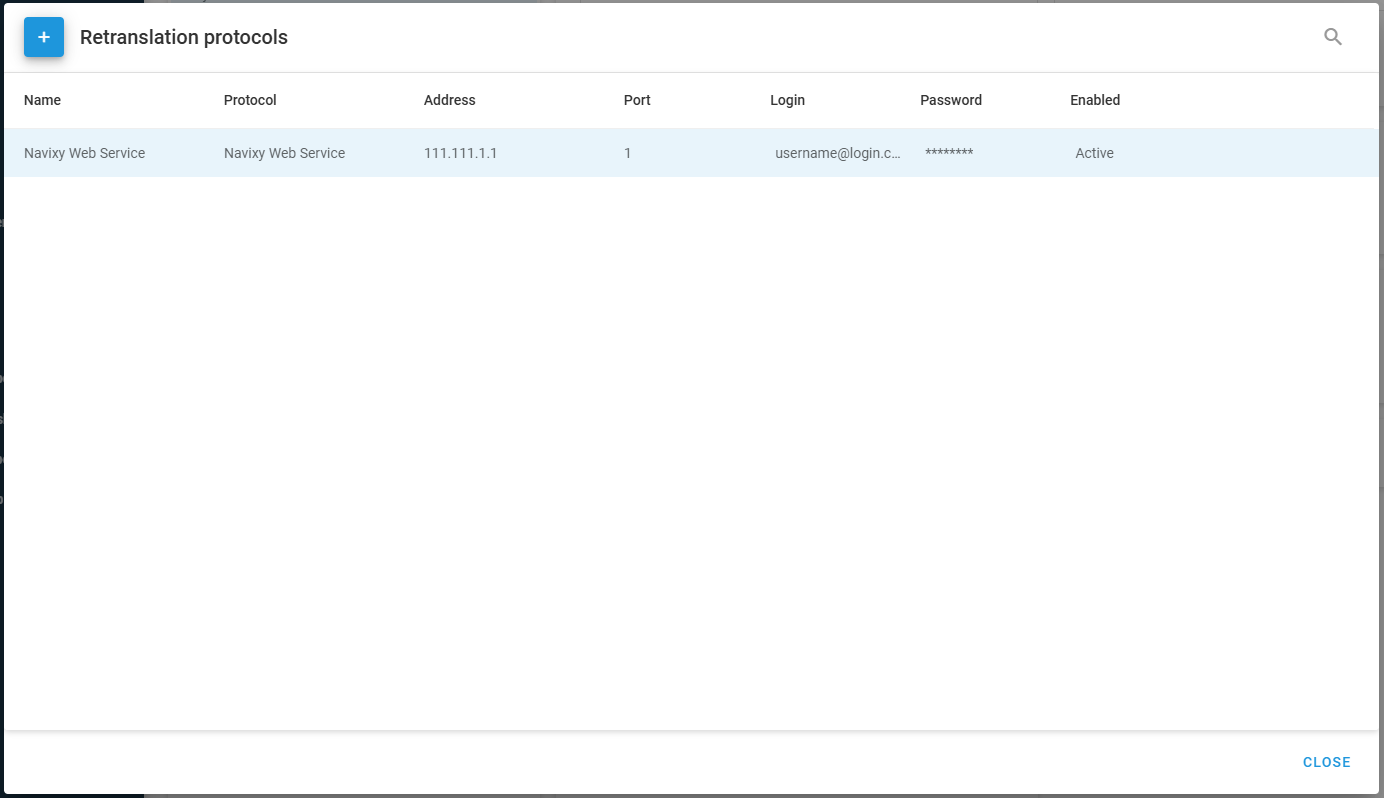
The Retranslation protocols dialog listing one configuration with its name, protocol, address, port, login, and Active status
The Retranslation protocols dialog, where configurations are created and edited

A retranslator configuration holds these settings:

Setting
Purpose

Name

A label that identifies this retranslator in the device settings.

Protocol

The protocol the data is converted to. Pick the name shown in the protocol table.

Address and Port

Where the data is sent. The receiving party provides both.

Login and Password

Credentials for the receiving server, when the protocol requires them.

Enabled

Whether the retranslator sends data. A disabled retranslator sends nothing.

A retranslator configuration belongs to the account, not to one device. Once you create it, you can link it to any device in the account by switching the toggle in that device's Data forwarding block. Editing a configuration changes it for every device linked to it.

Last updated

Was this helpful?