> For the complete documentation index, see [llms.txt](https://navixy.com/docs/llms.txt). Markdown versions of documentation pages are available by appending `.md` to page URLs; this page is available as [Markdown](https://navixy.com/docs/user/fr/guide/x-gps-mobile-apps/x-gps-monitor/video-events-android-only.md).
# Événements vidéo (Android uniquement)
L’application Android peut vous fournir des événements vidéo provenant des caméras des appareils, afin que vous y ayez accès où que vous soyez.
Vous trouverez ici comment obtenir des notifications vidéo :
{% columns %}
{% column %}
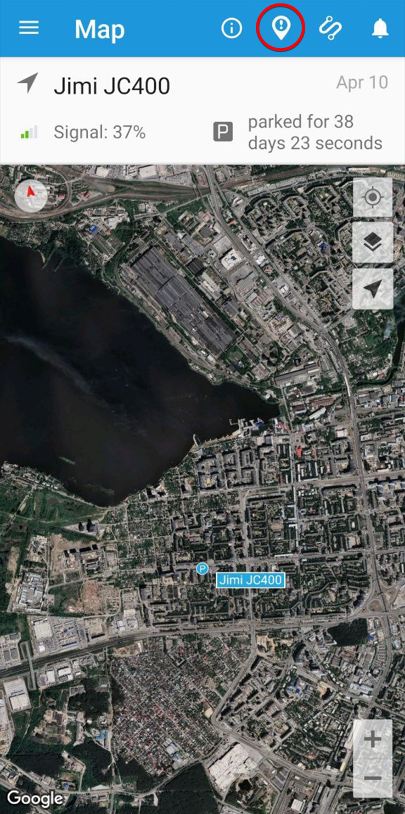
1. Choisissez votre appareil et ouvrez les notifications pour celui-ci.
{% endcolumn %}
{% column %}
{% endcolumn %}
{% endcolumns %}
{% columns %}
{% column %}
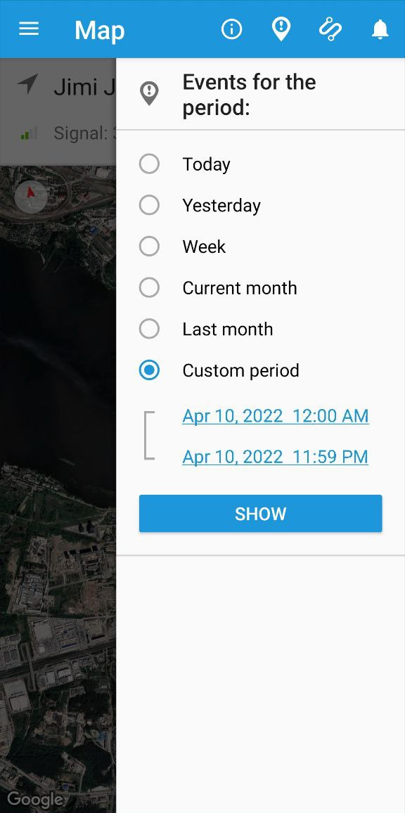
2\. Sélectionnez la période nécessaire pendant laquelle les notifications sont reçues.
{% endcolumn %}
{% column %}
{% endcolumn %}
{% endcolumns %}
{% columns %}
{% column %}
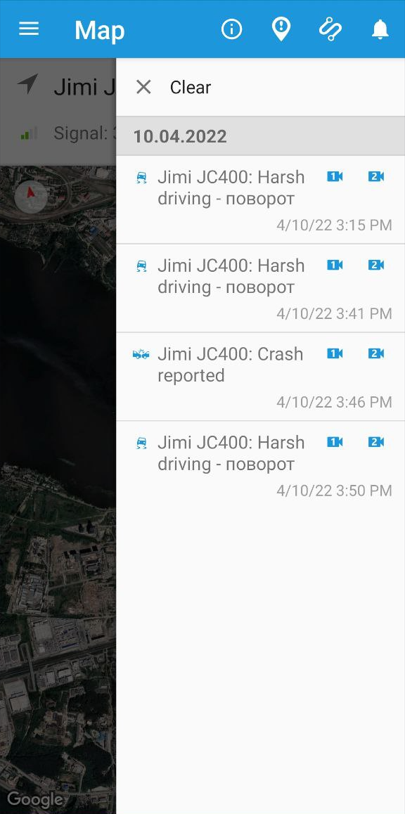
3\. L’application vous affichera tous les événements de cette période. À gauche de chaque événement, son type s’affiche. À droite, vous pouvez choisir la vidéo souhaitée provenant de la caméra.
{% endcolumn %}
{% column %}
{% endcolumn %}
{% endcolumns %}
{% columns %}
{% column %}
4\. Appuyez sur l’icône de la caméra pour ouvrir la vidéo dans le navigateur par défaut de votre téléphone.
{% endcolumn %}
{% column %}
{% endcolumn %}
{% endcolumns %}
---
# Agent Instructions
This documentation is published with GitBook. GitBook is the documentation platform designed so that both humans and AI agents can read, navigate, and reason over technical content effectively. Learn more at gitbook.com.
## Querying This Documentation
If you need additional information that is not directly available in this page, you can query the documentation dynamically by asking a question.
Perform an HTTP GET request on the current page URL with the `ask` query parameter, and the optional `goal` query parameter:
```
GET https://navixy.com/docs/user/fr/guide/x-gps-mobile-apps/x-gps-monitor/video-events-android-only.md?ask=&goal=
```
`ask` is the immediate question: it should be specific, self-contained, and written in natural language.
`goal` is optional and describes the broader end goal you are ultimately trying to accomplish on behalf of the user. GitBook uses it to tailor the answer towards what is most useful for that goal.
The response will contain a direct answer to the question and relevant excerpts and sources from the documentation.
Use this mechanism when the answer is not explicitly present in the current page, you need clarification or additional context, or you want to retrieve related documentation sections.