> For the complete documentation index, see [llms.txt](https://navixy.com/docs/llms.txt). Markdown versions of documentation pages are available by appending `.md` to page URLs; this page is available as [Markdown](https://navixy.com/docs/user/fr/guide/x-gps-mobile-apps/x-gps-monitor/quick-start.md).
# Démarrage rapide
{% columns %}
{% column %}
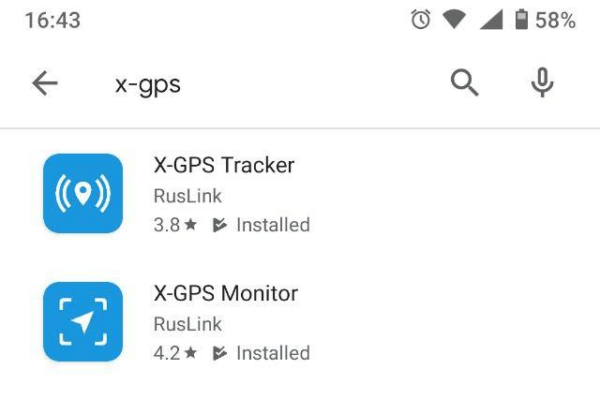
Vous pouvez télécharger l'application gratuitement depuis Google Play ou l'App Store.
Accédez au store et saisissez X-GPS dans le champ de recherche.
Sélectionnez **X-GPS Monitor** et cliquez sur « Installer ».
{% endcolumn %}
{% column %}
{% endcolumn %}
{% endcolumns %}
### Se connecter
{% columns %}
{% column %}
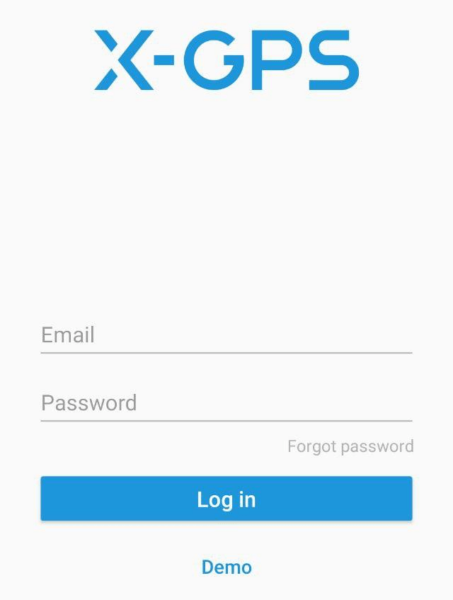
Au premier lancement, l'application vous proposera de scanner un code QR. Pour obtenir le code QR, cliquez sur le  bouton situé sous la plateforme Navixy [formulaire de connexion](https://tracking.navixy.com/).
Après avoir scanné le code QR, saisissez votre nom d'utilisateur et votre mot de passe, puis cliquez sur le **Se connecter** bouton.
Si vous avez oublié votre mot de passe, cliquez sur le bouton correspondant, saisissez votre adresse e-mail et le captcha. Après cela, vous recevrez un e-mail contenant un lien pour réinitialiser votre mot de passe.
Après une connexion réussie, vous verrez l'écran de la carte.
{% endcolumn %}
{% column %}
{% endcolumn %}
{% endcolumns %}
### Outils principaux
{% columns %}
{% column %}
Les éléments suivants sont disponibles sur l'écran principal :
1. **Barre latérale.** L'appui sur un bouton ouvre un menu où vous pouvez accéder aux informations sur l'utilisateur, au solde, à la liste des appareils et à d'autres commandes.
2. **Afficher les traceurs.** Cliquez pour sélectionner les traceurs à afficher : tous, un seul ou un Groupe. Vous pouvez également activer **Suivre le Traceur**, et la carte se centrera automatiquement sur un appareil.
3. **Type de carte.** Vous permet de sélectionner une carte dans la liste des cartes disponibles et d'activer l'affichage du trafic.
4. **Liste des notifications.** Affiche toutes les notifications non lues.
5. **Afficher la position.** Centre la carte sur votre position actuelle.
6. **Échelle.** Vous pouvez modifier l'échelle de la carte à l'aide des boutons « + » et « - ».
{% endcolumn %}
{% column %}

{% endcolumn %}
{% endcolumns %}
---
# Agent Instructions
This documentation is published with GitBook. GitBook is the documentation platform designed so that both humans and AI agents can read, navigate, and reason over technical content effectively. Learn more at gitbook.com.
## Querying This Documentation
If you need additional information that is not directly available in this page, you can query the documentation dynamically by asking a question.
Perform an HTTP GET request on the current page URL with the `ask` query parameter, and the optional `goal` query parameter:
```
GET https://navixy.com/docs/user/fr/guide/x-gps-mobile-apps/x-gps-monitor/quick-start.md?ask=&goal=
```
`ask` is the immediate question: it should be specific, self-contained, and written in natural language.
`goal` is optional and describes the broader end goal you are ultimately trying to accomplish on behalf of the user. GitBook uses it to tailor the answer towards what is most useful for that goal.
The response will contain a direct answer to the question and relevant excerpts and sources from the documentation.
Use this mechanism when the answer is not explicitly present in the current page, you need clarification or additional context, or you want to retrieve related documentation sections.
bouton situé sous la plateforme Navixy [formulaire de connexion](https://tracking.navixy.com/).
Après avoir scanné le code QR, saisissez votre nom d'utilisateur et votre mot de passe, puis cliquez sur le **Se connecter** bouton.
Si vous avez oublié votre mot de passe, cliquez sur le bouton correspondant, saisissez votre adresse e-mail et le captcha. Après cela, vous recevrez un e-mail contenant un lien pour réinitialiser votre mot de passe.
Après une connexion réussie, vous verrez l'écran de la carte.
{% endcolumn %}
{% column %}

{% endcolumn %}
{% endcolumns %}
### Outils principaux
{% columns %}
{% column %}
Les éléments suivants sont disponibles sur l'écran principal :
1. **Barre latérale.** L'appui sur un bouton ouvre un menu où vous pouvez accéder aux informations sur l'utilisateur, au solde, à la liste des appareils et à d'autres commandes.
2. **Afficher les traceurs.** Cliquez pour sélectionner les traceurs à afficher : tous, un seul ou un Groupe. Vous pouvez également activer **Suivre le Traceur**, et la carte se centrera automatiquement sur un appareil.
3. **Type de carte.** Vous permet de sélectionner une carte dans la liste des cartes disponibles et d'activer l'affichage du trafic.
4. **Liste des notifications.** Affiche toutes les notifications non lues.
5. **Afficher la position.** Centre la carte sur votre position actuelle.
6. **Échelle.** Vous pouvez modifier l'échelle de la carte à l'aide des boutons « + » et « - ».
{% endcolumn %}
{% column %}

{% endcolumn %}
{% endcolumns %}
---
# Agent Instructions
This documentation is published with GitBook. GitBook is the documentation platform designed so that both humans and AI agents can read, navigate, and reason over technical content effectively. Learn more at gitbook.com.
## Querying This Documentation
If you need additional information that is not directly available in this page, you can query the documentation dynamically by asking a question.
Perform an HTTP GET request on the current page URL with the `ask` query parameter, and the optional `goal` query parameter:
```
GET https://navixy.com/docs/user/fr/guide/x-gps-mobile-apps/x-gps-monitor/quick-start.md?ask=&goal=
```
`ask` is the immediate question: it should be specific, self-contained, and written in natural language.
`goal` is optional and describes the broader end goal you are ultimately trying to accomplish on behalf of the user. GitBook uses it to tailor the answer towards what is most useful for that goal.
The response will contain a direct answer to the question and relevant excerpts and sources from the documentation.
Use this mechanism when the answer is not explicitly present in the current page, you need clarification or additional context, or you want to retrieve related documentation sections.