> For the complete documentation index, see [llms.txt](https://navixy.com/docs/llms.txt). Markdown versions of documentation pages are available by appending `.md` to page URLs; this page is available as [Markdown](https://navixy.com/docs/admin/settings/service-preferences/demo-user-account.md).

# Demo user account

A demo user account is an account that you can share with potential or existing customers to showcase your product's features. This account has limited rights to prevent customers from making changes to critical settings. For instance, features such as output control, device and sensor configuration, and data forwarding are disabled.

## How to create a demo user

Follow these steps to create and configure a demo user account:

{% stepper %}
{% step %}

### Create a new user

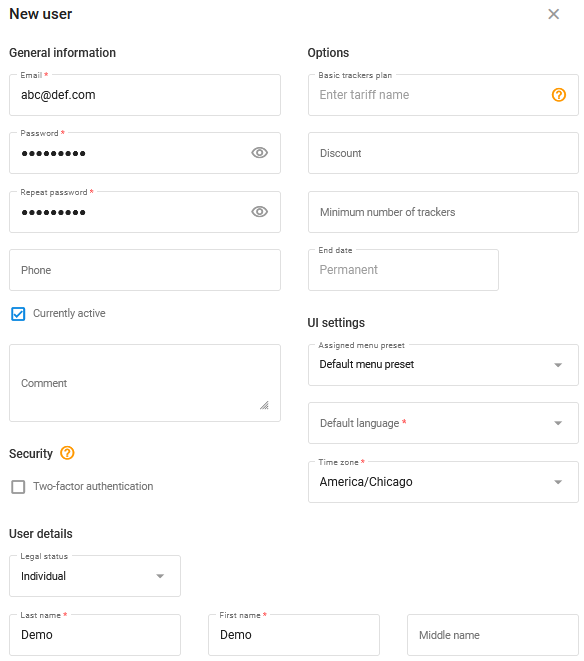
Navixy recommends creating a specific demo user and cloning devices from other accounts into it. This allows for full operation with original devices. To create a demo user, enter a random email address. A real address isn't required.

<figure><img src="/files/ATWalq8sPa5m2Nbr64AE" alt="Creating a demo user" width="438"><figcaption><p>Creating a demo user</p></figcaption></figure>
{% endstep %}

{% step %}

### Create tracker clones

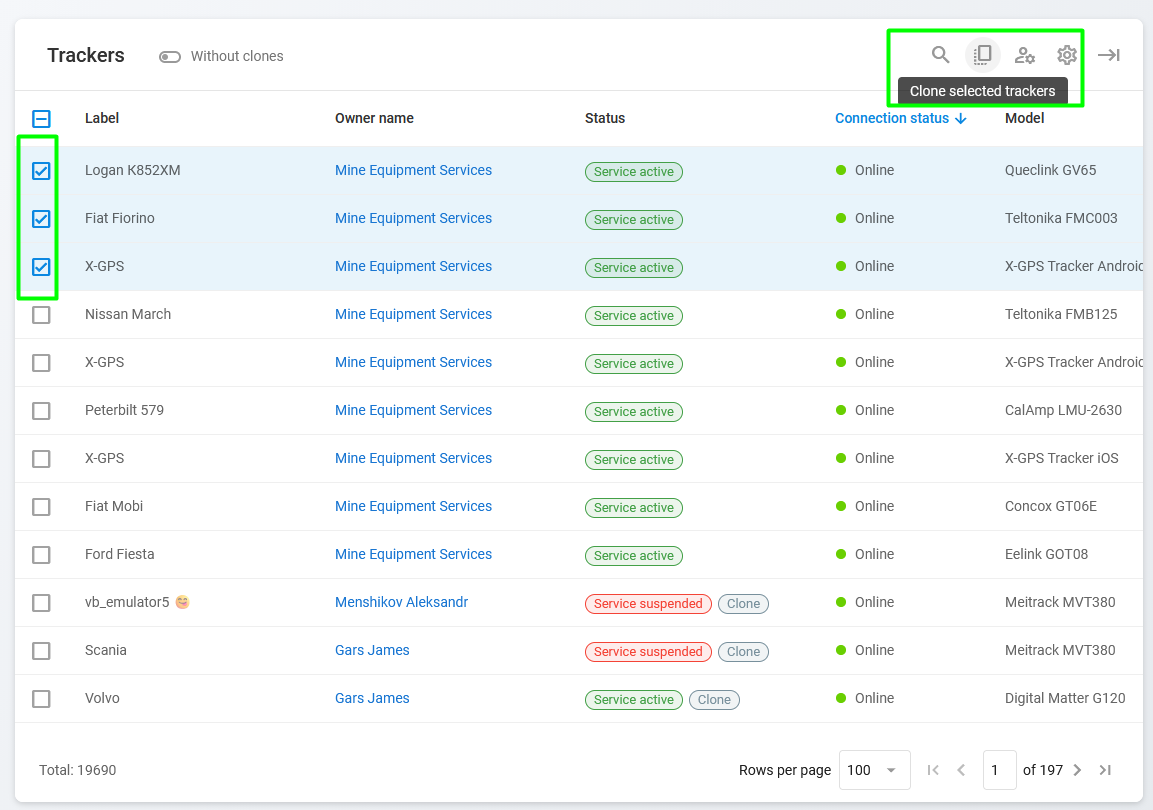
Navixy recommends cloning devices from existing accounts for the demo user account. Select specific devices that you can safely show to potential or existing customers to avoid any misunderstandings. To clone devices, navigate to the **Trackers** page and select the necessary devices. Then click **Clone selected trackers** in the toolbar.

Alternatively, if only one tracker is selected, you can click **Create clone** in the right side panel.

<figure><img src="/files/NtXYyrlQJp3KgD5ApbjM" alt="Cloning trackers"><figcaption><p>Cloning trackers</p></figcaption></figure>
{% endstep %}

{% step %}

### Add cloned trackers to the demo account

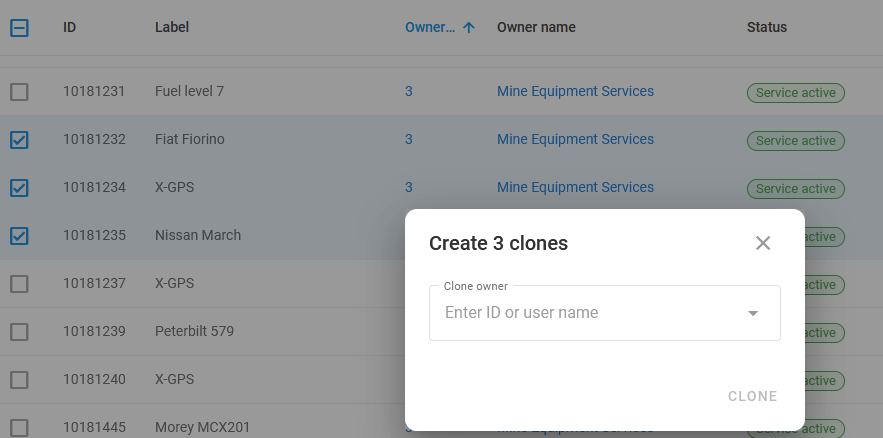
Select your demo account as a destination:

<figure><img src="/files/jBqEeLlatPNEDRe9frlE" alt="Selecting owner of multiple clones" width="375"><figcaption><p>Selecting owner of multiple clones</p></figcaption></figure>

If you're cloning a single tracker with the Create clone option on the right side panel, the window contains the tracker's information:

<figure><img src="/files/TL5GJqxl1nqtLOmkKPTg" alt="Selecting owner of a single clone" width="518"><figcaption><p>Selecting owner of a single clone</p></figcaption></figure>
{% endstep %}

{% step %}

### Add the demo account to Service preferences

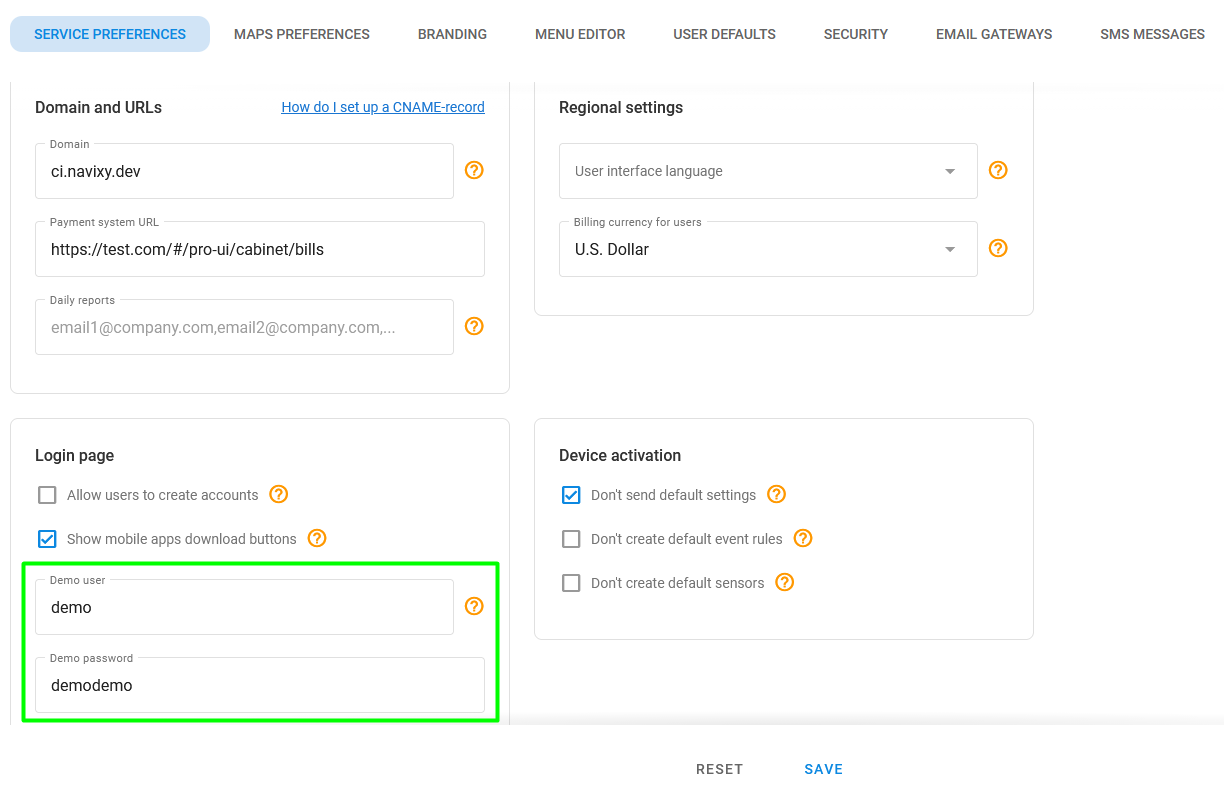
To indicate that the specified account is used for the demo purposes, navigate to **Settings** **→** **Service preferences** and enter the credentials you used for creating the demo account into the corresponding fields:

<figure><img src="/files/KWZ0hEPZEFMLT9YL7gnz" alt="Entering demo account credentials"><figcaption><p>Entering demo account credentials</p></figcaption></figure>
{% endstep %}
{% endstepper %}

## Accessing demo account

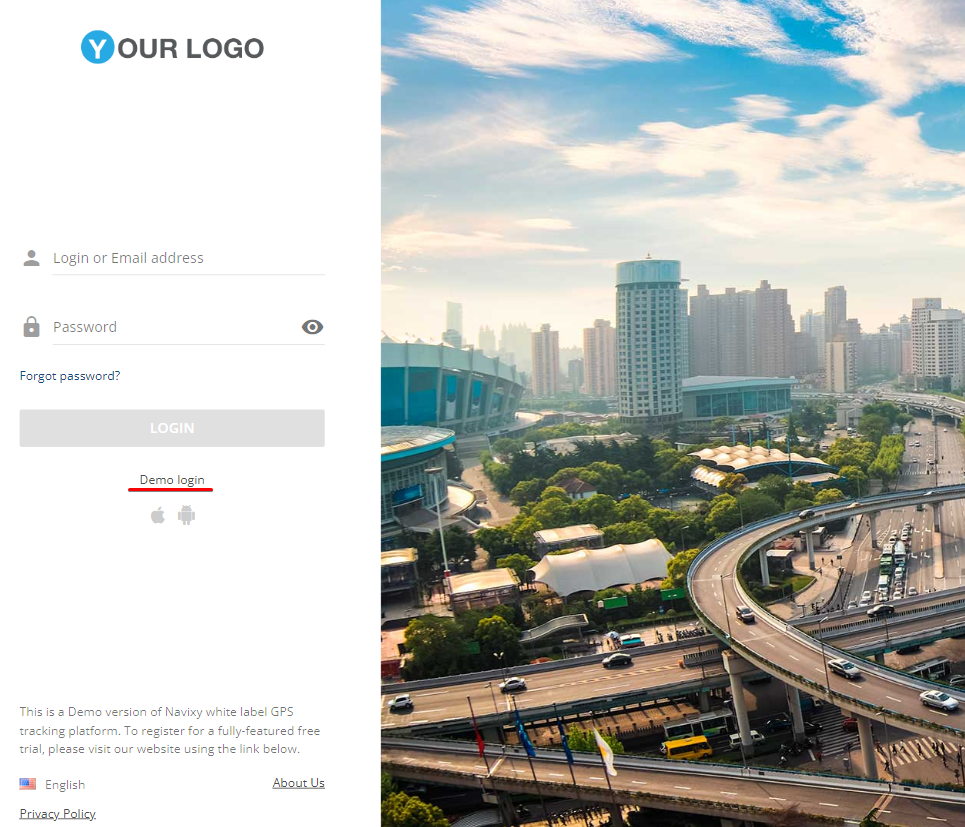
After creating the demo account, your potential customers can access it from the login page or via a direct shareable link.

### **Login page**

You can find the link to the demo version of your service on the login page. Anyone can access this link to explore all the available features of the platform and get familiar with its functionality.

<img src="/files/RYowWdtRvOp0n4Wk6a4u" alt="Demo login" width="563">

### **Shareable link**

You can also share the following direct link to the demo account with your customers by sending it to them via email or by publishing it on your corporate website. You can get this link by adding /demo to your platform URL, for example, "<https://yourdomain.com/demo>"**.**


---

# Agent Instructions
This documentation is published with GitBook. GitBook is the documentation platform designed so that both humans and AI agents can read, navigate, and reason over technical content effectively. Learn more at gitbook.com.

## Querying This Documentation
If you need additional information that is not directly available in this page, you can query the documentation dynamically by asking a question.

Perform an HTTP GET request on the current page URL with the `ask` query parameter, and the optional `goal` query parameter:

```
GET https://navixy.com/docs/admin/settings/service-preferences/demo-user-account.md?ask=<question>&goal=<endgoal>
```

`ask` is the immediate question: it should be specific, self-contained, and written in natural language.
`goal` is optional and describes the broader end goal you are ultimately trying to accomplish on behalf of the user. GitBook uses it to tailor the answer towards what is most useful for that goal.

The response will contain a direct answer to the question and relevant excerpts and sources from the documentation.

Use this mechanism when the answer is not explicitly present in the current page, you need clarification or additional context, or you want to retrieve related documentation sections.